
















Release Notes
Continuum 2026.5.1 for OFX Release Notes
May 20, 2026
Continuum 2026.5.1 (v19.5.1) for OFX - Release Notes
Windows OFX Only Release:
- Note that this particular 2026.5.1 release is just for Windows OFX. Mac OFX and other hosts remain on their existing 2026.5.0 versions.
Continuum 2026.5.1 is a maintenance update to Continuum version 2026.5.0 and is a free update for licensed users of Continuum 2026.5. For a full list of what’s new between Continuum 2026.5 and the previous Continuum 2026.0/2026.1 major releases, please refer to the initial 2026.5 release notes:
Sapphire 2026.5 release notes
May 20, 2026
What’s New in Sapphire 2026.5
New Effects
- TextureRidges
- AdvancedDefocus
New Features
- Flare Designer Improvements:
- Added per element trigger controls
- Added new offset modes
- New Builder Tools:
- Dots node
- Noise node
- ClampRange node
- Builder Improvement: Node notes
- New LensFlares
- New Glares
- New Presets
Known Issues
- Advanced Defocus: When working with large-format images (4K and higher) at full resolution, increasing certain parameters, such as Lens Vignette, can significantly increase render times. In DaVinci Resolve, this may occasionally trigger a GPU timeout error. If this occurs, try lowering the Resolution parameter.
- FFT-based effects are currently unstable in OFX and Avid hosts when rendering on AMD GPUs with HIP and are therefore set to CPU mode by default. This includes effects like RackDefocus, Convolve, FlashBulbs, and AdvancedDefocus.
- MochaWhip: Mocha Mask may need to be re-tracked if the clip length is adjusted.
- MochaWhip: In Premiere Pro 2025, if you set input_for_tracking to From, you may see both clips in Mocha. The workaround is to only trim From so that the transition does not straddle both clips in the timeline.
- Premiere Pro 2025: In transitions, the second clip s not always available in UI events like Mocha or the Preset Browser.
- FilmBurn: Stamps may change when a clip is trimmed. To work around this, pre-comp your footage with FilmBurn, then trim.
- Default Changes: In some versions of Sapphire, parameters may be given new default values. Normally, this will be handled transparently. On some hosts such as some versions of Resolve or Fusion, old projects with the original default values may erroneously get the new default value. If this happens, update the parameter with the old value. Old parameter values are listed here by effect and the version it changed. There are also presets saved with old parameter defaults.
- S_Glare changed in Sapphire 2026.5:
- “Type” changed from “Rainbow Rays” to Starstrike
- S_DissolveGlare changed in Sapphire 2026.5:
- “Type” changed from “Rainbow Rays” to Starstrike
- S_NightSky changed in Sapphire 2026.5:
- “Glare” changed from “Simple Star Glare 02” to “Optic Radiance”
- S_Shape changed in Sapphire 2026:
- “Roundness” changed from 0.0 to 1.0
- “Pointiness” changed from 2.15 to 0.0
- “Rel Width” changed from 1.0 to 1.4
- S_TVDamage and S_TVChannelChange changed in Sapphire 2025:
- The “Downsample” parameter was added. To get the old behavior back set “Downsample” to 0.
- S_WarpChroma changed in Sapphire 2023.5:
- “From Z Dist” changed from 1.5 to 0.85
- “Warp Amount” changed from 1.0 to 0.5
- “Steps” changed from 8 to 15
- S_LensFlareAutoTrack changed in Sapphire 2021.5:
- “Edge Width” changed from 0.0 to 0.3
- “Center Radius” changed from 0.0 to 0.3
- “Edge Scale Brightness” changed from 3.0 to 1.5
- “Edge Scale Width” changed from 2.0 to 1.2
- “Center Scale Brightness” changed from 2.0 to 1.5
- “Center Scale Widths” changed from 1.5 to 1.2
- S_LensFlare changed in Sapphire 2021:
- “Edge Width” changed from 0.0 to 0.3
- “Center Radius” changed from 0.0 to 0.3
- “Edge Scale Brightness” changed from 3.0 to 1.5
- “Edge Scale Width” changed from 2.0 to 1.2
- “Center Scale Brightness” changed from 2.0 to 1.5
- “Center Scale Widths” changed from 1.5 to 1.2
- S_Glint, S_GlintRainbow, and S_Glare changed in Sapphire 11:
- “Mask Type” parameter was added. “Color” option will generate backwards compatible behavior.
- S_Sharpen changed in Sapphire 11:
- “Blur Mask” changed from 0 to 0.05
- S_Beauty changed in Sapphire 9:
- “Pore Size” changed from 0 to 0.01
- “Soften Shadows” changed from 0 to 0.2
- S_Glow and S_GlowNoise changed in Sapphire 7:
- “Edge Mode” changed from 0.0 to 1.0
- S_Zap changed in Sapphire 7:
- The spline parameters were added. To get the old behavior back set “Point 3 Enable” to 0.
- In Sapphire 2025.5, Mocha tracking on fields was improved. When loading old Sapphire projects on fielded footage in Avid Media Composer, Adobe Premiere Pro, or Autodesk Flame, you may need to open mocha and re-track your mocha project.
- To support Time effects in Sapphire’s Effect Builder, S_Effect and S_Transition are no longer marked as Realtime in Media Composer by default. If you are not using Time effects in Sapphire’s Effect Builder and would like it to be marked as realtime, please edit the s_config.text file and look for the force_builder_to_realtime entry. Set this to 1 and restart Media Composer.
- Loading projects from Sapphire 2022 or older: If you get an error similar to “Node _one_minus(#) Prim: one_minus has an invalid combo of arg types” from S_Effect or S_Transition, you need to click “Edit Effect” in your effect parameters and then click “OK” to re-save the S_Effect to the host.
- Linux: Sapphire requires libGLU for the Flare Designer, Preset Browser, and Effect Designer to work correctly on Linux. If this is not installed already, it can be installed with the following command: sudo yum install mesa-libGLU.
- Resolve: PrismLens may render sharp edges in the Color tab when previewing the shape mask.
- PrismLens: May be slow in Flame.
- Not all S_UltraZap presets are visible in S_Effect
- Resolve: Aurora when used in the Color panel alone in Resolve on MacOS on Monterey with multiple GPUs, it sometimes crashes. It doesn’t crash if a ChannelSwitcher node is added upstream. Alternatively, host_gpu_integration can be turned off in s_config.
- Vegas: S_EFfect and S_Transition presets are not loading correctly.
- Resolve: The first time Sapphire is used after it’s been installed, no Sapphire related dialogs will pop up. This includes the Help Dialog, the Preset Browser, and the ColorFuse LUT chooser. If Resolve is relaunched, the dialogs all work as normal.
- If Avid is open when the installer is run, Avid may crash. If Avid crashes after install try making sure the preset browser isn’t running in the background.
- Premiere: On the first run after Sapphire’s installed, the preset browser may not shut down correctly.
- Not all S_UltraZap presets are visible in S_Effect.
- ColorFuse: ColorFuse presets don’t render in the preset browser.
- In After Effects, 2022, the Preset Browser, Flare Designer, and Effect Builder may play back slowly on the first use. To resolve, return to the host and allow After Effects to finish caching the timeline.
- UltraZapMocha: Sometimes, a straight line will apear in the zap. To fix this, add an additional control point in mocha in the part of the mocha spline that corresponds to that straight segment. Adjust the control point until the straight line segment goes away.
- Sometimes Mocha tracks slowly. If this happens, close mocha, re-open mocha, then play through the clip inside mocha. After the clip is cached in mocha, tracking will proceed smoothly. Sometimes if the clip is tracking slowly an “unable to track” error will also pop up.
- UltraZapMocha: Sometimes, a straight line will apear in the zap. To fix this, add an additional control point in mocha in the part of the mocha spline that corresponds to that straight segment. Adjust the control point until the straight line segment goes away.
- If Sapphire 2021.5 OFX is installed at the same time as 2021.0 (either AE or AVX), lensflare presets may not show up inside 2021.0. To fix this, all Sapphire plugins installed on a single machine should be 2021.5. If the second installation of Sapphire cannot be upgraded to 2021.5, the Sapphire 2021.0 plugins may be re-installed to restore the 2021.0 compatible LensFlare presets.
- Mac OS, Big Sur: if you open mocha and then open the preset browser, the preset browser will fail and generate an error. If this happens, the host will have to be restarted to fix the preset browser.
- UltraZap: On an open spline zap may do unexpected things when mixing vary-endpoint and looping parameters.
- S_ZComp: The preset browser can’t open unless an input is connected to the DepthB input.
- Deinterlace Auto fails to find a pattern on many clips.
- Premiere: The new shadow on LensFlare elements may be squished in Premiere if applied to interlaced footage.
- Premiere: Point widgets may respond slowly in Premiere after a Mocha point track has been created.
- Mocha: The Mocha UI does not correctly locate the default OCIO config file shipped with Sapphire. To use the default OCIO config file shipped with Sapphire, use the OCIO environment variable to locate said the config file.
- Resolve: Point widgets may respond slowly in Resolve after a Mocha point track has been created.
- Baselight: Sapphire 2022 does not work with Baselight on Centos 6.4.
- Vegas: Vegas will take a long time to start up the first time after installing Sapphire as Vegas generates a plugin cache. Subsequent launches will be faster.
- LensFlareAutoTrack: green/green and yellow/yellow mode will give different results if hotspot_shift is set to a non-zero value on interlaced footage.
- Mocha: Mocha point tracking widget starts in the wrong place in green/green mode on interlaced footage.
- PixelMosh and DissolvePixelMosh: These are random by design. As such, please be aware that slight pixel differences between CPU and GPU renders may be noticeable. For the best results when applying S_PixelMosh to clips, please utilize a professional codec and file format, such as a ProRes QuickTime movie, as opposed to a web video codec that employs inter-frame compression, such as H.264 in an MP4 file format.
- Loading projects from Sapphire 2022: If you get an error similar to “Node _one_minus(#) Prim: one_minus has an invalid combo of arg types”, you need to go into the Sapphire UI and then click “OK” to re-save the S_Effect to Photoshop.
- Sometimes Sapphire will open with a previous node graph. If this happens, simply delete the nodes in the node graph and create a new one.
- For best results, please convert for Smart Filters before applying Sapphire.
- Time-based parameters aren’t currently available.
Compatibility Notes
SynthEyes 2026 Build 4679 Release Notes
May 19, 2026
SynthEyes 2026 introduces a Mocha-powered affine point tracker, real-time GeoH Live Preview, expanded USD import, and the first phase of a modernized user interface - reducing drift, iteration time, and pipeline friction.
Vegas Pro 2026.0.0 Build 105 - Release Notes
May 15, 2026
Changes and fixes:
STABILITY / CRASH FIXES
- Improved overall crash resilience in multiple areas (exception safety and additional guard checks).
- Fixed crashes related to long file paths / long file names (MAX_PATH) in UI and formatting/logging code.
- Crash fix: improved safety around pointer/type usage and project/UI state handling.
- Crash fix: safer handling around VfW codec close behavior during exceptions.
- Reduced amount of superfluous data attached to crash reports.
- Improved internal error trapping/reporting reliability.
KEYFRAMES / ENVELOPES / TIMELINE EDITING
Continuum 2026.5.0 for Adobe AE/Premiere - Release Notes
May 13, 2026
Continuum 2026.5.0 (v19.5.0) for Adobe After Effects and Adobe Premiere Pro - Release Notes
What’s New in Continuum 2026.5 for Adobe (Summary of major changes since Continuum 2026.0):
BCC+ Deinterlace ML - New Filter
- Newly ported version of the original Deinterlace filter with brand new ML-based deinterlacing model for maximum quality
BCC+ Displacement Map - New Filter
- Feature-rich, fully GPU update to the classic version
- Built-in library of nearly 1,000 map textures to use as the displacement map source
- Built-in auto-animating map glitch distortions
- Map DVE Transform allowing repeating patterns and map deformations
- Separate per-channel RGB displacement overdrive
BCC+ Displacement Dissolve - New Transition
Continuum 2026.5.0 for AVX - Avid - Release Notes
May 13, 2026
Continuum 2026.5.0 (v19.5.0) for Avid AVX - Release Notes
What’s New in Continuum 2026.5 for Avid AVX (Summary of major changes since Continuum 2026.0):
BCC+ Deinterlace ML - New Filter
- Newly ported version of the original Deinterlace filter with brand new ML-based deinterlacing model for maximum quality
BCC+ Displacement Map - New Filter
- Feature-rich, fully GPU update to the classic version
- Built-in library of nearly 1,000 map textures to use as the displacement map source
- Built-in auto-animating map glitch distortions
- Map DVE Transform allowing repeating patterns and map deformations
- Separate per-channel RGB displacement overdrive
BCC+ Displacement Dissolve - New Transition
Continuum 2026.5.0 for OFX Release Notes
May 13, 2026
Continuum 2026.5.0 (v19.5.0) for OFX - Release Notes
What’s New in Continuum 2026.5 for OFX (Summary of major changes since Continuum 2026.0/2026.1):
Note, a subset of these features, such as the new Title Studio presets, were already available for 2026.1.0 users (which was Windows only), but are now available in 2026.5 for macOS as well.
BCC+ Deinterlace ML - New Filter
Continuum 2026.5.0 for Apple Final Cut Pro - Release Notes
May 13, 2026
Continuum 2026.5.0 (v19.5.0) for Apple Final Cut Pro / FxPlug - Release Notes
What’s New in Continuum 2026.5 for FxPlug (Summary of major changes since Continuum 2026.0):
BCC+ Deinterlace ML - New Filter
- Newly ported version of the original Deinterlace filter with brand new ML-based deinterlacing model for maximum quality
BCC+ Displacement Map - New Filter
- Feature-rich, fully GPU update to the classic version
- Built-in library of nearly 1,000 map textures to use as the displacement map source
- Built-in auto-animating map glitch distortions
- Map DVE Transform allowing repeating patterns and map deformations
- Separate per-channel RGB displacement overdrive
BCC+ Displacement Dissolve - New Transition
Mocha(R) Pro 2026 (v2026.0.4) Release Notes
May 1, 2026
This is a new version containing many new features and defect fixes. Release notes cover Mocha Pro, for both standalone and plugin versions of the product.
Music Studio 2026 - Release Notes
April 15, 2026
What’s new in Music Studio 2026 ?
The most important innovations in Music Studio 2026 at a glance:
- Auto Mute to protect your speakers and ears.
- Performance improvements
- VST/ARA improvements
04/10/2026 Music Studio 2026 Build 26012
- initial release
Samplitude 2026 - Release Notes
April 15, 2026
What’s new in Samplitude 2026?
The most important innovations in Samplitude 2026 at a glance:
Reworked video engine with GPU support
OSC support for remote control
Auto Mute to protect your speakers and ears.
Performance improvements
VCA Nesting
Samplitude Suite only
- FX I/O Matrix: Flexible routing of plug-in input, output, and sidechain channels.
- Soundly sound effects data base integration
| For an extended overview of what’s new in Samplitude 2026 open the help document with the link in the startup dialog! |  |
New features and changes in detail
04/10/2026 Samplitude 2026.0 Build 26012
Boris FX Licensing updates
Samplitude Suite 2026 - Release Notes
April 15, 2026
What’s new in Samplitude 2026?
The most important innovations in Samplitude 2026 at a glance:
Reworked video engine with GPU support
OSC support for remote control
Auto Mute to protect your speakers and ears.
Performance improvements
VCA Nesting
Samplitude Suite only
- FX I/O Matrix: Flexible routing of plug-in input, output, and sidechain channels.
- Soundly sound effects data base integration
| For an extended overview of what’s new in Samplitude 2026 open the help document with the link in the startup dialog! | |
New features and changes in detail
04/10/2026 Samplitude 2026.0 Build 26012
Boris FX Licensing updates
Continuum 2026.1.0 for OFX Release Notes
March 29, 2026
Continuum 2026.1.0 (v19.1.0) for OFX - Release Notes
Continuum 2026.1.0 is a maintenance update to Continuum versions 2026.0.0 and 2026.0.1 and is a free update for licensed users of Continuum 2026.0. For a full list of what’s new between Continuum 2026.0 and the previous Continuum 2025.5 major release, please refer to the initial 2026.0 release notes:
Continuum 2026.0.1 (v19.0.1) for OFX Release Notes
Continuum 2026.0.0 (v19.0.0) for OFX Release Notes
Mocha(R) Pro 2026 (v2026.0.3) Release Notes
March 25, 2026
This is a new version containing many new features and defect fixes. Release notes cover Mocha Pro, for both standalone and plugin versions of the product.
SynthEyes 2026 Build 4636 Release Notes
March 16, 2026
SynthEyes 2026 introduces a Mocha-powered affine point tracker, real-time GeoH Live Preview, expanded USD import, and the first phase of a modernized user interface - reducing drift, iteration time, and pipeline friction.
SynthEyes 2026 Build 4676 Release Notes
March 16, 2026
SynthEyes 2026 introduces a Mocha-powered affine point tracker, real-time GeoH Live Preview, expanded USD import, and the first phase of a modernized user interface - reducing drift, iteration time, and pipeline friction.
Mocha(R) Pro 2026 (v2026.0.2) Release Notes
March 9, 2026
This is a new version containing many new features and defect fixes. Release notes cover Mocha Pro, for both standalone and plugin versions of the product.
SynthEyes 2026 Build 4569 Release Notes
February 18, 2026
SynthEyes 2026 introduces a Mocha-powered affine point tracker, real-time GeoH Live Preview, expanded USD import, and the first phase of a modernized user interface - reducing drift, iteration time, and pipeline friction.
Sequoia 2026 - Release Notes
January 28, 2026
What’s new in Sequoia 2026?
The most important innovations in Sequoia 2026 at a glance:
- FX I/O Matrix: Flexible routing of plug-in input, output, and sidechain channels.
- Reworked crossfade editor for more consistent window handling. Now non-blocking.
- Quick Crossfade Shapes can be accessed via shortcut and applied interactively.
- Multichannel support for Algorithmix Renovator
- Soundly sound effects data base integration
- Reworked video engine with GPU support
- OSC support for remote control
- Auto Mute to protect your speakers and ears.
- Performance improvements
| For an extended overview of what’s new in Sequoia 2026 open the help document with the link in the startup dialog! |  |
New features and changes in detail
03/20/2026 Sequoia 2026.0.1 Build 26011
[SEQD-909] Splash screen / program icons
Sequoia 2026 - Release Notes
January 28, 2026
What’s new in Sequoia 2026?
The most important innovations in Sequoia 2026 at a glance:
- FX I/O Matrix: Flexible routing of plug-in input, output, and sidechain channels.
- Reworked crossfade editor for more consistent window handling. Now non-blocking.
- Quick Crossfade Shapes can be accessed via shortcut and applied interactively.
- Multichannel support for Algorithmix Renovator
- Soundly sound effects data base integration
- Reworked video engine with GPU support
- OSC support for remote control
- Auto Mute to protect your speakers and ears.
- Performance improvements
| For an extended overview of what’s new in Sequoia 2026 click open the help document with the link in the startup dialog! | |
New features and changes in detail
01/27/2026 Sequoia 2026.0 Build 26005
Boris FX Licensing updates
Mocha(R) Pro 2026 (v2026.0.1) Release Notes
January 20, 2026
This is a new version containing many new features and defect fixes. Release notes cover Mocha Pro, for both standalone and plugin versions of the product.
Continuum 2026.0.1 for Adobe AE/Premiere - Release Notes
December 19, 2025
Continuum 2026.0.1 (v19.0.1) for Adobe After Effects and Adobe Premiere Pro - Release Notes
Continuum 2026.0.1 is a maintenance update to Continuum version 2026.0.0 and is a free update for licensed users of Continuum 2026.0. For a full list of what’s new between Continuum 2026.0 and the previous Continuum 2025.5 major release, please refer to the initial 2026.0 release notes:
Continuum 2026.0.1 for AVX - Avid - Release Notes
December 19, 2025
Continuum 2026.0.1 (v19.0.1) for Avid AVX - Release Notes
Continuum 2026.0.1 is a maintenance update to Continuum version 2026.0.0 and is a free update for licensed users of Continuum 2026.0. For a full list of what’s new between Continuum 2026.0 and the previous Continuum 2025.5 major release, please refer to the initial 2026.0 release notes:
Continuum 2026.0.1 for OFX Release Notes
December 19, 2025
Continuum 2026.0.1 (v19.0.1) for OFX - Release Notes
Continuum 2026.0.1 is a maintenance update to Continuum version 2026.0.0 and is a free update for licensed users of Continuum 2026.0. For a full list of what’s new between Continuum 2026.0 and the previous Continuum 2025.5 major release, please refer to the initial 2026.0 release notes:
Continuum 2026.0.0 (v19.0.0) for OFX Release Notes
Continuum 2026.0.1 for Apple Final Cut Pro - Release Notes
December 19, 2025
Continuum 2026.0.1 (v19.0.1) for Apple Final Cut Pro / FxPlug - Release Notes
Continuum 2026.0.1 is a maintenance update to Continuum version 2026.0.0 and is a free update for licensed users of Continuum 2026.0. For a full list of what’s new between Continuum 2026.0 and the previous Continuum 2025.5 major release, please refer to the initial 2026.0 release notes:
Particle Illusion Pro 2026.0.1 - Release Notes
December 19, 2025
Particle Illusion Pro (Standalone) 2026.0.1 (v19.0.1) - Release Notes
What’s New in Particle Illusion Pro (Standalone) 2026.0 (Summary of major changes since Particle Illusion Standalone 2025.5):
Particle Illusion Features
- New “Reverse Animation” option - easily reverse path traversal
- New “Advanced Interpolation” option - Results in particle positions exactly following smooth curve shapes all the time, most noticeably with emitters that “write” with particles
- New 2026 Emitter Library
- Updated Position Path, Color Gradient, and Alpha Gradient presets
- UI tweaks
- Make sure Camera is selected after loading preset from menu
- Make emphasized parameters bold, golden text so they are more visually distinct
- Increase size of checkbox params in Parameter View.
Sapphire 2025.53 release notes
December 18, 2025
What’s New in Sapphire 2025.53
- Premiere Pro: Fixed an occasional render error during export.
- Nuke 16: Fixed the user interacts on MacOS.
- AMD GPUs: Fixed a crash with certain AMD GPU drivers.
What’s New in Sapphire 2025.52
- Media Composer: Fixed scaling of 8-bit legal intensity levels and avoided scaling alpha.
- Media Composer: Fixed crop top and bottom in PanAndZoom so image is not shifted.
- Autodesk: Fixed a crash when rendering to burn nodes.
What’s New in Sapphire 2025.51
- Update Mocha to fix various bugs.
- Fixed a bug preventing some S_Effect presets from loading.
- Media Composer: Fixed a bug where the alpha is incorrect on the CPU when Sapphire is applied to a png.
- Media Composer: Fixed a GPU error when the crop and transform parameters are used on certain image formats.
- Media Composer: Fixed a bug where the preview doesn’t update when loading S_Effect presets on certain versions of Media Composer.
- Photoshop: Fixed a bug where Sapphire may generate errors on non-English systems.
- Nuke: Fixed a crash in Sapphire Time effects on MacOS.
- Fixed a crash in RackDefocus.
- Added a button to the help dialog to open the logfile directory.
- Improve logging for customer support.
- Fixed a bug on Windows where the usage-data file grew unusually large.
- OFX: Turn Widgets back on for Resolve and Flame on MacOS.
- OFX: Fixed a crash with Nuke 16 on MacOS.
What’s New in Sapphire 2025.5
New Features
Music Studio 2025 - Release Notes
December 16, 2025
What’s new in Music Studio 2025 ?
The most important innovations in Music Studio 2025 at a glance:
AudioWarp: Correct timings quickly and efficiently directly on the objects. To do this, warp markers can be set in audio objects, allowing the audio material to be grabbed and moved in order to correct irregularities in a recording or to change the rhythm of the audio material.
Automatic input metering for recording tracks: When a track is enabled for recording, the level meter now automatically switches to the corresponding hardware input. Manual switching is no longer necessary. In addition, all track inputs can be used as sources in the visualization window.
Samplitude Suite 2025 - Release Notes
December 16, 2025
What’s new in Samplitude 2025 ?
The most important innovations in Samplitude 2025 at a glance:
Dolby Atmos: (Samplitude Suite only)
- Edit and import Dolby Atmos metadata: The new ADM Editor allows metadata to be created, modified, or imported from existing projects. Samplitude now allows the import of Dolby Atmos metadata from ADM/BWF files.
- 3D object panning and automatic positioning: The 3D object panning mode ensures precise positioning of ADM objects. If you start from a stereo project, tracks added as objects in the ADM Editor are automatically placed in the corresponding positions. Mono tracks are positioned in the front center by default, while stereo tracks use Y symmetry by default, but can be switched to angle offset behavior.
- Monitoring and renderer output options: Monitoring playback is possible using the Dolby Atmos renderer. Stereo or binaural output can be sent separately to the Monitoring section. Additionally, a loudness meter provides real-time information about the levels, and a trim control allows all renderer inputs to be scaled to achieve the desired loudness.
- ADM file export and loudness management: Projects can be exported as ADM files for use with Dolby Atmos encoding tools and distribution services. The loudness values can optionally be written to a separate text file. The user can choose whether to export the entire project or a selected range.
- Additional resources and Dolby Atmos template: For further details, press F1 in the ADM Editor. Alternatively, you can use the new Dolby Atmos template (Dolby Atmos 7.1.4) to get started with Dolby Atmos.
3D surround and extended 2D surround with up to 12 surround channels (Samplitude Suite only)
Sequoia 2025 - Release Notes
December 16, 2025
What’s new in Sequoia 17 ?
The most important innovations in Sequoia 17 at a glance:
Optimized export workflow with a new export window and an export list to process several formats or projects at once.
Reworked crossfade editor for more consistent window handling
Take Lanes: Comping, i.e. combining sections from different recording takes, no longer takes place in a separate Take Composer window, but directly in the project below the track in the new Take Lanes
Mocha(R) Pro 2026 (v2026.0.0) Release Notes
December 10, 2025
This is a new version containing many new features and defect fixes. Release notes cover Mocha Pro, for both standalone and plugin versions of the product.
Sapphire 2026 release notes
November 19, 2025
What’s New in Sapphire 2026.0.1
- Median: Fixed a render error along the edges.
- LensFlare: Fixed a rendering issue when rendering on interlaced footage.
- Premiere: Improved Mocha Tracking on interlaced footage.
- FilmBurn: Fixed the Full Reset preset.
- Fixed a bug in parameter responsiveness on some hosts.
- Premiere: Improved performance for certain effects on NVIDIA and Apple GPUs when the GPU suite is enabled.
What’s New in Sapphire 2026
New Effects
- FilmBurn
- FilmBurnTransition
- MochaWhip
New Features
Sapphire 2026 release notes
November 19, 2025
What’s New in Sapphire 2026
New Effects
- FilmBurn
- FilmBurnTransition
- MochaWhip
New Features
- Builder: Add Parameter Links to show the layout of driven parameters in the nodegraph
- Mocha Improvements
- New LensFlares
- New Presets
- Updated HIP for improved AMD support
Known Issues
- MochaWhip: Mocha Mask may need to be re-tracked if the clip length is adjusted.
- MochaWhip: In Premiere Pro 2025, if you set input_for_tracking to From, you may see both clips in Mocha. The workaround is to only trim From so that the transition does not straddle both clips in the timeline.
- Premiere Pro 2025: In transitions, the second clip s not always available in UI events like Mocha or the Preset Browser.
- FilmBurn: Stamps may change when a clip is trimmed. To work around this, pre-comp your footage with FilmBurn, then trim.
- In Sapphire 2025.5, Mocha tracking on fields was improved. When loading old Sapphire projects on fielded footage in Avid Media Composer, Adobe Premiere Pro, or Autodesk Flame, you may need to open mocha and re-track your mocha project.
- Loading projects from Sapphire 2022 or older: If you get an error similar to “Node _one_minus(#) Prim: one_minus has an invalid combo of arg types” from S_Effect or S_Transition, you need to click “Edit Effect” in your effect parameters and then click “OK” to re-save the S_Effect to the host.
- Premiere: On the first run after Sapphire’s installed, the preset browser may not shut down correctly.
- Not all S_UltraZap presets are visible in S_Effect.
- In After Effects, 2022, the Preset Browser, Flare Designer, and Effect Builder may play back slowly on the first use. To resolve, return to the host and allow After Effects to finish caching the timeline.
- UltraZapMocha: Sometimes, a straight line will apear in the zap. To fix this, add an additional control point in mocha in the part of the mocha spline that corresponds to that straight segment. Adjust the control point until the straight line segment goes away.
- Sometimes Mocha tracks slowly. If this happens, close mocha, re-open mocha, then play through the clip inside mocha. After the clip is cached in mocha, tracking will proceed smoothly. Sometimes if the clip is tracking slowly an “unable to track” error will also pop up.
- If Sapphire 2021.5 OFX is installed at the same time as 2021.0 (either AE or AVX), lensflare presets may not show up inside 2021.0. To fix this, all Sapphire plugins installed on a single machine should be 2021.5. If the second installation of Sapphire cannot be upgraded to 2021.5, the Sapphire 2021.0 plugins may be re-installed to restore the 2021.0 compatible LensFlare presets.
- Mac OS, Big Sur: if you open mocha and then open the preset browser, the preset browser will fail and generate an error. If this happens, the host will have to be restarted to fix the preset browser.
- UltraZap: On an open spline zap may do unexpected things when mixing vary-endpoint and looping parameters.
- S_ZComp: The preset browser can’t open unless an input is connected to the DepthB input.
- Premiere: The new shadow on LensFlare elements may be squished in Premiere if applied to interlaced footage.
- Premiere: Point widgets may respond slowly in Premiere after a Mocha point track has been created.
- Mocha: The Mocha UI does not correctly locate the default OCIO config file shipped with Sapphire. To use the default OCIO config file shipped with Sapphire, use the OCIO environment variable to locate said the config file.
- PixelMosh and DissolvePixelMosh: These are random by design. As such, please be aware that slight pixel differences between CPU and GPU renders may be noticeable. For the best results when applying S_PixelMosh to clips, please utilize a professional codec and file format, such as a ProRes QuickTime movie, as opposed to a web video codec that employs inter-frame compression, such as H.264 in an MP4 file format.
Compatibility Notes
Samplitude 2025 - Release Notes
November 6, 2025
What’s new in Samplitude 2025 ?
The most important innovations in Samplitude 2025 at a glance:
Dolby Atmos: (Samplitude Suite only)
- Edit and import Dolby Atmos metadata: The new ADM Editor allows metadata to be created, modified, or imported from existing projects. Samplitude now allows the import of Dolby Atmos metadata from ADM/BWF files.
- 3D object panning and automatic positioning: The 3D object panning mode ensures precise positioning of ADM objects. If you start from a stereo project, tracks added as objects in the ADM Editor are automatically placed in the corresponding positions. Mono tracks are positioned in the front center by default, while stereo tracks use Y symmetry by default, but can be switched to angle offset behavior.
- Monitoring and renderer output options: Monitoring playback is possible using the Dolby Atmos renderer. Stereo or binaural output can be sent separately to the Monitoring section. Additionally, a loudness meter provides real-time information about the levels, and a trim control allows all renderer inputs to be scaled to achieve the desired loudness.
- ADM file export and loudness management: Projects can be exported as ADM files for use with Dolby Atmos encoding tools and distribution services. The loudness values can optionally be written to a separate text file. The user can choose whether to export the entire project or a selected range.
- Additional resources and Dolby Atmos template: For further details, press F1 in the ADM Editor. Alternatively, you can use the new Dolby Atmos template (Dolby Atmos 7.1.4) to get started with Dolby Atmos.
3D surround and extended 2D surround with up to 12 surround channels (Samplitude Suite only)
Continuum 2026.0.0 for Adobe AE/Premiere - Release Notes
October 29, 2025
Continuum 2026.0.0 (v19.0.0) for Adobe After Effects and Adobe Premiere Pro - Release Notes
What’s New in Continuum 2026 for Adobe (Summary of major changes since Continuum 2025.5):
BCC+ Primatte Studio - New Effect
- Fully GPU accelerated update to Primatte Studio with faster renders, a new custom keying window in the FX Editor for consistent UI across all hosts, built-in AI Denoising, new color matching, and full float rendering pipelines.
BCC+ Face ML - New Effect and Pixel Chooser Option
Continuum 2026.0.0 for AVX - Avid - Release Notes
October 29, 2025
Continuum 2026.0.0 (v19.0.0) for Avid AVX - Release Notes
What’s New in Continuum 2026 for Avid AVX (Summary of major changes since Continuum 2025.5):
BCC+ Primatte Studio - New Effect
- Fully GPU accelerated update to Primatte Studio with faster renders, a new custom keying window in the FX Editor for consistent UI across all hosts, built-in AI Denoising, new color matching, and full float rendering pipelines.
BCC+ Face ML - New Effect and Pixel Chooser Option
Continuum 2026.0.0 for OFX Release Notes
October 29, 2025
Continuum 2026.0.0 (v19.0.0) for OFX - Release Notes
What’s New in Continuum 2026 for OFX (Summary of major changes since Continuum 2025.5):
BCC+ Primatte Studio - New Effect
- Fully GPU accelerated update to Primatte Studio with faster renders, a new custom keying window in the FX Editor for consistent UI across all hosts, built-in AI Denoising, new color matching, and full float rendering pipelines.
BCC+ Face ML - New Effect and Pixel Chooser Option
Continuum 2026.0.0 for Apple Final Cut Pro - Release Notes
October 29, 2025
Continuum 2026.0.0 (v19.0.0) for Apple Final Cut Pro / FxPlug - Release Notes
What’s New in Continuum 2026 for FxPlug (Summary of major changes since Continuum 2025.5):
BCC+ Primatte Studio - New Effect
- Fully GPU accelerated update to Primatte Studio with faster renders, a new custom keying window in the FX Editor for consistent UI across all hosts, built-in AI Denoising, new color matching, and full float rendering pipelines.
BCC+ Face ML - New Effect and Pixel Chooser Option
Mocha Pro 2025 v12.5.3 Release Notes
October 26, 2025
This is a new version containing many new features and defect fixes. Release notes cover Mocha Pro, for both standalone and plugin versions of the product.
Continuum 2025.5.2 for Adobe AE/Premiere - Release Notes
September 27, 2025
Continuum 2025.5.2 (v18.5.2) for Adobe After Effects and Adobe Premiere Pro - Release Notes
Continuum 2025.5.2 is a maintenance update to Continuum versions 2025.5.0 and 2025.5.1 and is a free update for licensed users of Continuum 2025.5. For a full list of what’s new between Continuum 2025.5 and the previous Continuum 2025 major release, please refer to the initial 2025.5 release notes:
Continuum 2025.5.2 for Apple Final Cut Pro - Release Notes
September 27, 2025
Continuum 2025.5.2 (v18.5.2) for Apple Final Cut Pro / FxPlug - Release Notes
Continuum 2025.5.2 is a maintenance update to Continuum versions 2025.5.0 and 2025.5.1 and is a free update for licensed users of Continuum 2025.5. For a full list of what’s new between Continuum 2025.5 and the previous Continuum 2025 major release, please refer to the initial 2025.5 release notes:
Continuum 2025.5.2 for AVX - Avid - Release Notes
September 27, 2025
Continuum 2025.5.2 (v18.5.2) for Avid AVX - Release Notes
Continuum 2025.5.2 is a maintenance update to Continuum versions 2025.5.0 and 2025.5.1 and is a free update for licensed users of Continuum 2025.5. For a full list of what’s new between Continuum 2025.5 and the previous Continuum 2025 major release, please refer to the initial 2025.5 release notes:
Continuum 2025.5.2 for OFX Release Notes
September 27, 2025
Continuum 2025.5.2 (v18.5.2) for OFX - Release Notes
Continuum 2025.5.2 is a maintenance update to Continuum versions 2025.5.0 and 2025.5.1 and is a free update for licensed users of Continuum 2025.5. For a full list of what’s new between Continuum 2025.5 and the previous Continuum 2025 major release, please refer to the initial 2025.5 release notes:
Particle Illusion Pro 2025.5.2 - Release Notes
September 27, 2025
Particle Illusion Pro (Standalone) 2025.5.2 (v18.5.2) - Release Notes
Particle Illusion Pro (Standalone) 2025.5.2 is a maintenance update to version 2025.5.1 and is a free update for licensed users of Particle Illusion Pro (Standalone) 2025.5. For a full list of what’s new between Particle Illusion Pro (Standalone) 2025.5 and the previous Particle Illusion Pro (Standalone) 2025 major release, please refer to the initial 2025.5 release notes:
Continuum 2025 (v18.0.4) for Adobe AE/Premiere - Release Notes
September 26, 2025
Continuum 2025 (v18.0.4) for Adobe After Effects and Adobe Premiere Pro - Release Notes
Continuum 2025 (v18.0.4) is a maintenance update to Continuum 2025 versions 18.0.0, 18.0.1, 18.0.2, and 18.0.3 and is a free update for licensed users of Continuum 2025. For a full list of what’s new between Continuum 2025 and the previous Continuum 2024.5 major release, please refer to the initial 2025 release notes:
Continuum 2025 (v18.0.4) for Apple Final Cut Pro - Release Notes
September 26, 2025
Continuum 2025 (v18.0.4) for Apple Final Cut Pro / FxPlug - Release Notes</span
Continuum 2025 (v18.0.3) is a maintenance update to Continuum 2025 versions 18.0.0, 18.0.1, and 18.0.2 and is a free update for licensed users of Continuum 2025. It includes several important improvements (see below). For a full list of what’s new between Continuum 2025 and the previous Continuum 2024.5 major release, please refer to the initial 2025 release notes:
Continuum 2025 (v18.0.4) for AVX - Avid - Release Notes
September 26, 2025
Continuum 2025 (v18.0.4) for Avid AVX - Release Notes
Continuum 2025 (v18.0.4) is a maintenance update to Continuum 2025 versions 18.0.0, 18.0.1, 18.0.2, and 18.0.3 and is a free update for licensed users of Continuum 2025. For a full list of what’s new between Continuum 2025 and the previous Continuum 2024.5 major release, please refer to the initial 2025 release notes:
Continuum 2025 (v18.0.4) for OFX Release Notes
September 26, 2025
Continuum 2025 (v18.0.4) for OFX - Release Notes
Continuum 2025 (v18.0.4) is a maintenance update to Continuum 2025 versions 18.0.0, 18.0.1, 18.0.2, and 18.0.3 and is a free update for licensed users of Continuum 2025. For a full list of what’s new between Continuum 2025 and the previous Continuum 2024.5 major release, please refer to the initial 2025 release notes:
Particle Illusion Pro 2025 (v18.0.4) - Release Notes
September 26, 2025
Particle Illusion Pro (Standalone) 2025 (v18.0.4) - Release Notes
Particle Illusion Pro 2025 (v18.0.4) is a maintenance update to Particle Illusion Pro 2025 versions 18.0.0, 18.0.1, and 18.0.2 and is a free update for licensed users of Particle Illusion Pro 2025. For a full list of what’s new between Particle Illusion Pro 2025 and the previous Particle Illusion Pro 2024.5 major release, please refer to the initial 2025 release notes
Continuum 2024.5 (v17.5.5) for Adobe AE/Premiere - Release Notes
September 25, 2025
Continuum 2024.5 (v17.5.5) for Adobe After Effects and Adobe Premiere Pro - Release Notes
Continuum 2024.5 (v17.5.5) is a maintenance update to Continuum 2024.5 versions 17.5.0, 17.5.1, 17.5.2, 17.5.3, and 17.5.4 and is a free update for licensed users of Continuum 2024.5. It includes several important fixes and feature enhancements (see below). For a full list of what’s new between Continuum 2024.5 and the previous Continuum 2024 major release, please refer to the initial 2024.5 release notes:
Continuum 2024.5 (v17.5.5) for Apple Final Cut Pro - Release Notes
September 25, 2025
Continuum 2024.5 (v17.5.5) for Apple Final Cut Pro / FxPlug - Release Notes
Continuum 2024.5 (v17.5.5) is a maintenance update to Continuum 2024.5 versions 17.5.0, 17.5.1, 17.5.2, 17.5.3, and 17.5.4 and is a free update for licensed users of Continuum 2024.5. It includes several important fixes and feature enhancements (see below). For a full list of what’s new between Continuum 2024.5 and the previous Continuum 2024 major release, please refer to the initial 2024.5 release notes:
Continuum 2024.5 (v17.5.5) for AVX - Avid - Release Notes
September 25, 2025
Continuum 2024.5 (v17.5.5) for Avid AVX - Release Notes
Continuum 2024.5 (v17.5.5) is a maintenance update to Continuum 2024.5 versions 17.5.0, 17.5.1, 17.5.2, 17.5.3, and 17.5.4 and is a free update for licensed users of Continuum 2024.5. It includes several important fixes and feature enhancements (see below). For a full list of what’s new between Continuum 2024.5 and the previous Continuum 2024 major release, please refer to the initial 2024.5 release notes:
Continuum 2024.5 (v17.5.5) for OFX Release Notes
September 25, 2025
Continuum 2024.5 (v17.5.5) for OFX - Release Notes
Continuum 2024.5 (v17.5.5) is a maintenance update to Continuum 2024.5 versions 17.5.0, 17.5.1, 17.5.2, 17.5.3, and 17.5.4 and is a free update for licensed users of Continuum 2024.5. It includes several important fixes and feature enhancements (see below). For a full list of what’s new between Continuum 2024.5 and the previous Continuum 2024 major release, please refer to the initial 2024.5 release notes:
Particle Illusion Pro 2024.5 (v17.5.5) - Release Notes
September 25, 2025
Particle Illusion Pro (Standalone) 2024.5 (v17.5.5) - Release Notes
Particle Illusion Pro 2024.5 (v17.5.5) is a maintenance update to Particle Illusion Pro 2024.5 versions 17.5.0 and 17.5.3, and is a free update for licensed users of Particle Illusion Pro 2024.5. For a full list of what’s new between Particle Illusion Pro 2024.5 and the previous Particle Illusion Pro 2024 major release, please refer to the initial 2024.5 release notes
Mocha Pro 2025 v12.5.2 Release Notes
September 17, 2025
This is a new version containing many new features and defect fixes. Release notes cover Mocha Pro, for both standalone and plugin versions of the product.
SynthEyes 2025.5.1 Release Notes
September 9, 2025
SynthEyes 2025.5 introduces AI-driven ML Motion Estimation, flexible lens workflow exports, and mesh-to-tracker parenting, delivering smarter tracking, non-destructive distortion handling, and cleaner scene layout for faster, more accurate pipelines.
Mocha Pro 2025 v12.5.1 Release Notes
August 1, 2025
This is a new version containing many new features and defect fixes. Release notes cover Mocha Pro, for both standalone and plugin versions of the product.
Sapphire 2025.03 release notes
July 29, 2025
What’s New in Sapphire 2025.03
- Media Composer: Fixed scaling of 8-bit legal intensity levels and avoided scaling alpha.
- Media Composer: Fixed crop top and bottom in PanAndZoom so image is not shifted.
- Autodesk: Fixed a crash when rendering to burn nodes.
What’s New in Sapphire 2025.02
- Mac: Improved support for multiple GPU’s.
- Fixed a crash when loading certain S_Effect presets.
- Fixed a bug when using WarpMagnify in S_Effect.
- Photoshop: Fixed a bug where Sapphire didn’t work after first run on non-english systems.
- Media Composer: Fixed a bug where the alpha is incorrect on the CPU when Sapphire is applied to a png.
- Media Composer: Fixed a GPU error when the crop and transform parameters are used on certain image formats.
- Media Composer: Fixed a bug where the preview doesn’t update when loading S_Effect presets on certain versions of Media Composer.
- Nuke: Prevent Sapphire from crashing when used in Nuke 16 on MacOS by disabling widgets.
What’s New in Sapphire 2025.01
- Improved Sapphire’s dialog stability in Media Composer.
- Improved stability of effects that utilize an invisible string parameter - particularly in Nuke. This affects the following effects: S_Effect, S_Transition, S_Glare, S_Flashbulbs, S_NightSky, S_PrismLens, S_LensFlare, S_LensFlareAutoTrack, S_DissolveLensFlare, S_DissolveGlare, and S_DissolveFlashbulb.
- S_OCIOTransform: Fixed a warning regarding the OCIO config location when upgrading projects that contain S_OCIOTransform.
- Prevent multiple dialogs from popping up at once.
- Added Apple Silicon support to AVX.
- Improved stability on macOS 12 for effects that downsample.
What’s New in Sapphire 2025
New Effects
Sapphire 2025.52 release notes
July 25, 2025
What’s New in Sapphire 2025.52
- Media Composer: Fixed scaling of 8-bit legal intensity levels and avoided scaling alpha.
- Media Composer: Fixed crop top and bottom in PanAndZoom so image is not shifted.
- Autodesk: Fixed a crash when rendering to burn nodes.
What’s New in Sapphire 2025.51
- Update Mocha to fix various bugs.
- Fixed a bug preventing some S_Effect presets from loading.
- Media Composer: Fixed a bug where the alpha is incorrect on the CPU when Sapphire is applied to a png.
- Media Composer: Fixed a GPU error when the crop and transform parameters are used on certain image formats.
- Media Composer: Fixed a bug where the preview doesn’t update when loading S_Effect presets on certain versions of Media Composer.
- Photoshop: Fixed a bug where Sapphire may generate errors on non-English systems.
- Nuke: Fixed a crash in Sapphire Time effects on MacOS.
- Fixed a crash in RackDefocus.
- Added a button to the help dialog to open the logfile directory.
- Improve logging for customer support.
- Fixed a bug on Windows where the usage-data file grew unusually large.
- OFX: Turn Widgets back on for Resolve and Flame on MacOS.
- OFX: Fixed a crash with Nuke 16 on MacOS.
What’s New in Sapphire 2025.5
New Features
Particle Illusion Pro 2025.5.1 - Release Notes
July 17, 2025
Particle Illusion Pro (Standalone) 2025.5.1 (v18.5.1) - Release Notes
What’s New in Particle Illusion Pro (Standalone) 2025.5 (Summary of major changes since Particle Illusion Standalone 2025):
Particle Illusion Features
- 3D Camera Animation Presets - Choose from an array of pre-animated 3D camera presets or add/save your own.
- New 2025.5 Emitter Library
- Numerous UI / Ease-of-Use Refinements (see below)
Fixes and Polish - Particle Illusion Pro (Standalone) 2025.5.1:
SynthEyes 2025.5 Build 3376 Release Notes
July 16, 2025
SynthEyes 2025.5 introduces AI-driven ML Motion Estimation, flexible lens workflow exports, and mesh-to-tracker parenting, delivering smarter tracking, non-destructive distortion handling, and cleaner scene layout for faster, more accurate pipelines.
Continuum 2025.5.1 for Adobe AE/Premiere - Release Notes
July 15, 2025
Continuum 2025.5.1 (v18.5.1) for Adobe After Effects and Adobe Premiere Pro - Release Notes
Continuum 2025.5.1 is a maintenance update to Continuum 2025.5.0 and is a free update for licensed users of Continuum 2025.5. For a full list of what’s new between Continuum 2025.5 and the previous Continuum 2025 major release, please refer to the initial 2025.5 release notes:
Continuum 2025.5.1 for AVX - Avid - Release Notes
July 15, 2025
Continuum 2025.5.1 (v18.5.1) for Avid AVX - Release Notes
Continuum 2025.5.1 is a maintenance update to Continuum 2025.5.0 and is a free update for licensed users of Continuum 2025.5. For a full list of what’s new between Continuum 2025.5 and the previous Continuum 2025 major release, please refer to the initial 2025.5 release notes:
Continuum 2025.5.0 (v18.5.0) for Avid AVX
Feature Enhancements in Continuum 2025.5.1 v18.5.1 for Avid AVX:
Continuum 2025.5.1 for OFX Release Notes
July 15, 2025
Continuum 2025.5.1 (v18.5.1) for OFX - Release Notes
Continuum 2025.5.1 is a maintenance update to Continuum 2025.5.0 and is a free update for licensed users of Continuum 2025.5. For a full list of what’s new between Continuum 2025.5 and the previous Continuum 2025 major release, please refer to the initial 2025.5 release notes:
Continuum 2025.5.0 (v18.5.0) for OFX
Feature Enhancements in Continuum 2025.5.1 v18.5.1 for OFX:
Continuum 2025.5.1 for Apple Final Cut Pro - Release Notes
July 15, 2025
Continuum 2025.5.1 (v18.5.1) for Apple Final Cut Pro / FxPlug - Release Notes
Continuum 2025.5.1 is a maintenance update to Continuum 2025.5.0 and is a free update for licensed users of Continuum 2025.5. For a full list of what’s new between Continuum 2025.5 and the previous Continuum 2025 major release, please refer to the initial 2025.5 release notes:
Mocha Pro 2025 v12.5.0 Release Notes
June 11, 2025
This is a new version containing many new features and defect fixes. Release notes cover Mocha Pro, for both standalone and plugin versions of the product.
Sapphire 2025.01 release notes
June 7, 2025
What’s New in Sapphire 2025.02
- Mac: Improved support for multiple GPU’s.
- Fixed a crash when loading certain S_Effect presets.
- Fixed a bug when using WarpMagnify in S_Effect.
- Photoshop: Fixed a bug where Sapphire didn’t work after first run on non-english systems.
- Media Composer: Fixed a bug where the alpha is incorrect on the CPU when Sapphire is applied to a png.
- Media Composer: Fixed a GPU error when the crop and transform parameters are used on certain image formats.
- Media Composer: Fixed a bug where the preview doesn’t update when loading S_Effect presets on certain versions of Media Composer.
- Nuke: Prevent Sapphire from crashing when used in Nuke 16 on MacOS by disabling widgets.
What’s New in Sapphire 2025.01
- Improved Sapphire’s dialog stability in Media Composer.
- Improved stability of effects that utilize an invisible string parameter - particularly in Nuke. This affects the following effects: S_Effect, S_Transition, S_Glare, S_Flashbulbs, S_NightSky, S_PrismLens, S_LensFlare, S_LensFlareAutoTrack, S_DissolveLensFlare, S_DissolveGlare, and S_DissolveFlashbulb.
- S_OCIOTransform: Fixed a warning regarding the OCIO config location when upgrading projects that contain S_OCIOTransform.
- Prevent multiple dialogs from popping up at once.
- Added Apple Silicon support to AVX.
- Improved stability on macOS 12 for effects that downsample.
What’s New in Sapphire 2025
New Effects
Sapphire 2025.51 release notes
June 3, 2025
What’s New in Sapphire 2025.51
- Update Mocha to fix various bugs.
- Fixed a bug preventing some S_Effect presets from loading.
- Media Composer: Fixed a bug where the alpha is incorrect on the CPU when Sapphire is applied to a png.
- Media Composer: Fixed a GPU error when the crop and transform parameters are used on certain image formats.
- Media Composer: Fixed a bug where the preview doesn’t update when loading S_Effect presets on certain versions of Media Composer.
- Photoshop: Fixed a bug where Sapphire may generate errors on non-English systems.
- Nuke: Fixed a crash in Sapphire Time effects on MacOS.
- Fixed a crash in RackDefocus.
- Added a button to the help dialog to open the logfile directory.
- Improve logging for customer support.
- Fixed a bug on Windows where the usage-data file grew unusually large.
- OFX: Turn Widgets back on for Resolve and Flame on MacOS.
- OFX: Fixed a crash with Nuke 16 on MacOS.
What’s New in Sapphire 2025.5
New Features
Continuum 2025.5.0 for Adobe AE/Premiere - Release Notes
May 21, 2025
Continuum 2025.5.0 (v18.5.0) for Adobe After Effects and Adobe Premiere Pro - Release Notes
What’s New in Continuum 2025.5 for Adobe (Summary of major changes since Continuum 2025):
BCC+ Depth Map ML (new filter)
- Accurate, tunable, ML-based Depth Map generator
BCC+ Frame Fixer ML (new filter)
- Replace damaged frames, e.g. from flash photography or degraded media, using ML powered frame propagation.
- Also useful for hiding jump cuts and for stylized frame interpolation
BCC+ ST Map (new filter)
Continuum 2025.5.0 for AVX - Avid - Release Notes
May 21, 2025
Continuum 2025.5.0 (v18.5.0) for Avid AVX - Release Notes
What’s New in Continuum 2025.5 for Avid AVX (Summary of major changes since Continuum 2025):
BCC+ Depth Map ML (new filter)
- Accurate, tunable, ML-based Depth Map generator
BCC+ Frame Fixer ML (new filter)
- Replace damaged frames, e.g. from flash photography or degraded media, using ML powered frame propagation.
- Also useful for hiding jump cuts and for stylized frame interpolation
BCC+ ST Map (new filter)
Continuum 2025.5.0 for OFX Release Notes
May 21, 2025
Continuum 2025.5.0 (v18.5.0) for OFX - Release Notes
What’s New in Continuum 2025.5 for OFX (Summary of major changes since Continuum 2025):
BCC+ Depth Map ML (new filter)
- Accurate, tunable, ML-based Depth Map generator
BCC+ Frame Fixer ML (new filter)
- Replace damaged frames, e.g. from flash photography or degraded media, using ML powered frame propagation.
- Also useful for hiding jump cuts and for stylized frame interpolation
BCC+ ST Map (new filter)
Continuum 2025.5.0 for Apple Final Cut Pro - Release Notes
May 21, 2025
Continuum 2025.5.0 (v18.5.0) for Apple Final Cut Pro / FxPlug - Release Notes
What’s New in Continuum 2025.5 for FxPlug (Summary of major changes since Continuum 2025):
BCC+ Depth Map ML (new filter)
- Accurate, tunable, ML-based Depth Map generator
BCC+ Frame Fixer ML (new filter)
- Replace damaged frames, e.g. from flash photography or degraded media, using ML powered frame propagation.
- Also useful for hiding jump cuts and for stylized frame interpolation
BCC+ ST Map (new filter)
Sapphire 2025.5 release notes
April 30, 2025
What’s New in Sapphire 2025.5
New Features
- User Interface updates to the Preset Browser, Effect Builder, and Flare Designer
- GPU Support for AMD cards on Windows.
- New and Improved Mocha Features
- “Apply Mask” parameter added to several effects:
- PixelSort
- WarpPolar
- WarpRepeat
- WarpChroma
- Shake
- Distort
- Kaleido
- KaleidoPolar
- KaleidoRadial
- New LensFlares
- New Builder Presets
- New Presets for many effects
Known Issues
- Loading projects from Sapphire 2022 or older: If you get an error similar to “Node _one_minus(#) Prim: one_minus has an invalid combo of arg types” from S_Effect or S_Transition, you need to click “Edit Effect” in your effect parameters and then click “OK” to re-save the S_Effect to the host.
- Premiere: On the first run after Sapphire’s installed, the preset browser may not shut down correctly.
- Not all S_UltraZap presets are visible in S_Effect.
- In After Effects, 2022, the Preset Browser, Flare Designer, and Effect Builder may play back slowly on the first use. To resolve, return to the host and allow After Effects to finish caching the timeline.
- UltraZapMocha: Sometimes, a straight line will apear in the zap. To fix this, add an additional control point in mocha in the part of the mocha spline that corresponds to that straight segment. Adjust the control point until the straight line segment goes away.
- Sometimes Mocha tracks slowly. If this happens, close mocha, re-open mocha, then play through the clip inside mocha. After the clip is cached in mocha, tracking will proceed smoothly. Sometimes if the clip is tracking slowly an “unable to track” error will also pop up.
- If Sapphire 2021.5 OFX is installed at the same time as 2021.0 (either AE or AVX), lensflare presets may not show up inside 2021.0. To fix this, all Sapphire plugins installed on a single machine should be 2021.5. If the second installation of Sapphire cannot be upgraded to 2021.5, the Sapphire 2021.0 plugins may be re-installed to restore the 2021.0 compatible LensFlare presets.
- Mac OS, Big Sur: if you open mocha and then open the preset browser, the preset browser will fail and generate an error. If this happens, the host will have to be restarted to fix the preset browser.
- UltraZap: On an open spline zap may do unexpected things when mixing vary-endpoint and looping parameters.
- S_ZComp: The preset browser can’t open unless an input is connected to the DepthB input.
- Premiere: The new shadow on LensFlare elements may be squished in Premiere if applied to interlaced footage.
- Premiere: Point widgets may respond slowly in Premiere after a Mocha point track has been created.
- Mocha: The Mocha UI does not correctly locate the default OCIO config file shipped with Sapphire. To use the default OCIO config file shipped with Sapphire, use the OCIO environment variable to locate said the config file.
- PixelMosh and DissolvePixelMosh: These are random by design. As such, please be aware that slight pixel differences between CPU and GPU renders may be noticeable. For the best results when applying S_PixelMosh to clips, please utilize a professional codec and file format, such as a ProRes QuickTime movie, as opposed to a web video codec that employs inter-frame compression, such as H.264 in an MP4 file format.
Compatibility Notes
SynthEyes 2025 Build 2068 Release Notes
April 17, 2025
SynthEyes 2025 enhances 3D tracking with AI-powered Mask ML, streamlined Multi-Export, and optimized workflow presets for faster, more efficient pipelines.
SynthEyes 2025 Build 2053 Release Notes
March 23, 2025
SynthEyes 2025 enhances 3D tracking with AI-powered Mask ML, streamlined Multi-Export, and optimized workflow presets for faster, more efficient pipelines.
Mocha Pro 2025 v12.0.3 Release Notes
March 7, 2025
This is a new version containing many new features and defect fixes. Release notes cover Mocha Pro, for both standalone and plugin versions of the product.
SynthEyes 2025 Build 2049 Release Notes
March 7, 2025
SynthEyes 2025 enhances 3D tracking with AI-powered Mask ML, streamlined Multi-Export, and optimized workflow presets for faster, more efficient pipelines.
Continuum 2025 (v18.0.3) for Adobe AE/Premiere - Release Notes
February 28, 2025
Continuum 2025 (v18.0.3) for Adobe After Effects and Adobe Premiere Pro - Release Notes
Continuum 2025 (v18.0.3) is a maintenance update to Continuum 2025 versions 18.0.0, 18.0.1, and 18.0.2 and is a free update for licensed users of Continuum 2025. For a full list of what’s new between Continuum 2025 and the previous Continuum 2024.5 major release, please refer to the initial 2025 release notes:
Continuum 2025 (v18.0.3) for AVX - Avid - Release Notes
February 28, 2025
Continuum 2025 (v18.0.3) for Avid AVX - Release Notes
Continuum 2025 (v18.0.3) is a maintenance update to Continuum 2025 versions 18.0.0, 18.0.1, and 18.0.2 and is a free update for licensed users of Continuum 2025. It includes several important improvements (see below). For a full list of what’s new between Continuum 2025 and the previous Continuum 2024.5 major release, please refer to the initial 2025 release notes:
Continuum 2025 (v18.0.3) for OFX Release Notes
February 28, 2025
Continuum 2025 (v18.0.3) for OFX - Release Notes
Continuum 2025 (v18.0.3) is a maintenance update to Continuum 2025 versions 18.0.0, 18.0.1, and 18.0.2 and is a free update for licensed users of Continuum 2025. For a full list of what’s new between Continuum 2025 and the previous Continuum 2024.5 major release, please refer to the initial 2025 release notes:
Continuum 2025 (v18.0.3) for Apple Final Cut Pro - Release Notes
February 28, 2025
Continuum 2025 (v18.0.3) for Apple Final Cut Pro / FxPlug - Release Notes</span
Continuum 2025 (v18.0.3) is a maintenance update to Continuum 2025 versions 18.0.0, 18.0.1, and 18.0.2 and is a free update for licensed users of Continuum 2025. It includes several important improvements (see below). For a full list of what’s new between Continuum 2025 and the previous Continuum 2024.5 major release, please refer to the initial 2025 release notes:
Mocha Pro 2025 v12.0.2 Release Notes
February 25, 2025
This is a new version containing many new features and defect fixes. Release notes cover Mocha Pro, for both standalone and plugin versions of the product.
SynthEyes 2025 Build 2014 Release Notes
February 25, 2025
SynthEyes 2025 enhances 3D tracking with AI-powered Mask ML, streamlined Multi-Export, and optimized workflow presets for faster, more efficient pipelines.
Sapphire 2025.01 release notes
February 24, 2025
What’s New in Sapphire 2025.01
- Improved Sapphire’s dialog stability in Media Composer.
- Improved stability of effects that utilize an invisible string parameter - particularly in Nuke. This affects the following effects: S_Effect, S_Transition, S_Glare, S_Flashbulbs, S_NightSky, S_PrismLens, S_LensFlare, S_LensFlareAutoTrack, S_DissolveLensFlare, S_DissolveGlare, and S_DissolveFlashbulb.
- S_OCIOTransform: Fixed a warning regarding the OCIO config location when upgrading projects that contain S_OCIOTransform.
- Prevent multiple dialogs from popping up at once.
- Added Apple Silicon support to AVX.
- Improved stability on macOS 12 for effects that downsample.
What’s New in Sapphire 2025
New Effects
Continuum 2025 (v18.0.2) for Adobe AE/Premiere - Release Notes
February 6, 2025
Continuum 2025 (v18.0.2) for Adobe After Effects and Adobe Premiere Pro - Release Notes
Continuum 2025 (v18.0.2) is a maintenance update to Continuum 2025 versions 18.0.0 and 18.0.1 and is a free update for licensed users of Continuum 2025. It includes several important improvements (see below). For a full list of what’s new between Continuum 2025 and the previous Continuum 2024.5 major release, please refer to the initial 2025 release notes:
Continuum 2025 (v18.0.2) for AVX - Avid - Release Notes
February 6, 2025
Continuum 2025 (v18.0.2) for Avid AVX - Release Notes
Continuum 2025 (v18.0.2) is a maintenance update to Continuum 2025 versions 18.0.0 and 18.0.1 and is a free update for licensed users of Continuum 2025. It includes several important improvements (see below). For a full list of what’s new between Continuum 2025 and the previous Continuum 2024.5 major release, please refer to the initial 2025 release notes:
Continuum 2025 (v18.0.2) for OFX Release Notes
February 6, 2025
Continuum 2025 (v18.0.2) for OFX - Release Notes
Continuum 2025 (v18.0.2) is a maintenance update to Continuum 2025 versions 18.0.0 and 18.0.1 and is a free update for licensed users of Continuum 2025. It includes several important improvements (see below). For a full list of what’s new between Continuum 2025 and the previous Continuum 2024.5 major release, please refer to the initial 2025 release notes:
Continuum 2025 (v18.0.2) for Apple Final Cut Pro - Release Notes
February 6, 2025
Continuum 2025 (v18.0.2) for Apple Final Cut Pro / FxPlug - Release Notes
Continuum 2025 (v18.0.2) is a maintenance update to Continuum 2025 versions 18.0.0 and 18.0.1 and is a free update for licensed users of Continuum 2025. It includes several important improvements (see below). For a full list of what’s new between Continuum 2025 and the previous Continuum 2024.5 major release, please refer to the initial 2025 release notes:
Particle Illusion Pro 2025 (v18.0.2) - Release Notes
February 6, 2025
Particle Illusion Pro (Standalone) 2025 (v18.0.2) - Release Notes
Particle Illusion Pro 2025 (v18.0.2) is a maintenance update to Particle Illusion Pro 2025 versions 18.0.0 and 18.0.1 and is a free update for licensed users of Particle Illusion Pro 2025. It includes several important fixes (see below). For a full list of what’s new between Particle Illusion Pro 2025 and the previous Particle Illusion Pro 2024.5 major release, please refer to the initial 2025 release notes
Mocha Pro 2025 v12.0.1 Release Notes
December 24, 2024
This is a new version containing many new features and defect fixes. Release notes cover Mocha Pro, for both standalone and plugin versions of the product.
Continuum 2025 (v18.0.1) for Adobe AE/Premiere - Release Notes
December 12, 2024
Continuum 2025 (v18.0.1) for Adobe After Effects and Adobe Premiere Pro - Release Notes
Continuum 2025 (v18.0.1) is a maintenance update to Continuum 2025 version 18.0.0 and is a free update for licensed users of Continuum 2025. It includes several important fixes and feature enhancements (see below). For a full list of what’s new between Continuum 2025 and the previous Continuum 2024.5 major release, please refer to the initial 2025 release notes:
Continuum 2025 (v18.0.1) for AVX - Avid - Release Notes
December 12, 2024
Continuum 2025 (v18.0.1) for Avid AVX - Release Notes
Continuum 2025 (v18.0.1) is a maintenance update to Continuum 2025 version 18.0.0 and is a free update for licensed users of Continuum 2025. It includes several important fixes and feature enhancements (see below). For a full list of what’s new between Continuum 2025 and the previous Continuum 2024.5 major release, please refer to the initial 2025 release notes:
Continuum 2025 (v18.0.1) for OFX Release Notes
December 12, 2024
Continuum 2025 (v18.0.1) for OFX - Release Notes
Continuum 2025 (v18.0.1) is a maintenance update to Continuum 2025 version 18.0.0 and is a free update for licensed users of Continuum 2025. It includes several important fixes and feature enhancements (see below). For a full list of what’s new between Continuum 2025 and the previous Continuum 2024.5 major release, please refer to the initial 2025 release notes:
Continuum 2025 (v18.0.1) for Apple Final Cut Pro - Release Notes
December 12, 2024
Continuum 2025 (v18.0.1) for Apple Final Cut Pro / FxPlug - Release Notes
Continuum 2025 (v18.0.1) is a maintenance update to Continuum 2025 version 18.0.0 and is a free update for licensed users of Continuum 2025. It includes several important fixes and feature enhancements (see below). For a full list of what’s new between Continuum 2025 and the previous Continuum 2024.5 major release, please refer to the initial 2025 release notes:
Particle Illusion Pro 2025 (v18.0.1) - Release Notes
December 12, 2024
Particle Illusion Pro (Standalone) 2025 (v18.0.1) - Release Notes
Particle Illusion Pro 2025 (v18.0.1) is a maintenance update to Particle Illusion Pro 2025 version 18.0.0 and is a free update for licensed users of Particle Illusion Pro 2025. It includes several important fixes (see below). For a full list of what’s new between Particle Illusion Pro 2025 and the previous Particle Illusion Pro 2024.5 major release, please refer to the initial 2025 release notes
Mocha Pro 2025 v12.0.0 Release Notes
December 11, 2024
This is a new version containing many new features and defect fixes. Release notes cover Mocha Pro, for both standalone and plugin versions of the product.
Sapphire 2025 release notes
November 20, 2024
What’s New in Sapphire 2025
New Effects
- VHSDamage
- DissolveLightLeak
New Features
- User Interface updates to the Preset Browser, Effect Builder, and Flare Designer
- PixelSort: received a new downsampled stylization controlled by two new parameters. The downsample parameter turns the new mode on and sort-resolution controls the height of the sorted lines
- TVDamage: received a new downsampled stylization. The downsample parameter turns the new mode on and tv-pixels controls the resolution
- TVDamage: Now runs on the GPU
- New LensFlares
- Fixed a bug in WarpDrops which changes the render
- Laserbeam: Fixed a bug where the widgets move incorrectly when using the shift parameters (no change in render).
Consistent Rendering Across Hosts
Particle Illusion Pro 2025 (v18.0.0) - Release Notes
November 12, 2024
Particle Illusion Pro (Standalone) 2025 (v18.0.0) - Release Notes
What’s New in Particle Illusion Pro (Standalone) 2025 (Summary of major changes since Particle Illusion Standalone 2024.5):
Particle Illusion Features
- New option to copy/paste color gradients, alpha gradients, and particle images (sprites) between particle type nodes
- New “Repeat” animation option is available for any animated parameter, which is especially useful on position and over life parameters for continuous/cycling animation patterns
- New “Add” button provides a visible and convenient way to add a selected emitter from the library to the PI Stage
- Improved emitter library window UI, e.g. with rollover indication for buttons, updated color scheme and general look and feel, improved thumbnail sizes, tooltip improvements, etc.
- New 2025 Emitter Library
Continuum 2025 (v18.0.0) for Adobe AE/Premiere - Release Notes
October 30, 2024
Continuum 2025 (v18.0.0) for Adobe After Effects and Adobe Premiere Pro - Release Notes
What’s New in Continuum 2025 for Adobe (Summary of major changes since Continuum 2024.5):
Six New Filters
- BCC+ Motion Blur ML
- AI/Machine Learning based optical flow / motion analysis drives this updated motion blur filter with far more accurate motion estimation
- BCC+ License Plate ML
- AI/Machine Learning based automatic license plate detection and obscuration
- BCC+ Grain
- Fast and easy grain utility, replacing the classic BCC Film Grain
- BCC+ Linear Color Key
- Faster and more tunable version of the classic BCC Linear Color Key
- BCC+ Two Way Key
- Faster and more tunable version of the classic BCC Two Way Key
- BCC+ Pixel Chooser
- Faster and improved version of the standalone Pixel Chooser filter matching the newer features in BCC+
Four New Transitions
Continuum 2025 (v18.0.0) for AVX - Avid - Release Notes
October 30, 2024
Continuum 2025 (v18.0.0) for Avid AVX - Release Notes
What’s New in Continuum 2025 for Avid AVX (Summary of major changes since Continuum 2024.5):
Six New Filters
- BCC+ Motion Blur ML
- AI/Machine Learning based optical flow / motion analysis drives this updated motion blur filter with far more accurate motion estimation
- BCC+ License Plate ML
- AI/Machine Learning based automatic license plate detection and obscuration
- BCC+ Grain
- Fast and easy grain utility, replacing the classic BCC Film Grain
- BCC+ Linear Color Key
- Faster and more tunable version of the classic BCC Linear Color Key
- BCC+ Two Way Key
- Faster and more tunable version of the classic BCC Two Way Key
- BCC+ Pixel Chooser
- Faster and improved version of the standalone Pixel Chooser filter matching the newer features in BCC+
Four New Transitions
Continuum 2025 (v18.0.0) for OFX Release Notes
October 30, 2024
Continuum 2025 (v18.0.0) for OFX - Release Notes
What’s New in Continuum 2025 for OFX (Summary of major changes since Continuum 2024.5):
Six New Filters
- BCC+ Motion Blur ML
- AI/Machine Learning based optical flow / motion analysis drives this updated motion blur filter with far more accurate motion estimation
- BCC+ License Plate ML
- AI/Machine Learning based automatic license plate detection and obscuration
- BCC+ Grain
- Fast and easy grain utility, replacing the classic BCC Film Grain
- BCC+ Linear Color Key
- Faster and more tunable version of the classic BCC Linear Color Key
- BCC+ Two Way Key
- Faster and more tunable version of the classic BCC Two Way Key
- BCC+ Pixel Chooser
- Faster and improved version of the standalone Pixel Chooser filter matching the newer features in BCC+
Four New Transitions
Continuum 2025 (v18.0.0) for Apple Final Cut Pro - Release Notes
October 30, 2024
Continuum 2025 (v18.0.0) for Apple Final Cut Pro / FxPlug - Release Notes
What’s New in Continuum 2025 for FCP/FxPlug (Summary of major changes since Continuum 2024.5):
Six New Filters
- BCC+ Motion Blur ML
- AI/Machine Learning based optical flow / motion analysis drives this updated motion blur filter with far more accurate motion estimation
- BCC+ License Plate ML
- AI/Machine Learning based automatic license plate detection and obscuration
- BCC+ Grain
- Fast and easy grain utility, replacing the classic BCC Film Grain
- BCC+ Linear Color Key
- Faster and more tunable version of the classic BCC Linear Color Key
- BCC+ Two Way Key
- Faster and more tunable version of the classic BCC Two Way Key
- BCC+ Pixel Chooser
- Faster and improved version of the standalone Pixel Chooser filter matching the newer features in BCC+
Four New Transitions
Sapphire 2024.5 release notes
September 22, 2024
What’s New in Sapphire 2024.53
- Fixed a potential issue with Sapphire licenses on the upcoming MacOS Sequoia.
- Fix a possible performance issue on CUDA Ampere, ADA, and Hopper cards.
What’s New in Sapphire 2024.52
- Feedbacks (Avid Only): Added access to the old implementation of Feedbacks - now called Legacy mode. Please note, the new implementation can render frames in any order, but is slower. The Legacy implementation must render frames in sequence but can be faster. To access the different implementations, look for the Mode menu and select either EffectName or EffectName Legacy. This applies to Feedback, FeedbackBubble, FeedbackDistort, Trails, TrailsDiffuse, TimeAverage, and NearestColor.
- S_Effect (Avid Only): If S_Effect or S_Transition contain a Time effect (Eg. Feedback, Trails, or GetFrame), S_Effect needs to not be marked as realtime. To change S_Effect to not realtime, edit s_config.text and turn off the force_builder_to_realtime flag. Note: the Realtime flag affects all copies of a plugin in use.
- Cuda 10 build only: Fixed a GPU error when using OCIOTransform on an Ampere, Ada, or Hopper NVIDIA GPU.
- Improved the size of lensflares on disk. If saved host files or bins containing S_LensFlare are too large or opening projects containing S_LensFlare takes too long, these updated LensFlares can be loaded into your projects by going into S_LensFlare in those projects, opening the Sapphire Preset Browser, selecting the same LensFlare, and selecting load to update the LensFlare in the host parameters.
- Mac: Fix a crash in Fusion v18.6+ attempting to negotiate Metal image passthrough for any GPU effect.
- Mac: Add Metal support for ZConvolve.
- Minor fixes with subscription license checks
- Fixed an issue that spuriously made the check go off more than once per day if more than one BorisFX product was installed.
- Fixed an issue where the last subscription check was not saved correctly for non-administrator users
What’s New in Sapphire 2024.51
- Intel Mac: Prevent fallback to CPU in newly accelerated convolve effects.
- Fix a bug in specify_rlm_license in s_config.text where certain licenses were incorrectly flagged as containing illegal characters.
- Fixed a bug where Sapphire would slow down when failing to check out a license from a floating server.
What’s New in Sapphire 2024.5
New Features
Continuum 2024.5 (v17.5.4) for Adobe AE/Premiere - Release Notes
September 20, 2024
Continuum 2024.5 (v17.5.4) for Adobe After Effects and Adobe Premiere Pro - Release Notes
Continuum 2024.5 (v17.5.4) is a maintenance update to Continuum 2024.5 versions 17.5.0, 17.5.1, 17.5.2, and 17.5.3 and is a free update for licensed users of Continuum 2024.5. It includes several important fixes and feature enhancements (see below). For a full list of what’s new between Continuum 2024.5 and the previous Continuum 2024 major release, please refer to the initial 2024.5 release notes:
Continuum 2024.5 (v17.5.4) for AVX - Avid - Release Notes
September 20, 2024
Continuum 2024.5 (v17.5.4) for Avid AVX - Release Notes
Continuum 2024.5 (v17.5.4) is a maintenance update to Continuum 2024.5 versions 17.5.0, 17.5.1, 17.5.2, and 17.5.3 and is a free update for licensed users of Continuum 2024.5. It includes several important fixes and feature enhancements (see below). For a full list of what’s new between Continuum 2024.5 and the previous Continuum 2024 major release, please refer to the initial 2024.5 release notes:
Continuum 2024.5 (v17.5.4) for OFX Release Notes
September 20, 2024
Continuum 2024.5 (v17.5.4) for OFX - Release Notes
Continuum 2024.5 (v17.5.4) is a maintenance update to Continuum 2024.5 versions 17.5.0, 17.5.1, 17.5.2, and 17.5.3 and is a free update for licensed users of Continuum 2024.5. It includes several important fixes and feature enhancements (see below). For a full list of what’s new between Continuum 2024.5 and the previous Continuum 2024 major release, please refer to the initial 2024.5 release notes:
Continuum 2024.5 (v17.5.4) for Apple Final Cut Pro - Release Notes
September 20, 2024
Continuum 2024.5 (v17.5.4) for Apple Final Cut Pro / FxPlug - Release Notes
Continuum 2024.5 (v17.5.4) is a maintenance update to Continuum 2024.5 versions 17.5.0, 17.5.1, 17.5.2, and 17.5.3 and is a free update for licensed users of Continuum 2024.5. It includes several important fixes and feature enhancements (see below). For a full list of what’s new between Continuum 2024.5 and the previous Continuum 2024 major release, please refer to the initial 2024.5 release notes:
Continuum 2024.5 (v17.5.3) for Adobe AE/Premiere - Release Notes
September 12, 2024
Continuum 2024.5 (v17.5.3) for Adobe After Effects and Adobe Premiere Pro - Release Notes
Continuum 2024.5 (v17.5.3) is a maintenance update to Continuum 2024.5 versions 17.5.0, 17.5.1, and 17.5.2 and is a free update for licensed users of Continuum 2024.5. It includes several important fixes and feature enhancements (see below). For a full list of what’s new between Continuum 2024.5 and the previous Continuum 2024 major release, please refer to the initial 2024.5 release notes
Continuum 2024.5 (v17.5.3) for AVX - Avid - Release Notes
September 12, 2024
Continuum 2024.5 (v17.5.3) for Avid AVX - Release Notes
Continuum 2024.5 (v17.5.3) is a maintenance update to Continuum 2024.5 versions 17.5.0, 17.5.1, and 17.5.2 and is a free update for licensed users of Continuum 2024.5. It includes several important fixes and feature enhancements (see below). For a full list of what’s new between Continuum 2024.5 and the previous Continuum 2024 major release, please refer to the initial 2024.5 release notes
Continuum 2024.5 (v17.5.3) for OFX Release Notes
September 12, 2024
Continuum 2024.5 (v17.5.3) for OFX - Release Notes
Continuum 2024.5 (v17.5.3) is a maintenance update to Continuum 2024.5 versions 17.5.0, 17.5.1, and 17.5.2 and is a free update for licensed users of Continuum 2024.5. It includes several important fixes and feature enhancements (see below). For a full list of what’s new between Continuum 2024.5 and the previous Continuum 2024 major release, please refer to the initial 2024.5 release notes
Continuum 2024.5 (v17.5.3) for Apple Final Cut Pro - Release Notes
September 12, 2024
Continuum 2024.5 (v17.5.3) for Apple Final Cut Pro / FxPlug - Release Notes
Continuum 2024.5 (v17.5.3) is a maintenance update to Continuum 2024.5 versions 17.5.0, 17.5.1, and 17.5.2 and is a free update for licensed users of Continuum 2024.5. It includes several important fixes and feature enhancements (see below). For a full list of what’s new between Continuum 2024.5 and the previous Continuum 2024 major release, please refer to the initial 2024.5 release notes
Particle Illusion Pro 2024.5 (v17.5.3) - Release Notes
September 12, 2024
Particle Illusion Pro (Standalone) 2024.5 (v17.5.3) - Release Notes
Particle Illusion Pro 2024.5 (v17.5.3) is a maintenance update to Particle Illusion Pro 2024.5 version 17.5.0 and is a free update for licensed users of Particle Illusion Pro 2024.5. It includes several important fixes and feature enhancements (see below). For a full list of what’s new between Particle Illusion Pro 2024.5 and the previous Particle Illusion Pro 2024 major release, please refer to the initial 2024.5 release notes
Mocha Pro 2024.5 v11.5.1 Release Notes
August 27, 2024
This is a new version containing many new features and defect fixes. Release notes cover Mocha Pro, for both standalone and plugin versions of the product.
Sapphire 2024.5 release notes
August 9, 2024
What’s New in Sapphire 2024.52
- Feedbacks (Avid Only): Added access to the old implementation of Feedbacks - now called Legacy mode. Please note, the new implementation can render frames in any order, but is slower. The Legacy implementation must render frames in sequence but can be faster. To access the different implementations, look for the Mode menu and select either EffectName or EffectName Legacy. This applies to Feedback, FeedbackBubble, FeedbackDistort, Trails, TrailsDiffuse, TimeAverage, and NearestColor.
- S_Effect (Avid Only): If S_Effect or S_Transition contain a Time effect (Eg. Feedback, Trails, or GetFrame), S_Effect needs to not be marked as realtime. To change S_Effect to not realtime, edit s_config.text and turn off the force_builder_to_realtime flag. Note: the Realtime flag affects all copies of a plugin in use.
- Cuda 10 build only: Fixed a GPU error when using OCIOTransform on an Ampere, Ada, or Hopper NVIDIA GPU.
- Improved the size of lensflares on disk. If saved host files or bins containing S_LensFlare are too large or opening projects containing S_LensFlare takes too long, these updated LensFlares can be loaded into your projects by going into S_LensFlare in those projects, opening the Sapphire Preset Browser, selecting the same LensFlare, and selecting load to update the LensFlare in the host parameters.
- Mac: Fix a crash in Fusion v18.6+ attempting to negotiate Metal image passthrough for any GPU effect.
- Mac: Add Metal support for ZConvolve.
- Minor fixes with subscription license checks
- Fixed an issue that spuriously made the check go off more than once per day if more than one BorisFX product was installed.
- Fixed an issue where the last subscription check was not saved correctly for non-administrator users
What’s New in Sapphire 2024.51
- Intel Mac: Prevent fallback to CPU in newly accelerated convolve effects.
- Fix a bug in specify_rlm_license in s_config.text where certain licenses were incorrectly flagged as containing illegal characters.
- Fixed a bug where Sapphire would slow down when failing to check out a license from a floating server.
What’s New in Sapphire 2024.5
New Features
Continuum 2024.5 (v17.5.2) for Adobe AE/Premiere - Release Notes
August 7, 2024
Continuum 2024.5 (v17.5.2) for Adobe After Effects and Adobe Premiere Pro - Release Notes
Continuum 2024.5 (v17.5.2) is a maintenance update to Continuum 2024.5 versions 17.5.0 and 17.5.1 and is a free update for licensed users of Continuum 2024.5. It includes several important fixes and feature enhancements (see below). For a full list of what’s new between Continuum 2024.5 and the previous Continuum 2024 major release, please refer to the initial 2024.5 release notes
Continuum 2024.5 (v17.5.2) for AVX - Avid - Release Notes
August 7, 2024
Continuum 2024.5 (v17.5.2) for Avid AVX - Release Notes
Continuum 2024.5 (v17.5.2) is a maintenance update to Continuum 2024.5 versions 17.5.0 and 17.5.1 and is a free update for licensed users of Continuum 2024.5. It includes several important fixes and feature enhancements (see below). For a full list of what’s new between Continuum 2024.5 and the previous Continuum 2024 major release, please refer to the initial 2024.5 release notes
Continuum 2024.5 (v17.5.2) for OFX Release Notes
August 7, 2024
Continuum 2024.5 (v17.5.2) for OFX - Release Notes
Continuum 2024.5 (v17.5.2) is a maintenance update to Continuum 2024.5 versions 17.5.0 and 17.5.1 and is a free update for licensed users of Continuum 2024.5. It includes several important fixes and feature enhancements (see below). For a full list of what’s new between Continuum 2024.5 and the previous Continuum 2024 major release, please refer to the initial 2024.5 release notes
Continuum 2024.5 (v17.5.2) for Apple Final Cut Pro - Release Notes
August 7, 2024
Continuum 2024.5 (v17.5.2) for Apple Final Cut Pro / FxPlug - Release Notes
Continuum 2024.5 (v17.5.2) is a maintenance update to Continuum 2024.5 versions 17.5.0 and 17.5.1 and is a free update for licensed users of Continuum 2024.5. It includes several important fixes and feature enhancements (see below). For a full list of what’s new between Continuum 2024.5 and the previous Continuum 2024 major release, please refer to the initial 2024.5 release notes
SynthEyes 2024.5 Build 1062 Release Notes
August 1, 2024
This maintenance release focuses on bug fixes, plus adds the ability to read monochrome JPEG images and ARRI MXF movies containing ProRes data.
Mocha Pro 2024.5 v11.5.0 Release Notes
July 24, 2024
This is a new version containing many new features and defect fixes. Release notes cover Mocha Pro, for both standalone and plugin versions of the product.
Particle Illusion Pro 2024.5 (v17.5.0) - Release Notes
July 17, 2024
Particle Illusion Pro (Standalone) 2024.5 (v17.5.0) - Release Notes
What’s New in Particle Illusion Pro (Standalone) 2024.5 (Summary of major changes since Particle Illusion Standalone 2024):
Particle Illusion Features
Position Paths
- Position Path Presets
- Transform position path (scale, rotate, or translate the entire path)
- Scale Animation Timing – scale timing of single animated parameter, whole object, or entire project
- Position data shown in graphs
- Equalize Path Timing - uniform speed across animated position
- Export Position Data
Particle Blend Modes
Continuum 2024.5 (v17.5.1) for Adobe AE/Premiere - Release Notes
June 27, 2024
Continuum 2024.5 (v17.5.1) for Adobe After Effects and Adobe Premiere Pro - Release Notes
Continuum 2024.5 (v17.5.1) is a maintenance update to Continuum 2024.5 version 17.5.0 and is a free update for licensed users of Continuum 2024.5. It includes several important fixes and feature enhancements (see below). For a full list of what’s new between Continuum 2024.5 and the previous Continuum 2024 major release, please refer to the initial 2024.5 release notes:
Continuum 2024.5 (v17.5.1) for Apple Final Cut Pro - Release Notes
June 27, 2024
Continuum 2024.5 (v17.5.1) for Apple Final Cut Pro / FxPlug - Release Notes
Continuum 2024.5 (v17.5.1) is a maintenance update to Continuum 2024.5 version 17.5.0 and is a free update for licensed users of Continuum 2024.5. It includes several important fixes and feature enhancements (see below). For a full list of what’s new between Continuum 2024.5 and the previous Continuum 2024 major release, please refer to the initial 2024.5 release notes:
Continuum 2024.5 (v17.5.1) for AVX - Avid - Release Notes
June 27, 2024
Continuum 2024.5 (v17.5.1) for Avid AVX - Release Notes
Continuum 2024.5 (v17.5.1) is a maintenance update to Continuum 2024.5 version 17.5.0 and is a free update for licensed users of Continuum 2024.5. It includes several important fixes and feature enhancements (see below). For a full list of what’s new between Continuum 2024.5 and the previous Continuum 2024 major release, please refer to the initial 2024.5 release notes:
Continuum 2024.5 (v17.5.1) for OFX Release Notes
June 27, 2024
Continuum 2024.5 (v17.5.1) for OFX - Release Notes
Continuum 2024.5 (v17.5.1) is a maintenance update to Continuum 2024.5 version 17.5.0 and is a free update for licensed users of Continuum 2024.5. It includes several important fixes and feature enhancements (see below). For a full list of what’s new between Continuum 2024.5 and the previous Continuum 2024 major release, please refer to the initial 2024.5 release notes:
SynthEyes 2024.5 Release Notes
June 24, 2024
SynthEyes 2024.5 introduces several enhancements to improve VFX workflows and productivity. Key updates include the Flame Exporter for integration with Autodesk Flame 2025+, a Resizing Rectangle for precise mesh adjustments, and an updated Blender Exporter compatible with Blender 4.0. Enhanced camera compatibility now supports new models from Blackmagic Design, RED, and ARRI. Additional improvements include updates to the Silhouette Exporter, support for focal length metadata, enhanced tracker exporting logic, a new timeshift command in Synthia, and consistent exporter alignment across Fusion and Nuke.
Continuum 2024.5 (v17.5.0) for Adobe AE/Premiere - Release Notes
June 18, 2024
Continuum 2024.5 (v17.5.0) for Adobe After Effects and Adobe Premiere Pro - Release Notes
What’s New in Continuum 2024.5 for Adobe (Summary of major changes since Continuum 2024):
BCC+ Retimer ML
- Keyframable clip retiming with state-of-the-art ML models
BCC+ Witness Protection ML
- Automatic ML face detection with multiple effect combinations for obscuring identity
BCC+ Color Link
- Link color values from one clip to another for motion graphics, compositing, and editorial shot color matching.
BCC+ Denoise ML - New Fast Models
Continuum 2024.5 (v17.5.0) for AVX - Avid - Release Notes
June 18, 2024
Continuum 2024.5 (v17.5.0) for Avid AVX - Release Notes
What’s New in Continuum 2024.5 for Avid AVX (Summary of major changes since Continuum 2024):
BCC+ Retimer ML
- Keyframable clip retiming with state-of-the-art ML models
BCC+ Witness Protection ML
- Automatic ML face detection with multiple effect combinations for obscuring identity
BCC+ Color Link
- Link color values from one clip to another for motion graphics, compositing, and editorial shot color matching.
BCC+ Denoise ML - New Fast Models
Continuum 2024.5 (v17.5.0) for OFX Release Notes
June 18, 2024
Continuum 2024.5 (v17.5.0) for OFX - Release Notes
What’s New in Continuum 2024.5 for OFX (Summary of major changes since Continuum 2024):
BCC+ Retimer ML
- Keyframable clip retiming with state-of-the-art ML models
BCC+ Witness Protection ML
- Automatic ML face detection with multiple effect combinations for obscuring identity
BCC+ Color Link
- Link color values from one clip to another for motion graphics, compositing, and editorial shot color matching.
BCC+ Denoise ML - New Fast Models
Continuum 2024.5 (v17.5.0) for Apple Final Cut Pro - Release Notes
June 18, 2024
Continuum 2024.5 (v17.5.0) for Apple Final Cut Pro / FxPlug - Release Notes
What’s New in Continuum 2024.5 for FxPlug (Summary of major changes since Continuum 2024):
BCC+ Witness Protection ML
- Automatic ML face detection with multiple effect combinations for obscuring identity
BCC+ Color Link
- Link color values from one clip to another for motion graphics, compositing, and editorial shot color matching.
BCC+ Denoise ML - New Fast Models
Mocha Pro 2024 Release Notes
June 6, 2024
This is a new version containing many new features and defect fixes. Release notes cover Mocha Pro, for both standalone and plugin versions of the product.
Sapphire 2024.5 release notes
May 14, 2024
What’s New in Sapphire 2024.51
- Intel Mac: Prevent fallback to CPU in newly accelerated convolve effects.
- Fix a bug in specify_rlm_license in s_config.text where certain licenses were incorrectly flagged as containing illegal characters.
- Fixed a bug where Sapphire would slow down when failing to check out a license from a floating server.
What’s New in Sapphire 2024.5
New Features
MacOS: New metal support for the following effects:
- BlurDirectional
- BokehLights
- Convolve
- DefocusPrism
- DissolveGlare
- Flashbulbs
- Glare
- NightSky
- RackDefocus
- Whiplash
- ZDefocus
\
Windows and Linux: Improved memory usage for the following effects:
Continuum 2024 (v17.0.5) for Adobe AE/Premiere - Release Notes
April 18, 2024
Continuum 2024 (v17.0.5) for Adobe After Effects and Adobe Premiere Pro - Release Notes
Continuum 2024 (v17.0.5) is a maintenance update to Continuum 2024 versions 17.0.1, 17.0.2, and 17.0.3 and is a free update for licensed users of Continuum 2024. It includes several important fixes and feature enhancements (see below). For a full list of what’s new between Continuum 2024 and the previous Continuum 2023.5 major release, please refer to the initial 2024 release notes:
Continuum 2024 (v17.0.5) for AVX - Avid - Release Notes
April 18, 2024
Continuum 2024 (v17.0.5) for Avid AVX - Release Notes
Continuum 2024 (v17.0.5) is a maintenance update to Continuum 2024 versions 17.0.1, 17.0.2, and 17.0.3 and is a free update for licensed users of Continuum 2024. It includes several important fixes and feature enhancements (see below). For a full list of what’s new between Continuum 2024 and the previous Continuum 2023.5 major release, please refer to the initial 2024 release notes:
Continuum 2024 (v17.0.5) for OFX Release Notes
April 18, 2024
Continuum 2024 (v17.0.5) for OFX - Release Notes
Continuum 2024 (v17.0.5) is a maintenance update to Continuum 2024 versions 17.0.1, 17.0.2, and 17.0.3 and is a free update for licensed users of Continuum 2024. It includes several important fixes and feature enhancements (see below). For a full list of what’s new between Continuum 2024 and the previous Continuum 2023.5 major release, please refer to the initial 2024 release notes:
Continuum 2024 (v17.0.5) for Apple Final Cut Pro - Release Notes
April 18, 2024
Continuum 2024 (v17.0.5) for Apple Final Cut Pro / FxPlug - Release Notes
Continuum 2024 (v17.0.5) is a maintenance update to Continuum 2024 versions 17.0.1, 17.0.2, and 17.0.3 and is a free update for licensed users of Continuum 2024. It includes several important fixes and feature enhancements (see below). For a full list of what’s new between Continuum 2024 and the previous Continuum 2023.5 major release, please refer to the initial 2024 release notes:
Particle Illusion Pro 2024 (v17.0.5) - Release Notes
April 18, 2024
Particle Illusion Pro (Standalone) 2024 (v17.0.5) - Release Notes
Particle Illusion Pro (Standalone) 2024 (v17.0.5) is a maintenance update to Particle Illusion Pro 2024 versions 17.0.3 and 17.0.4. For a full list of what’s new between Particle Illusion Pro 2024 and the previous PI 2023.5 major release, please refer to the initial 2024 release notes:
Particle Illusion Pro (Standalone) 2024 (v17.0.3) Release Notes
Sapphire 2024.5 release notes
April 16, 2024
What’s New in Sapphire 2024.5
New Features
MacOS: New metal support for the following effects:
- BlurDirectional
- BokehLights
- Convolve
- DefocusPrism
- DissolveGlare
- Flashbulbs
- Glare
- NightSky
- RackDefocus
- Whiplash
- ZDefocus
\
Windows and Linux: Improved memory usage for the following effects:
- BlurDirectional
- BokehLights
- Convolve
- DefocusPrism
- DissolveGlare
- Flashbulbs
- Glare
- NightSky
- RackDefocus
- Whiplash
- ZDefocus
\
Windows and Linux now use CUDA 12 which provides better support for Ada and Hopper generation NVIDIA cards.
Configuration Editor tool to control Sapphire settings.
Mocha Pro 2024 Release Notes
April 5, 2024
This is a new version containing many new features and defect fixes. Release notes cover Mocha Pro, for both standalone and plugin versions of the product.
Sapphire 2024.0.3 release notes
March 19, 2024
What’s New in Sapphire 2024.0.3
Updated to CUDA 12 to fix memory bloat in FFT based effects with certain parameter settings. That effect list includes: BlurDirectional, BokehLights, Convolve, DefocusPrism, DissolveGlare, Flashbulbs, Glare, NightSky, RackDefocus, Whiplash, ZDefocus.
For Avid and Flame users there are CUDA 10 installers for machines with older drivers.
Fixed an error in TimeSlice
Windows OFX CUDA 10 and CUDA 12 installers: https://borisfx.com/downloads/?product=sapphire&host=ofx
Windows Avid CUDA 10 and CUDA 12 installers: https://borisfx.com/downloads/?product=sapphire&host=avid
Mocha Pro 2024 Release Notes
March 13, 2024
This is a new version containing many new features and defect fixes. Release notes cover Mocha Pro, for both standalone and plugin versions of the product.
Particle Illusion Pro 2024 (v17.0.4) - Release Notes
February 22, 2024
Particle Illusion Pro (Standalone) 2024 (v17.0.4) - Release Notes
Particle Illusion Pro (Standalone) 2024 (v17.0.4) is a maintenance update to Particle Illusion Pro 2024 version 17.0.3. For a full list of what’s new between Particle Illusion Pro 2024 and the previous PI 2023.5 major release, please refer to the initial 2024 release notes:
Particle Illusion Pro (Standalone) 2024 (v17.0.3) Release Notes
Continuum 2024 (v17.0.3) for Adobe AE/Premiere - Release Notes
February 16, 2024
Continuum 2024 (v17.0.3) for Adobe After Effects and Adobe Premiere Pro - Release Notes
Continuum 2024 (v17.0.3) is a maintenance update to Continuum 2024 versions 17.0.1 and 17.0.2 and is a free update for licensed users of Continuum 2024. It includes several important fixes and feature enhancements (see below). For a full list of what’s new between Continuum 2024 and the previous Continuum 2023.5 major release, please refer to the initial 2024 release notes:
Continuum 2024 (v17.0.3) for Apple Final Cut Pro - Release Notes
February 16, 2024
Continuum 2024 (v17.0.3) for Apple Final Cut Pro / FxPlug - Release Notes
Continuum 2024 (v17.0.3) is a maintenance update to Continuum 2024 versions 17.0.1 and 17.0.2 and is a free update for licensed users of Continuum 2024. It includes several important fixes and feature enhancements (see below). For a full list of what’s new between Continuum 2024 and the previous Continuum 2023.5 major release, please refer to the initial 2024 release notes:
Continuum 2024 (v17.0.3) for AVX - Avid - Release Notes
February 16, 2024
Continuum 2024 (v17.0.3) for Avid AVX - Release Notes
Continuum 2024 (v17.0.3) is a maintenance update to Continuum 2024 versions 17.0.1 and 17.0.2 and is a free update for licensed users of Continuum 2024. It includes several important fixes and feature enhancements (see below). For a full list of what’s new between Continuum 2024 and the previous Continuum 2023.5 major release, please refer to the initial 2024 release notes:
Continuum 2024 (v17.0.3) for OFX Release Notes
February 16, 2024
Continuum 2024 (v17.0.3) for OFX - Release Notes
Continuum 2024 (v17.0.3) is a maintenance update to Continuum 2024 versions 17.0.1 and 17.0.2 and is a free update for licensed users of Continuum 2024. It includes several important fixes and feature enhancements (see below). For a full list of what’s new between Continuum 2024 and the previous Continuum 2023.5 major release, please refer to the initial 2024 release notes:
Particle Illusion Pro 2024 (v17.0.3) - Release Notes
February 16, 2024
Particle Illusion Pro (Standalone) 2024 (v17.0.3) - Release Notes
What’s New in Particle Illusion Pro (Standalone) 2024 (Summary of major changes since Particle Illusion Standalone 2023.5):
Particle Illusion Features
- PI Pro Tracker Data Import - Import of Mocha or Synth Eyes 2D tracker data files for Emitter or Camera tracking - only in licensed version.
- PI Pro Video Import - Import background video in standard formats directly into the PI UI - only in licensed version.
- Generative AI sprite creation via Stability AI
- Particle lines can be true 3D objects
- Inherited Velocity control
- Extensive improvements to the sprite image import UI/controls (Alpha from Luma, Highlight Black, Remove Background, Scale Darks options, etc.)
- Preview pane now renders with 3D perspective for more accurate preview of library emitters
- Scale Project feature - upscale everything uniformly
- Turbulence Field Zoom parameter
- UI Scale Factor - allow easy sizing of all UI elements
- Faster rendering when using Particle Masking to drive emission
- Parameter Emphasis - double click to highlight a param for recommended use in projects and emitter libraries.
- Improve UX with “Single” particles. Hide any parameters that do not apply when “Single Particle” is checked.
- Force Node graph icon shows when fluid dynamics is enabled
- Particles node graph icon shows when “Single” particle is enabled
- Improved dialog support for standard accelerator keys such as Esc/Enter
- Improved support for accelerator key shortcuts in menus
- Numerous UI enhancements
- Particle Illusion 2024 Emitter Library
Sapphire 2024.0.2 release notes
January 28, 2024
What’s New in Sapphire 2024.0.2
Dust: Improved documentation.
Fixed a crash when motion blur is enabled. This applies to effects such as LensFlare, CardFlip, and most effects in the Render Category.
Added support for an optional s_config flag to disable parameter changes from interrupting renders for testing. The flag is: allow_user_interrupts. Set to 0 to disable UI events from stopping renders early.
Added support for an optional s_config flag to shut down the Preset Browser, Flare Designer, and Effect Builder when not in use. The flag is: no_background_pyapps. Set to 1 to disable pyapps running in the background.
SynthEyes 2024 (2024.01.1058) Release Notes
January 16, 2024
Latest Build
- Latest Build: (16 January 2024) SynthEyes 2401 Build 1058
Customer Care Messages (Public)
Welcome to the SynthEyes message center, designed to bring you the latest key information you need use SynthEyes most effectively. This condensed page is for our demo and out-of-support customers. In the commercial version, this page brings news of new export scripts, program changes, etc. with direct links.
SynthEyes 2024.1 Maintenance Release (2024.01.1058)
2024.01.1058. Released 16 January 2024.
Continuum 2024 (v17.0.2) for Adobe AE/Premiere - Release Notes
December 21, 2023
Continuum 2024 (v17.0.2) for Adobe After Effects and Adobe Premiere Pro - Release Notes
Continuum 2024 (v17.0.2) is a maintenance update to Continuum 2024 version 17.0.1 and is a free update for licensed users of Continuum 2024. It includes several important fixes and feature enhancements (see below). For a full list of what’s new between Continuum 2024 and the previous Continuum 2023.5 major release, please refer to the initial 2024 release notes:
Continuum 2024 (v17.0.2) for AVX - Avid - Release Notes
December 21, 2023
Continuum 2024 (v17.0.2) for Avid AVX - Release Notes
Continuum 2024 (v17.0.2) is a maintenance update to Continuum 2024 version 17.0.1 and is a free update for licensed users of Continuum 2024. It includes several important fixes and feature enhancements (see below). For a full list of what’s new between Continuum 2024 and the previous Continuum 2023.5 major release, please refer to the initial 2024 release notes:
Continuum 2024 (v17.0.2) for OFX Release Notes
December 21, 2023
Continuum 2024 (v17.0.2) for OFX - Release Notes
Continuum 2024 (v17.0.2) is a maintenance update to Continuum 2024 version 17.0.1 and is a free update for licensed users of Continuum 2024. It includes several important fixes and feature enhancements (see below). For a full list of what’s new between Continuum 2024 and the previous Continuum 2023.5 major release, please refer to the initial 2024 release notes:
Continuum 2024 (v17.0.2) for Apple Final Cut Pro - Release Notes
December 21, 2023
Continuum 2024 (v17.0.1) for Apple Final Cut Pro / FxPlug - Release Notes
Continuum 2024 (v17.0.2) is a maintenance update to Continuum 2024 version 17.0.1 and is a free update for licensed users of Continuum 2024. It includes several important fixes and feature enhancements (see below). For a full list of what’s new between Continuum 2024 and the previous Continuum 2023.5 major release, please refer to the initial 2024 release notes:
Sapphire 2024.0.1 release notes
December 20, 2023
What’s New in Sapphire 2024.0.1
Linux: Updated to CUDA 11.2 to fix an issue with Ampere CUDA cards and ColorFuse.
PixelMosh and DissolvePixelMosh: Stop forcing result to be opaque.
Premiere: Fix an issue where Sapphire will report a metal error and fallback to the CPU after lengthy use.
Correctly render temporals in Fusion in Resolve.
What’s New in Sapphire 2024
New Effects
Dust
PixelMosh
DissolvePixelMosh
New Features
Adobe: Improved Support for After Effects MFR
Mocha Pro 2023.0.5 Release Notes
November 22, 2023
This is a new version containing many new features and defect fixes. Release notes cover Mocha Pro, for both standalone and plugin versions of the product.
Continuum 2024 (v17.0.1) for Adobe AE/Premiere - Release Notes
November 17, 2023
Continuum 2024 (v17.0.1) for Adobe After Effects and Adobe Premiere Pro - Release Notes
What’s New in Continuum 2024 for Adobe (Summary of major changes since Continuum 2023.5):
BCC+ DeNoise ML
- AI machine learning powered noise reduction
BCC+ UpRes ML [After Effects Only]
- AI machine learning powered image upscaling
BCC+ Audio Visualizer
- Visualize your audio with a vast array of stylization options
Particle Illusion Features
Continuum 2024 (v17.0.1) for AVX - Avid - Release Notes
November 17, 2023
Continuum 2024 (v17.0.1) for Avid AVX - Release Notes
BCC+ DeNoise ML
- AI machine learning powered noise reduction
BCC+ Audio Visualizer
- Visualize your audio with a vast array of stylization options
Particle Illusion Features
- Generative AI sprite creation via Stability AI
- Particle lines can be true 3D objects
- More native params (modifier params in the host Properties section)
- More Beat Reactor param options
- Inherited Velocity control
- Scale Project feature - upscale everything uniformly
- Turbulence Field Zoom parameter
- UI Scale Factor - allow easy sizing of all UI elements
- Faster rendering when using Particle Masking to drive emission
- Parameter Emphasis - double click to highlight a param for recommended use in projects and emitter libraries.
- Improve UX with “Single” particles. Hide any parameters that do not apply when “Single Particle” is checked.
- Add World Z Offset and Emitter Z Offset host params.
- Force Node graph icon shows when fluid dynamics is enabled
- Particles node graph icon shows when “Single” particle is enabled
- Improved dialog support for standard accelerator keys such as Esc/Enter
- Improved support for accelerator key shortcuts in menus
- Numerous UI enhancements
- Particle Illusion 2024 Emitter Library
BCC+ Super LED - New Fade Map
Continuum 2024 (v17.0.1) for OFX Release Notes
November 17, 2023
Continuum 2024 (v17.0.1) for OFX - Release Notes
What’s New in Continuum 2024 for OFX (Summary of major changes since Continuum 2023.5):
BCC+ DeNoise ML
- AI machine learning powered noise reduction
BCC+ Audio Visualizer
- Visualize your audio with a vast array of stylization options
Particle Illusion Features
- Generative AI sprite creation via Stability AI
- Particle lines can be true 3D objects
- More native params (modifier params in the host Properties section)
- More Beat Reactor param options
- Inherited Velocity control
- Scale Project feature - upscale everything uniformly
- Turbulence Field Zoom parameter
- UI Scale Factor - allow easy sizing of all UI elements
- Faster rendering when using Particle Masking to drive emission
- Parameter Emphasis - double click to highlight a param for recommended use in projects and emitter libraries.
- Improve UX with “Single” particles. Hide any parameters that do not apply when “Single Particle” is checked.
- Add World Z Offset and Emitter Z Offset host params.
- Force Node graph icon shows when fluid dynamics is enabled
- Particles node graph icon shows when “Single” particle is enabled
- Improved dialog support for standard accelerator keys such as Esc/Enter
- Improved support for accelerator key shortcuts in menus
- Numerous UI enhancements
- Particle Illusion 2024 Emitter Library
BCC+ Super LED - New Fade Map
Continuum 2024 (v17.0.1) for Apple Final Cut Pro - Release Notes
November 17, 2023
Continuum 2024 (v17.0.1) for Apple Final Cut Pro / FxPlug - Release Notes
What’s New in Continuum 2024 for FCP (Summary of major changes since Continuum 2023.5):
BCC+ DeNoise ML
- AI machine learning powered noise reduction
BCC+ Audio Visualizer
- Visualize your audio with a vast array of stylization options
BCC+ Super LED - New Fade Map
- New Fade Map feature lets you modify the size of the bulbs across the image based on Luma/Alpha maps or on a linear gradient for a whole new range of looks.
MP3 Import in BCC+ Beat Reactor
Sapphire 2024 release notes
November 1, 2023
What’s New in Sapphire 2024
New Effects
Dust
PixelMosh
DissolvePixelMosh
New Features
Adobe: Improved Support for After Effects MFR
Adobe: Improved stability for Premiere
Time based effects now available in S_Effect and S_Transition
Preset Browser can now render time based effects
Feedback effects now work correctly even when frames are previewed out of order
New LensFlares
New Builder Presets
SynthEyes 2024 (2023.10.1057) Release Notes
October 18, 2023
Latest Build
- Latest Build: (18 April 2023) SynthEyes 2304 Build 0056
Customer Care Messages (Public)
Welcome to the SynthEyes message center, designed to bring you the latest key information you need use SynthEyes most effectively. This condensed page is for our demo and out-of-support customers. In the commercial version, this page brings news of new export scripts, program changes, etc. with direct links.
SynthEyes 2024 (2023.10.1057)
- 2023.10.1057. Released 18 October 2023.
(Some features may have been previously released in whole or in part as earlier between-version scripts.)
SynthEyes Customer Care Messages (Public)
October 13, 2023
Latest Build
- Latest Build: (18 April 2023) SynthEyes 2304 Build 0056
Customer Care Messages (Public)
Welcome to the SynthEyes message center, designed to bring you the latest key information you need use SynthEyes most effectively. This condensed page is for our demo and out-of-support customers. In the commercial version, this page brings news of new export scripts, program changes, etc. with direct links.
We pride ourself on our email support, responsiveness, and ability to delivery the features customers want and need (including our Feature Suggestion system). If you have questions/comments/suggestions/etc about the demo, you can send email to support at ssontech.com, we’ll be happy to discuss them.
Sapphire 2023.5 release notes
October 1, 2023
What’s New in Sapphire 2023.5.3
Fixed a subtle discrepency between CPU and GPU renders with some effects including BlurMotion, Shake, EdgeRays, and Swish3d.
Resolve: Improved stability when using Mocha in multiple Sapphire effects.
What’s New in Sapphire 2023.5.2
Intel Mac: Fix launch of Preset Browser, Flare Designer and Effect Builder on Big Sur, Catalina and Mojave.
OFX: Preset Browser: Fix render of ColorFuse in the Sapphire Preset Browser.
Avid: PanAndZoom: Continue to use cached image if original file is missing but user has checked Bypass Disk Cache.
Continuum 2023.5 (v16.5.3) for Adobe AE/Premiere - Release Notes
September 29, 2023
Continuum 2023.5 (v16.5.3) for Adobe After Effects and Adobe Premiere Pro - Release Notes
Continuum 2023.5 (v16.5.3) is a maintenance update to Continuum 2023.5 versions 16.5.0 and 16.5.2 and is a free update for licensed users of Continuum 2023.5. It includes several important fixes and feature enhancements (see below). For a full list of what’s new between Continuum 2023.5 and the previous Continuum 2023 major release, please refer to the initial 2023.5 release notes:
Continuum 2023.5 (v16.5.3) for AVX - Avid - Release Notes
September 29, 2023
Continuum 2023.5 (v16.5.3) for Avid AVX - Release Notes
Continuum 2023.5 (v16.5.3) is a maintenance update to Continuum 2023.5 versions 16.5.0 and 16.5.2 and is a free update for licensed users of Continuum 2023.5. It includes several important fixes and feature enhancements (see below). For a full list of what’s new between Continuum 2023.5 and the previous Continuum 2023 major release, please refer to the initial 2023.5 release notes:
Continuum 2023.5 (v16.5.3) for OFX Release Notes
September 29, 2023
Continuum 2023.5 (v16.5.3) for OFX - Release Notes
Continuum 2023.5 (v16.5.3) is a maintenance update to Continuum 2023.5 versions 16.5.0 and 16.5.2 and is a free update for licensed users of Continuum 2023.5. It includes several important fixes and feature enhancements (see below). For a full list of what’s new between Continuum 2023.5 and the previous Continuum 2023 major release, please refer to the initial 2023.5 release notes:
Continuum 2023.5 (v16.5.3) for Apple Final Cut Pro - Release Notes
September 29, 2023
Continuum 2023.5 (v16.5.3) for Apple Final Cut Pro / FxPlug - Release Notes
Continuum 2023.5 (v16.5.3) is a maintenance update to Continuum 2023.5 versions 16.5.0, 16.5.1, and 16.5.2 and is a free update for licensed users of Continuum 2023.5. It includes several important fixes and feature enhancements (see below). For a full list of what’s new between Continuum 2023.5 and the previous Continuum 2023 major release, please refer to the initial 2023.5 release notes:
Particle Illusion Standalone 2023.5 (v16.5.3) - Release Notes
September 28, 2023
Particle Illusion Standalone 2023.5 (16.5.3) - Release Notes
What’s New in Particle Illusion Standalone 2023.5 (Summary of major changes since Particle Illusion Standalone 2023):
Particle Illusion Feature Enhancements
- New 2023.5 Emitter Library
- Color and Alpha Gradient Editor Enhancements including factory presets
- A full set of factory installed gradient presets for both Color and Alpha gradients
- Save your own custom presets
- Gradient editor refinements with Flip, Spacing, Random, Short Cuts, Color Space, and numerous UI tweaks
- Add “Invert” button to alpha gradient editor
- Overlife Animation Enhancements including factory presets
- A full set of factory installed Overlife animation presets
- Save your own custom Overlife animation curves
- Overlife animation editor refinements
- Lines and Trails
- Trails option with fade and taper (i.e. not just straight lines but true motion trails)
- Separate “Intense” setting for Line color
- Size Scales Thickness option
- UI enhancements
- Direction Controls for Turbulence Auto Evolve
- Direction Turbulence in Force Objects
- 3D Camera Widgets
- Refine your 3D animations directly inside the PI UI
- 3D Deflectors
- Deflectors are now full 3D planes
- Deflector General Enhancements
- More physically accurate velocity change upon deflection
- More accurate deflection point - tighter alignment with deflector surface
- Improved handling of deflection line corners for multi-segment deflectors
- New Deflector particle “Size Limit” to control the “particle too small” threshold.
- Consistent HUD controls for manipulating Line Emitters and Deflectors
- Deflector HUD indicates “Thickness” parameter
- New “Position” parameter
- Node Notes
- Record usage notes directly with emitters
- Node Soloing
- You can solo individual nodes to view just their contribution to the overall effect
- Improved performance for projects using super emitters
- 3D Model Enhancements
- You can now drive particle colors from the 3D emitter models’ materials and textures
- Improved model accuracy
- New 3D Model shapes installed by default covering more standard geometric primitives.
- Timeline enhancements
- In/out markers show time and frame when dragged
- Dragging CTI shows frame and time
- Change between time/frame in project duration
- Preload Frames indicated in timeline track when in use
- Misc UI enhancements
- Numerous refinements to the controls for adding/adjusting Line and Deflector segments.
- Right click on node to bring up menu of actions
- Improved parameter list visual alignment
- Improved graph view display of “Over Life” params
- Holding Ctrl (Win) Cmd (Mac) in graph view, will change to “+” cursor when selected param is not constant to indicate that clicking will add a key.
- Improved tooltip font size on Windows
- Improved Project Settings dialog layout
- Ground plane on/off option
- When adding from emitter library, if Stage is not visible, automatically switch to Edit Layout.
- Emitter Library view tooltip enhancements
- New “Point At Object” camera mode.
- Numerous UI tweaks and usability enhancements
- Faster playback and rendering
Mocha Pro 2023.0.4 Release Notes
September 26, 2023
This is a new version containing many new features and defect fixes. Release notes cover Mocha Pro, for both standalone and plugin versions of the product.
Continuum 2023.5 (v16.5.2) for Adobe AE/Premiere - Release Notes
September 1, 2023
Continuum 2023.5 (v16.5.2) for Adobe After Effects and Adobe Premiere Pro - Release Notes
Continuum 2023.5 (v16.5.2) is a maintenance update to Continuum 2023.5 version 16.5.0 and is a free update for licensed users of Continuum 2023.5. It includes several important fixes and feature enhancements (see below). For a full list of what’s new between Continuum 2023.5 and the previous Continuum 2023 major release, please refer to the initial 2023.5 release notes:
Continuum 2023.5 (v16.5.2) for AVX - Avid - Release Notes
September 1, 2023
Continuum 2023.5 (v16.5.2) for Avid AVX - Release Notes
Continuum 2023.5 (v16.5.2) is a maintenance update to Continuum 2023.5 version 16.5.0 and is a free update for licensed users of Continuum 2023.5. It includes several important fixes and feature enhancements (see below). For a full list of what’s new between Continuum 2023.5 and the previous Continuum 2023 major release, please refer to the initial 2023.5 release notes:
Continuum 2023.5 (v16.5.2) for OFX Release Notes
September 1, 2023
Continuum 2023.5 (v16.5.2) for OFX - Release Notes
Continuum 2023.5 (v16.5.2) is a maintenance update to Continuum 2023.5 version 16.5.0 and is a free update for licensed users of Continuum 2023.5. It includes several important fixes and feature enhancements (see below). For a full list of what’s new between Continuum 2023.5 and the previous Continuum 2023 major release, please refer to the initial 2023.5 release notes:
Continuum 2023.5 (v16.5.2) for Apple Final Cut Pro - Release Notes
September 1, 2023
Continuum 2023.5 (v16.5.2) for Apple Final Cut Pro / FxPlug - Release Notes
Continuum 2023.5 (v16.5.2) is a maintenance update to Continuum 2023.5 versions 16.5.0 and 16.5.1 and is a free update for licensed users of Continuum 2023.5. It includes several important fixes and feature enhancements (see below). For a full list of what’s new between Continuum 2023.5 and the previous Continuum 2023 major release, please refer to the initial 2023.5 release notes:
Sapphire 2023.5 release notes
August 25, 2023
What’s New in Sapphire 2023.5.2
Intel Mac: Fix launch of Preset Browser, Flare Designer and Effect Builder on Big Sur, Catalina and Mojave.
OFX: Preset Browser: Fix render of ColorFuse in the Sapphire Preset Browser.
Avid: PanAndZoom: Continue to use cached image if original file is missing but user has checked Bypass Disk Cache.
What’s New in Sapphire 2023.5.1
MacOS: Fixed an issue where edges could get aliased in Warp effects
Continuum 2023.5 (v16.5.1) for Apple Final Cut Pro - Release Notes
July 14, 2023
Continuum 2023.5 (v16.5.1) for Apple Final Cut Pro / FxPlug - Release Notes
Continuum 2023.5 (v16.5.1) is a maintenance update to Continuum 2023.5 version 16.5.0 and is a free update for licensed users of Continuum 2023.5. It includes several important fixes and feature enhancements (see below). For a full list of what’s new between Continuum 2023.5 and the previous Continuum 2023 major release, please refer to the initial 2023.5 release notes:
Mocha Pro 2023.0.3 Release Notes
July 7, 2023
This is a new version containing many new features and defect fixes. Release notes cover Mocha Pro, for both standalone and plugin versions of the product.
Mocha Pro 2023.0.2 Release Notes
June 13, 2023
This is a new version containing many new features and defect fixes. Release notes cover Mocha Pro, for both standalone and plugin versions of the product.
Continuum 2023.5 (v16.5.0) for Adobe AE/Premiere - Release Notes
June 13, 2023
Continuum 2023.5 (v16.5.0) for Adobe After Effects and Adobe Premiere Pro - Release Notes
What’s New in Continuum 2023.5 for Adobe (Summary of major changes since Continuum 2023):
Four New BCC+ Effects
- BCC+ Super LED
- BCC+ Light Flicker
- BCC+ Orbs
- BCC+ Smoke and Fog
One New BCC+ Transition
- BCC+ Flutter Cut
BCC+ Mocha Parameter Tracker
- You can now use Mocha planar tracking to drive point parameter and corner pin control groups in BCC+.
BCC+ Beat Reactor
Continuum 2023.5 (v16.5.0) for AVX - Avid - Release Notes
June 13, 2023
Continuum 2023.5 (v16.5.0) for Avid AVX - Release Notes
What’s New in Continuum 2023.5 for AVX - Avid Media Composer (Summary of major changes since Continuum 2023):
Four New BCC+ Effects
- BCC+ Super LED
- BCC+ Light Flicker
- BCC+ Orbs
- BCC+ Smoke and Fog
One New BCC+ Transition
- BCC+ Flutter Cut
BCC+ Mocha Parameter Tracker
- You can now use Mocha planar tracking to drive point parameter and corner pin control groups in BCC+.
BCC+ Beat Reactor
Continuum 2023.5 (v16.5.0) for OFX Release Notes
June 13, 2023
Continuum 2023.5 (v16.5.0) for OFX - Release Notes
What’s New in Continuum 2023.5 for OFX (Summary of major changes since Continuum 2023):
Four New BCC+ Effects
- BCC+ Super LED
- BCC+ Light Flicker
- BCC+ Orbs
- BCC+ Smoke and Fog
One New BCC+ Transition
- BCC+ Flutter Cut
BCC+ Mocha Parameter Tracker
- You can now use Mocha planar tracking to drive point parameter and corner pin control groups in BCC+.
BCC+ Beat Reactor
Continuum 2023.5 (v16.5.0) for Apple Final Cut Pro - Release Notes
June 13, 2023
Continuum 2023.5 (v16.5.0) for Apple Final Cut Pro / FxPlug - Release Notes
What’s New in Continuum 2023.5 for FCP (Summary of major changes since Continuum 2023):
Four New BCC+ Effects
- BCC+ Super LED
- BCC+ Light Flicker
- BCC+ Orbs
- BCC+ Smoke and Fog
One New BCC+ Transition
- BCC+ Flutter Cut
BCC+ Mocha Parameter Tracker
- You can now use Mocha planar tracking to drive point parameter and corner pin control groups in BCC+
BCC+ Beat Reactor
Mocha Pro 2023.0.1 Release Notes
May 17, 2023
This is a new version containing many new features and defect fixes. Release notes cover Mocha Pro, for both standalone and plugin versions of the product.
Sapphire 2023.5 release notes
May 15, 2023
What’s New in Sapphire 2023.5.1
MacOS: Fixed an issue where edges could get aliased in Warp effects
Effect Builder: Add the Ctrl-Tab hotkey for cycling through parameters.
Effect Builder: Add an option to switch what Ctrl-Tab and Tab do in the Builder UI.
After Effects & Premiere: Fixed an issue where using Mocha would cause renders to slow down.
Windows: Updated the icons for the flare desginer
What’s New in Sapphire 2023.5
New Features
Mocha Pro 2023 Release Notes
April 25, 2023
This is a new version containing many new features and defect fixes. Release notes cover Mocha Pro, for both standalone and plugin versions of the product.
Sapphire 2023.5 release notes
April 12, 2023
What’s New in Sapphire 2023.5
New Features
Builder Improvements
Expressions in Effect Builder
Renaming S_Effect and S_Transition parameters
Ability to save favorite effects
Quick access menu
Autosave inside Effect Builder
Widgets in Premiere
Autosave inside Flare Designer
New LensFlares
New Builder Presets
New Known Issues
Premiere: On the first run after Sapphire’s installed, the preset browser may not shut down correctly.
Not all S_UltraZap presets are visible in S_Effect.
In After Effects, 2022, the Preset Browser, Flare Designer, and Effect Builder may play back slowly on the first use. To resolve, return to the host and allow After Effects to finish caching the timeline.
Sapphire 2023.03 release notes
March 13, 2023
What’s New in Sapphire 2023
New Effects
UltraGrain
PrismLens
DissolveUltraGlow
New Features
Mocha Improvements
Metal Support for Aurora
Metal Support for Median
New LensFlares
New UltraGlow presets
New Known Issues
Premiere: On the first run after Sapphire’s installed, the preset browser may not shut down correctly.
Not all S_UltraZap presets are visible in S_Effect.
In After Effects, 2022, the Preset Browser, Flare Designer, and Effect Builder may play back slowly on the first use. To resolve, return to the host and allow After Effects to finish caching the timeline.
Sapphire 2023.02 release notes
March 2, 2023
What’s New in Sapphire 2023
New Effects
UltraGrain
PrismLens
DissolveUltraGlow
New Features
Mocha Improvements
Metal Support for Aurora
Metal Support for Median
New LensFlares
New UltraGlow presets
New Known Issues
Premiere: On the first run after Sapphire’s installed, the preset browser may not shut down correctly.
Not all S_UltraZap presets are visible in S_Effect.
In After Effects, 2022, the Preset Browser, Flare Designer, and Effect Builder may play back slowly on the first use. To resolve, return to the host and allow After Effects to finish caching the timeline.
Continuum 2023 (v16.0.3) for AVX - Avid - Release Notes
January 24, 2023
Continuum 2023 (v16.0.3) for Avid AVX - Release Notes
Continuum 2023 (v16.0.3) is a maintenance update to Continuum 2023 versions 16.0.0 and 16.0.1 and is a free update for licensed users of Continuum 2023. It includes several important fixes and feature enhancements (see below). For a full list of what’s new between Continuum 2023 and the previous Continuum 2022.5 major release, please refer to the initial 2023 release notes:
Continuum 2023 (v16.0.3) for Adobe AE/Premiere - Release Notes
January 24, 2023
Continuum 2023 (v16.0.3) for Adobe After Effects and Adobe Premiere Pro - Release Notes
Continuum 2023 (v16.0.3) is a maintenance update to Continuum 2023 versions 16.0.0 and 16.0.1 and is a free update for licensed users of Continuum 2023. It includes several important fixes and feature enhancements (see below). For a full list of what’s new between Continuum 2023 and the previous Continuum 2022.5 major release, please refer to the initial 2023 release notes:
Continuum 2023 (v16.0.3) for Apple Final Cut Pro - Release Notes
January 24, 2023
Continuum 2023 (v16.0.3) for Apple Final Cut Pro / FxPlug - Release Notes
Continuum 2023 (v16.0.2) is a maintenance update to Continuum 2023 versions 16.0.0, 16.0.1, and 16.0.2 and is a free update for licensed users of Continuum 2023. It includes several important fixes and feature enhancements (see below). For a full list of what’s new between Continuum 2023 and the previous Continuum 2022.5 major release, please refer to the initial 2023 release notes:
Continuum 2023 (v16.0.3) for OFX Release Notes
January 24, 2023
Continuum 2023 (v16.0.3) for OFX - Release Notes
Continuum 2023 (v16.0.3) is a maintenance update to Continuum 2023 versions 16.0.0 and 16.0.1 and is a free update for licensed users of Continuum 2023. It includes several important fixes and feature enhancements (see below). For a full list of what’s new between Continuum 2023 and the previous Continuum 2022.5 major release, please refer to the initial 2023 release notes:
Particle Illusion Standalone 2023 (v16.0.3) - Release Notes
January 24, 2023
Particle Illusion Standalone 2023 (16.0.3) - Release Notes
What’s New in Particle Illusion Standalone 2023 (Summary of major changes since Particle Illusion Standalone 2022.5):
Particle Illusion Feature Enhancements
- New 2023 Emitter Library
- Performance - many combined performance improvements for big boosts in both interactive update and rendering speeds
- Revised user interface with cleaner layout and better grouping of parameters in the control panel
- New Fluid Swirling Frequency for enhanced stylistic control of fluid motion
- New Affected by Fluids control allows fluid forces to be skipped on some emitters
- New Force Feather controls gradual falloff in the strength of a Force object around its edges
- New Emit From 3D Normals for alternate 3D Model emission style
- Numerous UI Refinements Including
- Param De-emphasis - params that currently have no effect are drawn grayed out (based on other properties of the setup including in other nodes)
- Alpha Gradient now directly accessible next to color gradient in node view
- Scale Particle Number - control whether line emitters/mask emitters automatically scale up the number of particles vs leaving the particle count unchanged
- Stage Tooltips now work even in 3D view
- Numerous usability enhancements to Shape import/edit dialog
- Creates backup of saved file/library if saving would change the project version
- Motion Blur UI improvements
- Increase Viscosity, Frame Delay, and Number of Points parameter max values.
- Resizing the custom GUI maintains relative position and scale between window panes
- Many miscellaneous UI tweaks and polish
Other Fixes and Polish:
Continuum 2023 (v16.0.2) for Apple Final Cut Pro - Release Notes
January 17, 2023
Continuum 2023 (v16.0.2) for Apple Final Cut Pro / FxPlug - Release Notes
Continuum 2023 (v16.0.2) is a maintenance update to Continuum 2023 versions 16.0.0 and 16.0.1 and is a free update for licensed users of Continuum 2023. It includes several important fixes and feature enhancements (see below). For a full list of what’s new between Continuum 2023 and the previous Continuum 2022.5 major release, please refer to the initial 2023 release notes:
Mocha Pro 2022.5 v9.5.6 Release Notes
January 17, 2023
This is a new version containing many new features and defect fixes. Release notes cover Mocha Pro, for both standalone and plugin versions of the product.
Continuum 2023 (v16.0.1) for Adobe AE/Premiere - Release Notes
January 6, 2023
Continuum 2023 (v16.0.1) for Adobe After Effects and Adobe Premiere Pro - Release Notes
Continuum 2023 (v16.0.1) is a maintenance update to Continuum 2023 version 16.0.0 and is a free update for licensed users of Continuum 2023. It includes several important fixes and feature enhancements (see below). For a full list of what’s new between Continuum 2023 and the previous Continuum 2022.5 major release, please refer to the initial 2023 release notes:
Continuum 2023 (v16.0.1) for Apple Final Cut Pro - Release Notes
January 6, 2023
Continuum 2023 (v16.0.1) for Apple Final Cut Pro / FxPlug - Release Notes
Continuum 2023 (v16.0.1) is a maintenance update to Continuum 2023 version 16.0.0 and is a free update for licensed users of Continuum 2023. It includes several important fixes and feature enhancements (see below). For a full list of what’s new between Continuum 2023 and the previous Continuum 2022.5 major release, please refer to the initial 2023 release notes:
Continuum 2023 (v16.0.1) for AVX - Avid - Release Notes
January 6, 2023
Continuum 2023 (v16.0.1) for Avid AVX - Release Notes
Continuum 2023 (v16.0.1) is a maintenance update to Continuum 2023 version 16.0.0 and is a free update for licensed users of Continuum 2023. It includes several important fixes and feature enhancements (see below). For a full list of what’s new between Continuum 2023 and the previous Continuum 2022.5 major release, please refer to the initial 2023 release notes:
Continuum 2023 (v16.0.1) for OFX Release Notes
January 6, 2023
Continuum 2023 (v16.0.1) for OFX - Release Notes
Continuum 2023 (v16.0.1) is a maintenance update to Continuum 2023 version 16.0.0 and is a free update for licensed users of Continuum 2023. It includes several important fixes and feature enhancements (see below). For a full list of what’s new between Continuum 2023 and the previous Continuum 2022.5 major release, please refer to the initial 2023 release notes:
Sapphire 2023.01 release notes
December 21, 2022
What’s New in Sapphire 2023
New Effects
UltraGrain
PrismLens
DissolveUltraGlow
New Features
Mocha Improvements
Metal Support for Aurora
Metal Support for Median
New LensFlares
New UltraGlow presets
New Known Issues
Premiere: On the first run after Sapphire’s installed, the preset browser may not shut down correctly.
Not all S_UltraZap presets are visible in S_Effect.
In After Effects, 2022, the Preset Browser, Flare Designer, and Effect Builder may play back slowly on the first use. To resolve, return to the host and allow After Effects to finish caching the timeline.
Mocha Pro 2022 v9.5.5 Release Notes
November 28, 2022
This is a new version containing many new features and defect fixes. Release notes cover Mocha Pro, for both standalone and plugin versions of the product.
Sapphire 2022.54 release notes
November 17, 2022
What’s New in Sapphire 2022.5
New Features
Widgets inside Sapphire’s Effect Designer.
New LUTs for S_ColorFuse.
OpenColorIO version 2.1.1.
Mocha Improvements.
New Presets for a variety of effects.
New LensFlares.
Known Issues
Not all S_UltraZap presets are visible in S_Effect.
In After Effects, 2022, the Preset Browser, Flare Designer, and Effect Builder may play back slowly on the first use. To resolve, return to the host and allow After Effects to finish caching the timeline.
Sapphire 2023 release notes
November 16, 2022
What’s New in Sapphire 2023
New Effects
UltraGrain
PrismLens
DissolveUltraGlow
New Features
Mocha Improvements
Metal Support for Aurora
Metal Support for Median
New LensFlares
New UltraGlow presets
New Known Issues
Premiere: On the first run after Sapphire’s installed, the preset browser may not shut down correctly.
Not all S_UltraZap presets are visible in S_Effect.
In After Effects, 2022, the Preset Browser, Flare Designer, and Effect Builder may play back slowly on the first use. To resolve, return to the host and allow After Effects to finish caching the timeline.
Continuum 2023 (v16.0.0) for Adobe AE/Premiere - Release Notes
October 26, 2022
Continuum 2023 (v16.0.0) for Adobe After Effects and Adobe Premiere Pro - Release Notes
What’s New in Continuum 2023 for Adobe (Summary of major changes since Continuum 2022.5):
New BCC+ Atmospheric Glow Effect
- An exciting new glow style mega-filter effect that brings instant atmospheric looks to an otherwise flat scene.
10 New/Ported BCC+ Transitions
- BCC+ Film Roll
- BCC+ Swish Glow
- BCC+ Swish Pan
- BCC+ Swish Prism
- BCC+ Swish Warp
- BCC+ Linear Wipe
- BCC+ Radial Wipe
- BCC+ Rectangular Wipe
- BCC+ Texture Wipe
- BCC+ Vignette Wipe
Particle Illusion Feature Enhancements
Continuum 2023 (v16.0.0) for AVX - Avid - Release Notes
October 26, 2022
Continuum 2023 (v16.0.0) for Avid AVX - Release Notes
What’s New in Continuum 2023 for AVX - Avid Media Composer (Summary of major changes since Continuum 2022.5):
New BCC+ Atmospheric Glow Effect
- An exciting new glow style mega-filter effect that brings instant atmospheric looks to an otherwise flat scene.
10 New/Ported BCC+ Transitions
- BCC+ Film Roll
- BCC+ Swish Glow
- BCC+ Swish Pan
- BCC+ Swish Prism
- BCC+ Swish Warp
- BCC+ Linear Wipe
- BCC+ Radial Wipe
- BCC+ Rectangular Wipe
- BCC+ Texture Wipe
- BCC+ Vignette Wipe
Particle Illusion Feature Enhancements
Continuum 2023 (v16.0.0) for OFX Release Notes
October 26, 2022
Continuum 2023 (v16.0.0) for OFX - Release Notes
What’s New in Continuum 2023 for OFX (Summary of major changes since Continuum 2022.5):
New BCC+ Atmospheric Glow Effect
- An exciting new glow style mega-filter effect that brings instant atmospheric looks to an otherwise flat scene.
10 New/Ported BCC+ Transitions
- BCC+ Film Roll
- BCC+ Swish Glow
- BCC+ Swish Pan
- BCC+ Swish Prism
- BCC+ Swish Warp
- BCC+ Linear Wipe
- BCC+ Radial Wipe
- BCC+ Rectangular Wipe
- BCC+ Texture Wipe
- BCC+ Vignette Wipe
Particle Illusion Feature Enhancements
Continuum 2023 (v16.0.0) for Apple Final Cut Pro - Release Notes
October 26, 2022
Continuum 2023 (v16.0.0) for Apple Final Cut Pro / FxPlug - Release Notes
What’s New in Continuum 2023 for FCP (Summary of major changes since Continuum 2022.5):
New BCC+ Atmospheric Glow Effect
- An exciting new glow style mega-filter effect that brings instant atmospheric looks to an otherwise flat scene.
10 New/Ported BCC+ Transitions
- BCC+ Film Roll
- BCC+ Swish Glow
- BCC+ Swish Pan
- BCC+ Swish Prism
- BCC+ Swish Warp
- BCC+ Linear Wipe
- BCC+ Radial Wipe
- BCC+ Rectangular Wipe
- BCC+ Texture Wipe
- BCC+ Vignette Wipe
BCC+ Light - New Gobos and Tiling
Sapphire 2022.53 release notes
October 19, 2022
What’s New in Sapphire 2022.5
New Features
Widgets inside Sapphire’s Effect Designer.
New LUTs for S_ColorFuse.
OpenColorIO version 2.1.1.
Mocha Improvements.
New Presets for a variety of effects.
New LensFlares.
Known Issues
Not all S_UltraZap presets are visible in S_Effect.
In After Effects, 2022, the Preset Browser, Flare Designer, and Effect Builder may play back slowly on the first use. To resolve, return to the host and allow After Effects to finish caching the timeline.
Mocha Pro 2022 v9.5.4 Release Notes
September 21, 2022
This is a new version containing many new features and defect fixes. Release notes cover Mocha Pro, for both standalone and plugin versions of the product.
Continuum 2022.5 (v15.5.2) for Adobe AE/Premiere - Release Notes
August 17, 2022
Continuum 2022.5 (15.5.2) for Adobe After Effects and Adobe Premiere Pro - Release Notes
Continuum 2022.5 (v15.5.2) is a maintenance update to Continuum 2022.5 versions 15.5.0 and 15.5.1 and is a free update for licensed users of Continuum 2022.5. It includes several important fixes and feature enhancements (see below). For a full list of what’s new between Continuum 2022.5 and the previous Continuum 2022 major release, please refer to the initial 2022 release notes:
Continuum 2022.5 (v15.5.2) for AVX - Avid - Release Notes
August 17, 2022
Continuum 2022.5 (v15.5.2) for Avid AVX - Release Notes
Continuum 2022.5 (v15.5.2) is a maintenance update to Continuum 2022.5 versions 15.5.0 and 15.5.1 and is a free update for licensed users of Continuum 2022.5. It includes several important fixes and feature enhancements (see below). For a full list of what’s new between Continuum 2022.5 and the previous Continuum 2022 major release, please refer to the initial 2022 release notes:
Continuum 2022.5 (v15.5.2, v15.5.2B) for OFX Release Notes
August 17, 2022
Continuum 2022.5 (v15.5.2, v15.5.2B) for OFX - Release Notes
Continuum 2022.5 (v15.5.2, v15.5.2B) is a maintenance update to Continuum 2022.5 versions 15.5.0 and 15.5.1 and is a free update for licensed users of Continuum 2022.5. It includes several important fixes and feature enhancements (see below). For a full list of what’s new between Continuum 2022.5 and the previous Continuum 2022 major release, please refer to the initial 2022 release notes:
Continuum 2022.5 (v15.5.2) for Apple Final Cut Pro - Release Notes
August 17, 2022
Continuum 2022.5 (v15.5.2) for Apple Final Cut Pro / FxPlug - Release Notes
Continuum 2022.5 (v15.5.2) is a maintenance update to Continuum 2022.5 versions 15.5.0 and 15.5.1 and is a free update for licensed users of Continuum 2022.5. It includes several important fixes and feature enhancements (see below). For a full list of what’s new between Continuum 2022.5 and the previous Continuum 2022 major release, please refer to the initial 2022 release notes:
Particle Illusion Standalone 2022.5 (v15.5.2) - Release Notes
August 17, 2022
Particle Illusion Standalone 2022.5 (15.5.2) - Release Notes
What’s New in Particle Illusion Standalone 2022.5 (Summary of major changes since Particle Illusion Standalone 2022):
Feature Enhancements:
Particle Illusion Enhancements
- Emit from 3D Models (C4D/OBJ)
- You can now import C4D or OBJ 3D model files to define 3D emitter shapes.
- Enhanced 3D HUD Widgets
- Full revamp of 3D HUD widget system for interacting with your 3D scenes.
- New 2022.5 Emitter Library
- Numerous UI Refinements
- Recent Files list
- File Revert option
- Look and Feel tweaks/cleanup to Save to Emitter Library, Rename Emitter Library, Rename Item, Frame Rate and Pixel Aspect Ratio display, Preferences dialog, Project Settings dialog, Shape Editor dialog
- Click Duration in playback toolbar to open project settings
- Click Stage dimensions text (above stage) clickable, opening the Project Settings dialog.
- Import Shape radio button selection clarification
- double click node elements for quick edits (particle gradients, color gradients, enable/disable)
- new shortcuts (including Zoom to Fit for Stage view - ‘F’)
- Menu and key shortcuts for Motion Blur and 3D/2D actions now update visual project modified indicator (asterisk after name in title bar).
- “Project modified” asterisk indicator reliability including after undo/redo
- Clean up where Play Range tooltip displays and hide it when double-click to reset Play Range
- Add “Always Open All Parameters” preference. When checked (the default value) all parameters with children will be opened when displayed.
Other Fixes and Polish:
Continuum 2022.5 (v15.5.1) for Adobe AE/Premiere - Release Notes
August 4, 2022
Continuum 2022.5 (15.5.1) for Adobe After Effects and Adobe Premiere Pro - Release Notes
Continuum 2022.5 (v15.5.1) is a maintenance update to Continuum 2022.5 version 15.5.0 and is a free update for licensed users of Continuum 2022.5. It includes several important fixes and feature enhancements (see below). For a full list of what’s new between Continuum 2022.5 and the previous Continuum 2022 major release, please refer to the initial 2022 release notes:
Continuum 2022.5 (v15.5.1) for AVX - Avid - Release Notes
August 4, 2022
Continuum 2022.5 (v15.5.1) for Avid AVX - Release Notes
Continuum 2022.5 (v15.5.1) is a maintenance update to Continuum 2022.5 version 15.5.0 and is a free update for licensed users of Continuum 2022.5. It includes several important fixes and feature enhancements (see below). For a full list of what’s new between Continuum 2022.5 and the previous Continuum 2022 major release, please refer to the initial 2022 release notes:
Continuum 2022.5 (v15.5.1) for OFX Release Notes
August 4, 2022
Continuum 2022.5 (v15.5.1) for OFX - Release Notes
Continuum 2022.5 (v15.5.1) is a maintenance update to Continuum 2022.5 version 15.5.0 and is a free update for licensed users of Continuum 2022.5. It includes several important fixes and feature enhancements (see below). For a full list of what’s new between Continuum 2022.5 and the previous Continuum 2022 major release, please refer to the initial 2022 release notes:
Continuum 2022.5 (v15.5.1) for Apple Final Cut Pro - Release Notes
August 4, 2022
Continuum 2022.5 (v15.5.1) for Apple Final Cut Pro / FxPlug - Release Notes
Continuum 2022.5 (v15.5.1) is a maintenance update to Continuum 2022.5 version 15.5.0 and is a free update for licensed users of Continuum 2022.5. It includes several important fixes and feature enhancements (see below). For a full list of what’s new between Continuum 2022.5 and the previous Continuum 2022 major release, please refer to the initial 2022 release notes:
Sapphire 2022.52 release notes
August 2, 2022
What’s New in Sapphire 2022.5
New Features
Widgets inside Sapphire’s Effect Designer.
New LUTs for S_ColorFuse.
OpenColorIO version 2.1.1.
Mocha Improvements.
New Presets for a variety of effects.
New LensFlares.
Known Issues
Not all S_UltraZap presets are visible in S_Effect.
In After Effects, 2022, the Preset Browser, Flare Designer, and Effect Builder may play back slowly on the first use. To resolve, return to the host and allow After Effects to finish caching the timeline.
Mocha Pro 2022 v9.5.3 Release Notes
July 29, 2022
This is a new version containing many new features and defect fixes. Release notes cover Mocha Pro, for both standalone and plugin versions of the product.
Sapphire 2022.51 release notes
June 28, 2022
What’s New in Sapphire 2022.5
New Features
Wigets inside Sapphire’s Effect Designer.
New LUTs for S_ColorFuse.
OpenColorIO version 2.1.1.
Mocha Improvements.
New Presets for a variety of effects.
New LensFlares.
Known Issues
Not all S_UltraZap presets are visible in S_Effect.
In After Effects, 2022, the Preset Browser, Flare Designer, and Effect Builder may play back slowly on the first use. To resolve, return to the host and allow After Effects to finish caching the timeline.
Continuum 2022.5 (v15.5.0) for Adobe AE/Premiere - Release Notes
June 21, 2022
Continuum 2022.5 (15.5.0) for Adobe After Effects and Adobe Premiere Pro - Release Notes
What’s New in Continuum 2022.5 for Adobe (Summary of major changes since Continuum 2022):
5 New/Ported Fully GPU Accelerated BCC+ Effects
- BCC+ Film Glow
- BCC+ Light Leaks
- BCC+ Magic Sharp
- BCC+ Radial Blur
- BCC+ Video Glitch
15 New/Ported Fully GPU Accelerated BCC+ Dissolve Transitions
- BCC+ Blur Dissolve
- BCC+ Camera Shake Dissolve
- BCC+ Channel Blur Dissolve
- BCC+ Crash Zoom Dissolve
- BCC+ Cross Zoom Dissolve
- BCC+ Directional Blur Dissolve
- BCC+ Dissolve
- BCC+ Film Glow Dissolve
- BCC+ Light Leaks Dissolve
- BCC+ Multi-Star Dissolve
- BCC+ Prism Dissolve
- BCC+ Rack Focus Dissolve
- BCC+ Rays Dissolve
- BCC+ Spin Blur Dissolve
- BCC+ Video Glitch Dissolve
Particle Illusion Enhancements
Continuum 2022.5 (v15.5.0) for AVX - Avid - Release Notes
June 21, 2022
Continuum 2022.5 (v15.5.0) for Avid AVX - Release Notes
What’s New in Continuum 2022.5 for AVX - Avid Media Composer (Summary of major changes since Continuum 2022):
5 New/Ported Fully GPU Accelerated BCC+ Effects
- BCC+ Film Glow
- BCC+ Light Leaks
- BCC+ Magic Sharp
- BCC+ Radial Blur
- BCC+ Video Glitch
15 New/Ported Fully GPU Accelerated BCC+ Dissolve Transitions
- BCC+ Blur Dissolve
- BCC+ Camera Shake Dissolve
- BCC+ Channel Blur Dissolve
- BCC+ Crash Zoom Dissolve
- BCC+ Cross Zoom Dissolve
- BCC+ Directional Blur Dissolve
- BCC+ Dissolve
- BCC+ Film Glow Dissolve
- BCC+ Light Leaks Dissolve
- BCC+ Multi-Star Dissolve
- BCC+ Prism Dissolve
- BCC+ Rack Focus Dissolve
- BCC+ Rays Dissolve
- BCC+ Spin Blur Dissolve
- BCC+ Video Glitch Dissolve
Particle Illusion Enhancements
Continuum 2022.5 (v15.5.0) for OFX release notes
June 21, 2022
Continuum 2022.5 (v15.5.0) for OFX - Release Notes
What’s New in Continuum 2022.5 for OFX (Summary of major changes since Continuum 2022):
5 New/Ported Fully GPU Accelerated BCC+ Effects
- BCC+ Film Glow
- BCC+ Light Leaks
- BCC+ Magic Sharp
- BCC+ Radial Blur
- BCC+ Video Glitch
15 New/Ported Fully GPU Accelerated BCC+ Dissolve Transitions
- BCC+ Blur Dissolve
- BCC+ Camera Shake Dissolve
- BCC+ Channel Blur Dissolve
- BCC+ Crash Zoom Dissolve
- BCC+ Cross Zoom Dissolve
- BCC+ Directional Blur Dissolve
- BCC+ Dissolve
- BCC+ Film Glow Dissolve
- BCC+ Light Leaks Dissolve
- BCC+ Multi-Star Dissolve
- BCC+ Prism Dissolve
- BCC+ Rack Focus Dissolve
- BCC+ Rays Dissolve
- BCC+ Spin Blur Dissolve
- BCC+ Video Glitch Dissolve
Particle Illusion Enhancements
Continuum 2022.5 (v15.5.0) for Apple Final Cut Pro - Release Notes
June 21, 2022
Continuum 2022.5 (v15.5.0) for Apple Final Cut Pro / FxPlug - Release Notes
What’s New in Continuum 2022.5 for FCP (Summary of major changes since Continuum 2022):
Improved Mocha Tracking and FX Editor Preview Integration
- Adjust Mocha automatically to changes in clip trim without needing to re-track entire clip.
- Improved frame access when tracking in Mocha or previewing in the FX Editor
Mocha for Continuum Update
Mocha Pro 2022 v9.5.2 Release Notes
June 6, 2022
This is a new version containing many new features and defect fixes. Release notes cover Mocha Pro, for both standalone and plugin versions of the product.
Sapphire 2022.5 release notes
May 26, 2022
What’s New in Sapphire 2022.5
New Features
Wigets inside Sapphire’s Effect Designer.
New LUTs for S_ColorFuse.
OpenColorIO version 2.1.1.
Mocha Improvements.
New Presets for a variety of effects.
New LensFlares.
Known Issues
Not all S_UltraZap presets are visible in S_Effect.
In After Effects, 2022, the Preset Browser, Flare Designer, and Effect Builder may play back slowly on the first use. To resolve, return to the host and allow After Effects to finish caching the timeline.
Mocha Pro 2022 v9.5.1 Release Notes
May 4, 2022
This is a new version containing many new features and defect fixes. Release notes cover Mocha Pro, for both standalone and plugin versions of the product.
Continuum 2022 (v15.0.5) for Apple Final Cut Pro - Release Notes
April 22, 2022
Continuum 2022 (v15.0.5) for Apple Final Cut Pro / FxPlug - Release Notes
What’s New in Continuum 2022 for FCP (Summary of major changes since Continuum 2021.5):
Mocha Masking and PixelChooser added to all BCC+ filters
- BCC+ filters now include a redesigned, 100% GPU’d version of the PixelChooser including brand new support for Mocha planar mask tracking in BCC+.
11 New Fully GPU Accelerated BCC+ Effects:
Mocha Pro 2022 v9.5.0 Release Notes
April 19, 2022
This is a new version containing many new features and defect fixes. Release notes cover Mocha Pro, for both standalone and plugin versions of the product.
Sapphire 2022.04 release notes
March 31, 2022
What’s New in Sapphire 2022
New Effects
- ColorFuse: A new effect that allows artists to get a stylized look by combining up to three LUTs.
New Features
Photoshop Support: Sapphire 2022 adds new host compatibility to its lineup with support for Adobe Photoshop, available with any new or upgrade license. Featuring over 270 filters and thousands of cross-platform presets, Sapphire for Photoshop brings the power of post production’s most loved filters to new artists, letting them create effects unachievable with native filters, and enabling a more streamlined workflow through the different design stages of production and between various teams and software.
Particle Illusion Standalone 2022 (v15.0.3) - Release Notes
February 25, 2022
Particle Illusion Standalone 2022 (15.0.3) - Release Notes
Particle Illusion Standalone 2022 (v15.0.3) is a maintenance update to Particle Illusion Standalone 2022 (v15.0.2). It includes several important feature tweaks and fixes (see below). For a full list of what’s new between Particle Illusion Standalone 2022 and the previous Particle Illusion Standalone 2021.5 major release please refer to the initial 2022 release notes here:
Continuum 2022 (v15.0.3) for Adobe AE/Premiere - Release Notes
February 24, 2022
Continuum 2022 (15.0.3) for Adobe After Effects and Adobe Premiere Pro - Release Notes
Continuum 2022 (v15.0.3) is a maintenance update to Continuum 2022 versions 15.0.0 and 15.0.1 and is a free update for licensed users of Continuum 2022. It includes several important fixes and feature enhancements (see below). For a full list of what’s new between Continuum 2022 and the previous Continuum 2021.5 major release, please refer to the initial 2022 release notes:
Continuum 2022 (v15.0.3) for AVX - Avid - Release Notes
February 24, 2022
Continuum 2022 (v15.0.3) for Avid AVX - Release Notes
Continuum 2022 (v15.0.3) is a maintenance update to Continuum 2022 versions 15.0.0 and 15.0.1 and is a free update for licensed users of Continuum 2022. It includes several important fixes and feature enhancements (see below). For a full list of what’s new between Continuum 2022 and the previous Continuum 2021.5 major release, please refer to the initial 2022 release notes:
Continuum 2022 (v15.0.3) for OFX release notes
February 24, 2022
Continuum 2022 (v15.0.3) for OFX - Release Notes
Continuum 2022 (v15.0.3) is a maintenance update to Continuum 2022 versions 15.0.0 and 15.0.1 and is a free update for licensed users of Continuum 2022. It includes several important fixes and feature enhancements (see below). For a full list of what’s new between Continuum 2022 and the previous Continuum 2021.5 major release, please refer to the initial 2022 release notes:
Mocha Pro 2022 v9.0.3 Release Notes
February 23, 2022
This is a new version containing many new features and defect fixes. Release notes cover Mocha Pro, for both standalone and plugin versions of the product.
Sapphire 2022.03 release notes
February 17, 2022
What’s New in Sapphire 2022
New Effects
- ColorFuse: A new effect that allows artists to get a stylized look by combining up to three LUTs.
New Features
Photoshop Support: Sapphire 2022 adds new host compatibility to its lineup with support for Adobe Photoshop, available with any new or upgrade license. Featuring over 270 filters and thousands of cross-platform presets, Sapphire for Photoshop brings the power of post production’s most loved filters to new artists, letting them create effects unachievable with native filters, and enabling a more streamlined workflow through the different design stages of production and between various teams and software.
Sapphire 2022.02 release notes
February 4, 2022
What’s New in Sapphire 2022
New Effects
- ColorFuse: A new effect that allows artists to get a stylized look by combining up to three LUTs.
New Features
Photoshop Support: Sapphire 2022 adds new host compatibility to its lineup with support for Adobe Photoshop, available with any new or upgrade license. Featuring over 270 filters and thousands of cross-platform presets, Sapphire for Photoshop brings the power of post production’s most loved filters to new artists, letting them create effects unachievable with native filters, and enabling a more streamlined workflow through the different design stages of production and between various teams and software.
Mocha Pro 2022 v9.0.2 Release Notes
January 27, 2022
This is a new version containing many new features and defect fixes. Release notes cover Mocha Pro, for both standalone and plugin versions of the product.
Particle Illusion Standalone 2022 (v15.0.2) - Release Notes
January 25, 2022
Particle Illusion Standalone 2022 (15.0.2) - Release Notes
What’s New in Particle Illusion Standalone 2022 (Summary of major changes since Particle Illusion Standalone 2021.5):
Feature Enhancements:
- Fluid Dynamics
- Apply fluid dynamics as a Force object in any Particle Illusion scene for a vast new range of organic motion possibilities.
- Particle Illusion Scene Library
- You can now save entire scenes as Particle Illusion emitter library entries. In the past a library could include just a single emitter, but now you can include not only multiple emitters, but also multiple forces including fluids and more. Nearly all project settings can now be saved into an emitter library template entry for easy sharing and instant reuse.
- New 2022.0 Emitter Library
- Native M1/ARM64 support
- Particle Illusion now fully supports running natively on the latest Apple Silicon hardware for the fastest possible performance on Mac systems.
Other Fixes and Polish:
Continuum 2022 (v15.0.1) for Adobe AE/Premiere - Release Notes
December 22, 2021
Continuum 2022 (15.0.1) for Adobe After Effects and Adobe Premiere Pro - Release Notes
Continuum 2022 (v15.0.1) is a maintenance update to Continuum 2022 (v15.0.0) and is a free update for licensed users of Continuum 2022. It includes several important fixes and feature enhancements (see below). For a full list of what’s new between Continuum 2022 and the previous Continuum 2021.5 major release, please refer to the initial 2022 release notes:
Continuum 2022 (v15.0.1) for AVX - Avid - Release Notes
December 22, 2021
Continuum 2022 (v15.0.1) for Avid AVX - Release Notes
Continuum 2022 (v15.0.1) is a maintenance update to Continuum 2022 (v15.0.0) and is a free update for licensed users of Continuum 2022. It includes several important fixes and feature enhancements (see below). For a full list of what’s new between Continuum 2022 and the previous Continuum 2021.5 major release, please refer to the initial 2022 release notes:
Continuum 2022 (v15.0.1) for OFX release notes
December 22, 2021
Continuum 2022 (v15.0.1) for OFX - Release Notes
Continuum 2022 (v15.0.1) is a maintenance update to Continuum 2022 (v15.0.0) and is a free update for licensed users of Continuum 2022. It includes several important fixes and feature enhancements (see below). For a full list of what’s new between Continuum 2022 and the previous Continuum 2021.5 major release, please refer to the initial 2022 release notes:
Sapphire 2022.01 release notes
December 18, 2021
What’s New in Sapphire 2022
New Effects
- ColorFuse: A new effect that allows artists to get a stylized look by combining up to three LUTs.
New Features
Photoshop Support: Sapphire 2022 adds new host compatibility to its lineup with support for Adobe Photoshop, available with any new or upgrade license. Featuring over 270 filters and thousands of cross-platform presets, Sapphire for Photoshop brings the power of post production’s most loved filters to new artists, letting them create effects unachievable with native filters, and enabling a more streamlined workflow through the different design stages of production and between various teams and software.
Continuum 2022 (v15.0.0) for Adobe AE/Premiere - Release Notes
November 17, 2021
Continuum 2022 (15.0.0) for Adobe After Effects and Adobe Premiere Pro - Release Notes
What’s New in Continuum 2022 for Adobe (Summary of major changes since Continuum 2021.5):
Particle Illusion Enhancements:
- Fluid Dynamics
- Apply fluid dynamics as a Force object in any Particle Illusion scene for a vast new range of organic motion possibilities.
- Host Performance Re-architecture
- We’ve rearchitected host plugin rendering in Particle Illusion to dramatically increase the performance when rendering in the hosts. Host previews/renders now playback at roughly the same rate as particles have traditionally played while inside the PI UI. Heavy projects including those with Fluid Dynamics or lots of particles should see the biggest boost, especially on longer timelines.
- Particle Illusion Scene Library
- You can now save entire scenes as Particle Illusion emitter library entries. In the past a library could include just a single emitter, but now you can include not only multiple emitters, but also multiple forces including fluids and more. Nearly all project settings can now be saved into an emitter library template entry for easy sharing and instant reuse.
- New 2022.0 Emitter Library
7 New/Ported Fully GPU Accelerated BCC+ Effects:
Continuum 2022 (v15.0.0) for AVX - Avid - Release Notes
November 17, 2021
Continuum 2022 (v15.0.0) for Avid AVX - Release Notes
What’s New in Continuum 2022 for AVX - Avid Media Composer (Summary of major changes since Continuum 2021.5):
Particle Illusion Enhancements:
- Fluid Dynamics
- Apply fluid dynamics as a Force object in any Particle Illusion scene for a vast new range of organic motion possibilities.
- Host Performance Re-architecture
- We’ve rearchitected host plugin rendering in Particle Illusion to dramatically increase the performance when rendering in the hosts. Host previews/renders now playback at roughly the same rate as particles have traditionally played while inside the PI UI. Heavy projects including those with Fluid Dynamics or lots of particles should see the biggest boost, especially on longer timelines.
- Particle Illusion Scene Library
- You can now save entire scenes as Particle Illusion emitter library entries. In the past a library could include just a single emitter, but now you can include not only multiple emitters, but also multiple forces including fluids and more. Nearly all project settings can now be saved into an emitter library template entry for easy sharing and instant reuse.
- New 2022.0 Emitter Library
7 New/Ported Fully GPU Accelerated BCC+ Effects:
Continuum 2022 (v15.0.0) for OFX release notes
November 17, 2021
Continuum 2022 (v15.0.0) for OFX - Release Notes
What’s New in Continuum 2022 for OFX (Summary of major changes since Continuum 2021.5):
Particle Illusion Enhancements:
- Fluid Dynamics
- Apply fluid dynamics as a Force object in any Particle Illusion scene for a vast new range of organic motion possibilities.
- Host Performance Re-architecture
- We’ve rearchitected host plugin rendering in Particle Illusion to dramatically increase the performance when rendering in the hosts. Host previews/renders now playback at roughly the same rate as particles have traditionally played while inside the PI UI. Heavy projects including those with Fluid Dynamics or lots of particles should see the biggest boost, especially on longer timelines.
- Particle Illusion Scene Library
- You can now save entire scenes as Particle Illusion emitter library entries. In the past a library could include just a single emitter, but now you can include not only multiple emitters, but also multiple forces including fluids and more. Nearly all project settings can now be saved into an emitter library template entry for easy sharing and instant reuse.
- New 2022.0 Emitter Library
7 New/Ported Fully GPU Accelerated BCC+ Effects:
Sapphire 2022 release notes
November 16, 2021
What’s New in Sapphire 2022
New Effects
- ColorFuse: A new effect that allows artists to get a stylized look by combining up to three LUTs.
New Features
Photoshop Support: Sapphire 2022 adds new host compatibility to its lineup with support for Adobe Photoshop, available with any new or upgrade license. Featuring over 270 filters and thousands of cross-platform presets, Sapphire for Photoshop brings the power of post production’s most loved filters to new artists, letting them create effects unachievable with native filters, and enabling a more streamlined workflow through the different design stages of production and between various teams and software.
Mocha Pro 2022 v9.0.1 Release Notes
October 5, 2021
This is a new version containing many new features and defect fixes. Release notes cover Mocha Pro, for both standalone and plugin versions of the product.
Continuum 2021.5 (v14.5.3) for Adobe AE/Premiere - Release Notes
September 20, 2021
Continuum 2021.5 (14.5.3) for Adobe After Effects and Adobe Premiere Pro - Release Notes
Continuum 2021.5 (v14.5.3) is a maintenance update to Continuum 2021.5 (v14.5.0 and v14.5.2) and is a free update for licensed users of Continuum 2021.5. It includes several important fixes (see below). For a full list of what’s new between Continuum 2021.5 and the previous Continuum 2021 major release please refer to the initial 2021.5 release notes here:
Continuum 2021.5 (v14.5.3) for OFX release notes
September 20, 2021
Continuum 2021.5 (v14.5.3) for OFX - Release Notes
Continuum 2021.5 (v14.5.3) is a maintenance update to Continuum 2021.5 (v14.5.0 and v14.5.2) and is a free update for licensed users of Continuum 2021.5. It includes several important fixes (see below). For a full list of what’s new between Continuum 2021.5 and the previous Continuum 2021 major release please refer to the initial 2021.5 release notes here:
Continuum 2021.5 (v14.5.3) for AVX - Avid - Release Notes
September 20, 2021
Continuum 2021.5 (v14.5.3) for Avid AVX - Release Notes
Continuum 2021.5 (v14.5.3) is a maintenance update to Continuum 2021.5 (v14.5.0 and v14.5.2) and is a free update for licensed users of Continuum 2021.5. It includes several important fixes (see below). For a full list of what’s new between Continuum 2021.5 and the previous Continuum 2021 major release please refer to the initial 2021.5 release notes here:
Particle Illusion Standalone 2021.5 (v14.5.3) - Release Notes
September 20, 2021
Particle Illusion Standalone 2021.5 (14.5.3) - Release Notes
Particle Illusion Standalone 2021.5 (v14.5.3) is a maintenance update to Particle Illusion Standalone 2021.5 (v14.5.2). It includes several important fixes (see below). For a full list of what’s new between Particle Illusion Standalone 2021.5 and the previous Particle Illusion Standalone 2021.5 major release please refer to the initial 2021.5 release notes here:
Mocha Pro 2022 Release Notes
September 14, 2021
This is a new version containing many new features and defect fixes. Release notes cover Mocha Pro, for both standalone and plugin versions of the product.
Continuum 2021.5 (v14.5.2) for Adobe AE/Premiere - Release Notes
August 10, 2021
Continuum 2021.5 (14.5.2) for Adobe After Effects and Adobe Premiere Pro - Release Notes
Continuum 2021.5 (v14.5.2) is a maintenance update to Continuum 2021.5 (v14.5.0) and is a free update for licensed users of Continuum 2021.5. It includes several important fixes and enhancements (see below). For a full list of what’s new between Continuum 2021.5 and the previous Continuum 2021 major release please refer to the initial 2021.5 release notes here:
Continuum 2021.5 (v14.5.2) for AVX - Avid - Release Notes
August 10, 2021
Continuum 2021.5 (v14.5.2) for Avid AVX - Release Notes
Continuum 2021.5 (v14.5.2) is a maintenance update to Continuum 2021.5 (v14.5.0) and is a free update for licensed users of Continuum 2021.5. It includes several important fixes and enhancements (see below). For a full list of what’s new between Continuum 2021.5 and the previous Continuum 2021 major release please refer to the initial 2021.5 release notes here:
Continuum 2021.5 (v14.5.2) for OFX release notes
August 10, 2021
Continuum 2021.5 (v14.5.2) for OFX - Release Notes
Continuum 2021.5 (v14.5.2) is a maintenance update to Continuum 2021.5 (v14.5.0) and is a free update for licensed users of Continuum 2021.5. It includes several important fixes and enhancements (see below). For a full list of what’s new between Continuum 2021.5 and the previous Continuum 2021 major release please refer to the initial 2021.5 release notes here:
Continuum 2021.5 (v14.5.2) for Apple Final Cut Pro - Release Notes
August 10, 2021
Continuum 2021.5 (v14.5.2) for Apple Final Cut Pro / FxPlug - Release Notes
Continuum 2021.5 (v14.5.2) is a maintenance update to Continuum 2021.5 (v14.5.1) and is a free update for licensed users of Continuum 2021.5. It includes several important fixes and enhancements (see below). For a full list of what’s new between Continuum 2021.5 and the previous Continuum 2021 major release please refer to the initial 2021.5 release notes here:
Particle Illusion Standalone 2021.5 (v14.5.2) - Release Notes
July 30, 2021
Particle Illusion Standalone 2021.5 (14.5.2) - Release Notes
What’s New in Particle Illusion Standalone 2021.5 (Summary of major changes since Particle Illusion Standalone 2021):
Enhancements:
- Node View
- See a graphical node representation of complex emitter stacks and quickly view just the parameters desired for a particular element.
- Performance optimization
- Faster rendering and previews
- UI performance cache
- Particle caching allows instant scrubbing backward and forward inside the PI UI for any frame you’ve already calculated.
- 3D Emission Controls
- Control 3D emission angles for all emitters
- 3D Basic Shape Emitter
- Emit from 3D Planes, Spheres, and Cuboids
- 3D Forces
- Forces have been extended to work in true 3D space
- Graph View Redesign
- Zoom + Pan in the graph view for precise editing of keyframes even on long timelines
- Improved graph editing interface
- Emit from After Effects Masks or Text
- Take emitter path location from After Effects host Mask or Text outlines.
- Trace masks either sequentially or with simultaneous cloned emitters for each mask.
- New “Emitters_2021.5” Emitter Library
- Other PI Enhancements
- Add “Uniform Spacing” option for non-randomized particle birth location
- Turbulence Auto-Evolve Speed - larger max range
- Performance improvements rendering in host for some projects
- “Number of Each Color” - larger max range
- When no Favorites are present but filtering is set to show Favorites, show explanatory message
- Numerous UI tweaks
Other Fixes and Polish:
Continuum 2021.5 (v14.5.1) for Apple Final Cut Pro - Release Notes
July 13, 2021
Continuum 2021.5 (v14.5.1) for Apple Final Cut Pro / FxPlug - Release Notes
Continuum 2021.5 (v14.5.1) FCP is the first full release of Continuum for FxPlug hosts since Continuum 2020.5 (v13.5.1). There was a public beta of Continuum 14.0.x, but no official version of 14.0.x was released. Continuum 2021.5 was completely re-architected to conform to the latest Apple FxPlug specifications, and due to this restructuring public beta projects that used BCC+ filters will not come forward to Continuum 2021.5. It is recommended that any projects created with the public beta be finished with the 14.0.3 beta software and then archived. Continuum 2021.5 includes only the newest 100% GPU accelerated “BCC+” family of filters and no longer installs the older “BCC” filters. Continuum 2021.5 for FCP does allow side-by-side install with Continuum 2020.5 which makes the original Continuum filters available if desired, although only the newer BCC+ filters will take full advantage of the latest FCP plugin architecture and full GPU pipeline utilization.
Sapphire 2021.5.1 release notes
June 25, 2021
What’s New in Sapphire 2021.5
New Features
Support for new After Effects Multi-Frame Rendering pipeline on most Sapphire Effects.
Native support for Mac M1 machines in Premiere Beta.
Improved Rays and EdgeRays: These effects now have parameters allowing the rays to be blurred before they are combined with the background.
Performance Improvements and Bug Fixes in Preset Browser, Sapphire Effect Builder, and Flare Designer.
New LensFlares.
LensFlare: Improved flare consistency between thumbnails and the Flare Designer.
Continuum 2021.5 (v14.5.0) for Adobe AE/Premiere - Release Notes
June 21, 2021
Continuum 2021.5 (14.5.0) for Adobe After Effects and Adobe Premiere Pro - Release Notes
What’s New in Continuum 2021.5 for Adobe (Summary of major changes since Continuum 2021):
9 New Fully GPU Accelerated BCC+ Effects:
- BCC+Composite
- Blend a pair of clips with extensive controls over compositing details such as color correction, blur, film grain, motion blur, edge composite control, and an integrated drop shadow
- BCC+Film Grunge
- Hardware accelerated Film Grunge filter to add aged-film effects to video source clips.
- BCC+Flashing
- Simulate “Flashing” techniques from film development/printing processes with highlight and shadow adjustments for brightness and tint.
- BCC+Fluorescent
- Adjust color to remove green cast from shooting with fluorescent lighting
- BCC+F-Stop
- 4-way color correction filter offers independent exposure control across multiple regions of the filtered source shot.
- BCC+Haze
- Improve color and clarity with haze removal filtering.
- BCC+Multi-Star
- Generates multi-point star patterns based on luma values in the source shot.
- BCC+Two Strip
- Sister filter to the BCC+ Three Strip for variations on vintage film looks.
- BCC+Vignette
- Full featured vignette generator with independent controls for setting the color and true variable blurs along with unique options for edge distortion.
Particle Illusion Enhancements:
Continuum 2021.5 (v14.5.0) for AVX - Avid - Release Notes
June 21, 2021
Continuum 2021.5 (v14.5.0) for Avid AVX - Release Notes
What’s New in Continuum 2021.5 for AVX - Avid Media Composer (Summary of major changes since Continuum 2021):
9 New Fully GPU Accelerated BCC+ Effects:
- BCC+Composite
- Blend a pair of clips with extensive controls over compositing details such as color correction, blur, film grain, motion blur, edge composite control, and an integrated drop shadow
- BCC+Film Grunge
- Hardware accelerated Film Grunge filter to add aged-film effects to video source clips.
- BCC+Flashing
- Simulate “Flashing” techniques from film development/printing processes with highlight and shadow adjustments for brightness and tint.
- BCC+Fluorescent
- Adjust color to remove green cast from shooting with fluorescent lighting
- BCC+F-Stop
- 4-way color correction filter offers independent exposure control across multiple regions of the filtered source shot.
- BCC+Haze
- Improve color and clarity with haze removal filtering.
- BCC+Multi-Star
- Generates multi-point star patterns based on luma values in the source shot.
- BCC+Two Strip
- Sister filter to the BCC+ Three Strip for variations on vintage film looks.
- BCC+Vignette
- Full featured vignette generator with independent controls for setting the color and true variable blurs along with unique options for edge distortion.
Particle Illusion Enhancements:
Continuum 2021.5 (v14.5.0) for OFX release notes
June 21, 2021
Continuum 2021.5 (v14.5.0) for OFX - Release Notes
What’s New in Continuum 2021.5 for OFX - OpenFX (Summary of major changes since Continuum 2021):
9 New Fully GPU Accelerated BCC+ Effects:
- BCC+Composite
- Blend a pair of clips with extensive controls over compositing details such as color correction, blur, film grain, motion blur, edge composite control, and an integrated drop shadow
- BCC+Film Grunge
- Hardware accelerated Film Grunge filter to add aged-film effects to video source clips.
- BCC+Flashing
- Simulate “Flashing” techniques from film development/printing processes with highlight and shadow adjustments for brightness and tint.
- BCC+Fluorescent
- Adjust color to remove green cast from shooting with fluorescent lighting
- BCC+F-Stop
- 4-way color correction filter offers independent exposure control across multiple regions of the filtered source shot.
- BCC+Haze
- Improve color and clarity with haze removal filtering.
- BCC+Multi-Star
- Generates multi-point star patterns based on luma values in the source shot.
- BCC+Two Strip
- Sister filter to the BCC+ Three Strip for variations on vintage film looks.
- BCC+Vignette
- Full featured vignette generator with independent controls for setting the color and true variable blurs along with unique options for edge distortion.
Particle Illusion Enhancements:
Continuum 2021 (v14.0.3) for Adobe AE/Premiere - Release Notes
May 5, 2021
Continuum 2021 (14.0.3) for Adobe After Effects and Adobe Premiere - Release Notes
Continuum 2021 (v14.0.3) is a maintenance update to Continuum 2021 (v14.0.0 and v14.0.1) and is free to licensed users of Continuum 2021. It includes several important fixes and enhancements (see below). For a full list of what’s new between Continuum 2021 and the previous Continuum 2020.5 major release please refer to the initial 2021 release notes here:
Continuum 2021 (v14.0.3) for AVX - Avid - Release Notes
May 5, 2021
Continuum 2021 (14.0.3) for Avid AVX - Release Notes
Continuum 2021 (v14.0.3) is a maintenance update to Continuum 2021 (v14.0.0 and v14.0.1) and is free to licensed users of Continuum 2021. It includes several important fixes and enhancements (see below). For a full list of what’s new between Continuum 2021 and the previous Continuum 2020.5 major release please refer to the initial 2021 release notes here:
Sapphire 2021 release notes
May 4, 2021
What’s New in Sapphire 2021.5
New Features
Support for new After Effects Multi-Frame Rendering pipeline on most Sapphire Effects.
Native support for Mac M1 machines in Premiere Beta.
Improved Rays and EdgeRays: These effects now have parameters allowing the rays to be blurred before they are combined with the background.
Performance Improvements and Bug Fixes in Preset Browser, Sapphire Effect Builder, and Flare Designer.
New LensFlares.
LensFlare: Improved flare consistency between thumbnails and the Flare Designer.
Continuum 2021 (v14.0.3) for OFX - Release Notes
April 18, 2021
Continuum 2021 (v14.0.3) for OFX - Release Notes
Continuum 2021 (v14.0.3) is a maintenance update to Continuum 2021 (v14.0.0 and v14.0.1) and is free to licensed users of Continuum 2021. It includes several important fixes and enhancements (see below). For a full list of what’s new between Continuum 2021 and the previous Continuum 2020.5 major release please refer to the initial 2021 release notes here:
Particle Illusion Standalone 2021 (v14.0.3) - Release Notes
March 29, 2021
Particle Illusion Standalone 2021 (14.0.3) - Release Notes
Particle Illusion Standalone 2021 (v14.0.3) is a maintenance update to Particle Illusion Standalone 2021 (v14.0.2). It includes important fixes (see below), and is recommended for all users. For a full list of what’s new between PI 2021 and the previous PI 2020.5 major release please refer to the initial 2021 release notes here:
Sapphire 2021.02 release notes
March 29, 2021
What’s New in Sapphire 2021.02
New in 2021.02:
Performance Improvement: Fixed a bug where Sapphire checked certain kinds of licenses too frequently.
Flame on Linux: Fix an issue where Sapphire will fall back from GPU to CPU and sometimes cause frame corruption as a result.
S_Effect on MacOS: Fixed a crash in the preset browser when rendering certain presets. Eg. Mirage Heatwave.
Preset Browser, Flare Designer, Effect Builder: Miscellaneous improvements with identifying the process and visible icons.
Mocha Pro 2021 v8.0.3 Release Notes
March 17, 2021
This is a new version containing many new features and defect fixes. Release notes cover Mocha Pro, for both standalone and plugin versions of the product.
Mocha Pro 2021 v8.0.2 Release Notes
February 23, 2021
This is a new version containing many new features and defect fixes. Release notes cover Mocha Pro, for both standalone and plugin versions of the product.
Particle Illusion Standalone 2021 (v14.0.2) - Release Notes
January 26, 2021
Particle Illusion Standalone 2021 (14.0.2) - Release Notes
What’s New in Particle Illusion Standalone 2021 (Summary of major changes since Particle Illusion Standalone 2020.5):
Enhancements:
- 3D
- Emit particles in a 3D environment
- Turbulence
- Add organically evolving randomized variation to particle Size and Position based on a noise map field.
- Lines
- Add Lines connecting particles to each other, to their emitter location, or to their birth position for a wide range of new looks.
- Deflector - Randomization
- Particles can now pick up variable randomization in their bounce pattern after colliding with a deflector to give a much more natural scattering effect.
- Deflector - Particle Break
- Particles can now break into separate sub-particles after hitting a deflector.
- Updated Library View
- The Library View in the emitter browsing pane (as opposed to the Grid and Thumbnail views) has been refactored to be cleaner and easier to use.
- macOS 11.0 Big Sur Support
- macOS 11.0 Big Sur is now fully supported on Intel processors. (M1 ARM-based processors are not supported at this time.)
- New “Emitters_2021” Emitter Library and Presets
- Other PI Enhancements
- Faster refresh when stepping or jumping forward in the timeline
- Expose random seed parameters for particle types and free emitter types
- Add motion blur frames indicator to particle count display
- Added Pref for disabling the Render Finished chime
- Added Pref for default keyframe type
- Default to Grid view for new installs
- Added Menu command for File->Render
- Stage / Playback UI - updated layout and look
- When a stage emitter is selected in the Controls View, the “Return/Enter” key initiates “Rename”
- Add pref to show or hide stage/project info
- Force and Deflector buttons now act as auto-toggles which instantly add an element to the timeline to avoid confusion
- Alt-click on stage position keys toggles linear/bezier like in graph view
Other Fixes and Polish:
Continuum 2021 (v14.0.1) for OFX - Release Notes
December 16, 2020
Continuum 2021 (v14.0.1) for OFX - Release Notes
Continuum 2021 (v14.0.1) is a maintenance update to Continuum 2021 (v14.0.0) and is free to licensed users of Continuum 2021. It includes several important fixes and enhancements (see below). For a full list of what’s new between Continuum 2021 and the previous Continuum 2020.5 major release please refer to the initial 2021 release notes here:
Continuum 2021 (v14.0.1) for AVX - Avid - Release Notes
December 16, 2020
Continuum 2021 (14.0.1) for Avid AVX - Release Notes
Continuum 2021 (v14.0.1) is a maintenance update to Continuum 2021 (v14.0.0) and is free to licensed users of Continuum 2021. It includes several important fixes and enhancements (see below). For a full list of what’s new between Continuum 2021 and the previous Continuum 2020.5 major release please refer to the initial 2021 release notes here:
Continuum 2021 (v14.0.1) for Adobe AE/Premiere - Release Notes
December 16, 2020
Continuum 2021 (14.0.1) for Adobe After Effects and Adobe Premiere - Release Notes
Continuum 2021 (v14.0.1) is a maintenance update to Continuum 2021 (v14.0.0) and is free to licensed users of Continuum 2021. It includes several important fixes and enhancements (see below). For a full list of what’s new between Continuum 2021 and the previous Continuum 2020.5 major release please refer to the initial 2021 release notes here:
Sapphire 2021.01 release notes
December 12, 2020
What’s New in Sapphire 2021.01
New Effects
S_UltraGlow - Brand new effect for Sapphire 2021, S_UltraGlow total revamp of the classic S_Glow with control over the hotspot of the glow as well as the falloff.
S_UltraZap - Brand new effect for Sapphire 2021, S_UltraZap improves upon the classic S_Zap with the ability to animate Zap along a spline and looping behavior as well as improved color controls and a new workflow.
Mocha Pro 2020.5 v7.5.2 Release Notes
December 10, 2020
This is a new version containing many new features and defect fixes. Release notes cover Mocha Pro, for both standalone and plugin versions of the product.
Sapphire 2020.5.3 release notes
December 10, 2020
What’s New In Sapphire 2020.53
- Resolve: Fixed a crash when Sapphire is used on a Resolve with multiple GPUs.
- Sapphire on VMs: Prevent Sapphire from using virtual GPU RAM and crashing the VM.
- Preset Browser and Builder: Improved preview behavior with certain presets and Effects.
- Windows Licensing: Performance improvement when using activation keys on Windows. This particularly affects thumbnail render speed in the Sapphire Preset Browser.
- Mocha: Adds AE timecode to Mocha timeline.
- Flame: Improve EdgeRays behavior with Show Rays.
- Mocha: Fixes potential crash in Nuke 12.2 on Linux.
- Mac OS and Logging: Fixed a bug that sometimes prevented s_log from being written on Mac OS.
- Nuke: Fixed a crash when deleting a Sapphire node, then undoing the delete.
- Licensing: Add support for bfxsuite subscription license.
Mocha Pro 2021 v8.0.1 Release Notes
December 8, 2020
This is a new version containing many new features and defect fixes. Release notes cover Mocha Pro, for both standalone and plugin versions of the product.
Sapphire 2021 release notes
November 22, 2020
What’s New in Sapphire 2021
New Effects
S_UltraGlow - Brand new effect for Sapphire 2021, S_UltraGlow total revamp of the classic S_Glow with control over the hotspot of the glow as well as the falloff.
S_UltraZap - Brand new effect for Sapphire 2021, S_UltraZap improves upon the classic S_Zap with the ability to animate Zap along a spline and looping behavior as well as improved color controls and a new workflow.
Mocha Pro 2021 v8.0.0 Release Notes
November 10, 2020
This is a new version containing many new features and defect fixes. Release notes cover Mocha Pro, for both standalone and plugin versions of the product.
Continuum 2021 (v14.0.0) for OFX - Release Notes
October 27, 2020
Continuum 2021 (v14.0.0) for OFX - Release Notes
What’s New in Continuum 2021 for OFX - OpenFX (Summary of major changes since Continuum 2020.5):
81 New Fully GPU Accelerated “BCC+” Cinematographer’s Toolkit Effects: Eighty-one new 100% OpenCL accelerated cinematic filters for coloring, lighting, camera lens, film stock emulation, and more. These augment existing Continuum categories (Units) as well as adding three new categories of filters. All of the new filters are fully HDR compliant and include a new FX Editor preset browser and custom preset generator with 1,000+ presets, OCIO color management tools, metadata tagging, and the ability to edit parameters from directly inside the browser. Summary of new BCC+ filters by category:
Continuum 2021 (v14.0.0) for AVX - Avid - Release Notes
October 27, 2020
Continuum 2021 (v14.0.0) for Avid AVX - Release Notes
What’s New in Continuum 2021 for AVX - Avid Media Composer (Summary of major changes since Continuum 2020.5):
81 New Fully GPU Accelerated “BCC+” Cinematographer’s Toolkit Effects: Eighty-one new 100% OpenCL accelerated cinematic filters for coloring, lighting, camera lens, film stock emulation, and more. These augment existing Continuum categories (Units) as well as adding three new categories of filters. All of the new filters are fully HDR compliant and include a new FX Editor preset browser and custom preset generator with 1,000+ presets, OCIO color management tools, metadata tagging, and the ability to edit parameters from directly inside the browser. Summary of new BCC+ filters by category:
Continuum 2021 (v14.0.0) for Adobe AE/Premiere - Release Notes
October 27, 2020
Continuum 2021 (14.0.0) for Adobe After Effects and Adobe Premiere - Release Notes
What’s New in Continuum 2021 for Adobe (Summary of major changes since Continuum 2020.5):
81 New Fully GPU Accelerated “BCC+” Cinematographer’s Toolkit Effects: Eighty-one new 100% OpenCL accelerated cinematic filters for coloring, lighting, camera lens, film stock emulation, and more. These augment existing Continuum categories (Units) as well as adding three new categories of filters. All of the new filters are fully HDR compliant and include a new FX Editor preset browser and custom preset generator with 1,000+ presets, OCIO color management tools, metadata tagging, and the ability to edit parameters from directly inside the browser. Summary of new BCC+ filters by category:
Sapphire 2020.5.2 release notes
August 12, 2020
What’s New In Sapphire 2020.52
- Sapphire Effect Builder: Fixed an error where opening old projects with S_Zap or S_WarpDrops inside an instance of S_Effect would result in a blank project inside Builder. Note: This is a partial fix. When first opening an old project with S_Effect, you may still see a “Parsing failed” error. The workaround when this error happens is as follows:
- Inside the S_Effect generating the error, click on “Edit Effect”. This will cause S_Effect to re-read the node graph.
- If Sapphire Effect Builder loads with a nodegraph, click OK to return to the host.
- The Effect should now work correctly back in the host.
- Sapphire Effect Builder: Fixed a sporadic crash when launching Builder with a large preset.
- Sapphire Preset Browser: Updated the Preset Browser to apply the OpenColorIO colorspace to the preset thumbnails.
- Sapphire Flare Designer: Improved the UI behavior around the “Preview Shadow Element” and “Shadow Parameter” buttons.
- Sapphire Flare Designer: Improved the “Insert Flare” behavior when shadows are involved. If the flare being inserted has a shadow, that shadow will be used instead of the existing shadow. If the flare being inserted has no shadow, the existing shadow will be left alone.
- Sapphire Flare Designer: Improved shadow behavior on rays that are more vertical than horizontal.
- Sapphire Preset Browser: Fixed the “Source Only” entry of the preview menu.
- Sapphire Effect Builder: Fixed a bug where Builder might fail to open if inputs were left unconnected in the host.
- Licensing: Improve subscription license handling.
- LensFlare: Shadow working correctly with the undo stack in the Sapphire Lens Flare Designer.
- Resolve: Fixed occasional black frames when returning from Builder and the Preset Browser.
- Linux: Fixed libglade error when installing the Sapphire RPM on Centos 7.2-3; Centos 8.X, and Ubuntu 18.04.
- Linux: Fixed libglade error when running the Sapphire Preset Browser, Sapphire Lens Flare Designer, and Sapphire Effect Builder on Centos 7.2-3; Centos 8.X, and Ubuntu 18.04.
- Transitions: Remove the erroneous “Amount” parameter on many transitions (Eg. HyperPull) when in transition mode.
- Nuke and Fusion: Fixed the offset and wrap for CardFlip and HyperPush transitions.
- Rio: Fix temporal effects.
- Fusion: Enable S_Effect and S_Transition.
- Fixed Deinterlace Auto.
- Resolve: Enable Mocha in Resolve 15.
- Effect Builder: Change Color node default to “Color Only”
Sapphire 2020.5.1 release notes
June 26, 2020
What’s New In Sapphire 2020.51
- Licensing: Improve subscription license handling.
- LensFlare: Shadow working correctly with the undo stack in the Sapphire Lens Flare Designer.
- Effect Builder: Change Color node default to “Color Only”
- Resolve: Fixed occasional black frames when returning from Builder and the Preset Browser.
- Linux: Fixed libglade error when installing the Sapphire RPM on Centos 7.2-3; Centos 8.X, and Ubuntu 18.04.
- Linux: Fixed libglade error when running the Sapphire Preset Browser, Sapphire Lens Flare Designer, and Sapphire Effect Builder on Centos 7.2-3; Centos 8.X, and Ubuntu 18.04.
- Transitions: Remove the erroneous “Amount” parameter on many transitions (Eg. HyperPull) when in transition mode.
- Nuke and Fusion: Fixed the offset and wrap for CardFlip and HyperPush transitions.
- Rio: Fix temporal effects.
- Fusion: Enable S_Effect and S_Transition.
- Fixed Deinterlace Auto.
- Resolve: Enable Mocha in Resolve 15.
- Premiere on Windows: Improved behavior when Premiere fails to load the Sapphire plugins on the first attempt. The plugins may still fail to load when Premiere is first updated or Sapphire is first installed if there are many installed plugins. However, Premiere should correctly try to load the Sapphire plugins on subsequent runs.
- Premiere: Fixed the shadow in Lens Flare to keep the correct aspect ratio on non-square pixel aspect ratios.
Mocha Pro 2020.5 v7.5.1 Release Notes
June 23, 2020
This is a new version containing many new features and defect fixes. Release notes cover Mocha Pro, for both standalone and plugin versions of the product.
Continuum 2020.5 (v13.5.1) for AVX - Avid - Release Notes
June 19, 2020
Continuum 2020.5 (v13.5.1) for Avid AVX - Release Notes
Continuum 2020.5 (v13.5.1) is a maintenance update to Continuum 2020.5 (v13.5.0) and is free to licensed users of Continuum 2020.5. It includes several important fixes and enhancements (see below). For a full list of what’s new between Continuum 2020.5 and the previous Continuum 2020 major release please refer to the initial 2020.5 release notes here:
Continuum 2020.5 (v13.5.1) for OFX - Release Notes
June 19, 2020
Continuum 2020.5 (v13.5.1) for OFX - Release Notes
Continuum 2020.5 (v13.5.1) is a maintenance update to Continuum 2020.5 (v13.5.0) and is free to licensed users of Continuum 2020.5. It includes several important fixes and enhancements (see below). For a full list of what’s new between Continuum 2020.5 and the previous Continuum 2020 major release please refer to the initial 2020.5 release notes here:
Continuum 2020.5 (v13.5.1) for Apple Final Cut Pro - Release Notes
June 19, 2020
Continuum 2020.5 (v13.5.1) for Apple Final Cut Pro / FxPlug - Release Notes
Continuum 2020.5 (v13.5.1) is a maintenance update to Continuum 2020.5 (v13.5.0) and is free to licensed users of Continuum 2020.5. It includes several important fixes (see below). For a full list of what’s new between Continuum 2020.5 and the previous Continuum 2020 major release please refer to the initial 2020.5 release notes here:
Continuum 2020.5 (v13.5.1) for Adobe AE/Premiere - Release Notes
June 19, 2020
Continuum 2020.5 (13.5.1) for Adobe After Effects and Adobe Premiere - Release Notes
Continuum 2020.5 (v13.5.1) is a maintenance update to Continuum 2020.5 (v13.5.0) and is free to licensed users of Continuum 2020.5. It includes several important fixes and enhancements (see below). For a full list of what’s new between Continuum 2020.5 and the previous Continuum 2020 major release please refer to the initial 2020.5 release notes here:
Particle Illusion Standalone 2020.5 (v13.5.1) - Release Notes
June 16, 2020
Particle Illusion Standalone 2020.5 (13.5.1) - Release Notes
Particle Illusion Standalone 2020.5 (v13.5.1) represents the first release of the legendary particle engine as a standalone/independent application since its relaunch under Boris FX. Particle Illusion Standalone is a free application for macOS and Windows which supports direct render/export of particles (including alpha) without reliance on a host application or plugin integration. It is an easy-to-use, GPU-based particle system with a template-driven workflow. PI’s emitter libraries include 2500+ starting templates covering classic particle effects plus creative and abstract effects, all of which can be endlessly customized. Particle Illusion also remains available in plugin form as part of the larger Continuum product suite (which does require a license) where it includes additional capabilities such as host media integration, Mocha tracking and masking, Beat Reactor audio sync, additional composting options, and native host keyframing and scripting. See the Boris FX website for a wealth of additional information.
Sapphire 2020.5 release notes
May 27, 2020
What’s New in Sapphire 2020.5
New Effects:
- S_HyperPush - Brand new effect for Sapphire 2020.5, S_HyperPush pushes the foreground towards the camera before dissolving into the background.
- S_HyperPull - Brand new effect for Sapphire 2020.5, S_HyperPull pulls the foreground away before dissolving into the background.
New Features:
- Improved LensFlare Designer:
- Lens Flare Shading for more realistic lensflares.
- Performance and stability improvements.
- Support for Blackmagic Fusion Studio 16 and the integrated Fusion inside of Blackmagic Davinci Resolve 16
- Overall increased functionality and workflow enhancements for all Sapphire 2020.5 plugins.
- Many bug fixes and performance improvements.
- Improved Mocha:
- The integrated Mocha tracking and masking has been improved with an improved area brush, better edge snapping, and overall more accurate planar tracking.
- Improvements in CPU and GPU rendering for effects that feature Atmospheric noise, such as S_Glow, S_LensFlare, and many more.
- 12 new and/or improved flares have been added for Sapphire 2020.5, all featuring the new lens shading feature.
Continuum 2020.5 (v13.5.0) for Adobe AE/Premiere - Release Notes
May 2, 2020
Continuum 2020.5 (13.5.0) for Adobe After Effects and Adobe Premiere - Release Notes
What’s New in Continuum 2020.5 for Adobe (Summary of major changes since Continuum 2020):
New Crash Zoom Dissolve Transition:
- High energy, smooth zoom in or out while dissolving to the new layer.
New Spin Blur Dissolve Transition:
- Rapid image rotation or spin/spiral blur while dissolving to the new layer.
Particle Illusion Enhancements:
Continuum 2020.5 (v13.5.0) for AVX - Avid - Release Notes
May 2, 2020
Continuum 2020.5 (v13.5.0) for Avid AVX - Release Notes
What’s New in Continuum 2020.5 for AVX - Avid Media Composer (Summary of major changes since Continuum 2020):
New Crash Zoom Dissolve Transition:
- High energy, smooth zoom in or out while dissolving to the new layer.
New Spin Blur Dissolve Transition:
- Rapid image rotation or spin/spiral blur while dissolving to the new layer.
Particle Illusion Enhancements:
Continuum 2020.5 (v13.5.0) for OFX - Release Notes
May 2, 2020
Continuum 2020.5 (v13.5.0) for OFX - Release Notes
What’s New in Continuum 2020.5 for OFX - OpenFX (Summary of major changes since Continuum 2020):
New Crash Zoom Dissolve Transition:
- High energy, smooth zoom in or out while dissolving to the new layer.
New Spin Blur Dissolve Transition:
- Rapid image rotation or spin/spiral blur while dissolving to the new layer.
Particle Illusion Enhancements:
Continuum 2020.5 (v13.5.0) for Apple Final Cut Pro - Release Notes
May 2, 2020
Continuum 2020.5 (v13.5.0) for Apple Final Cut Pro / FxPlug - Release Notes
What’s New in Continuum 2020.5 for Apple FxPlug Hosts (Summary of major changes since Continuum 2020):
New Crash Zoom Dissolve Transition:
- High energy, smooth zoom in or out while dissolving to the new layer.
New Spin Blur Dissolve Transition:
- Rapid image rotation or spin/spiral blur while dissolving to the new layer.
Remover Enhancements:
Mocha Pro 2020.5 v7.5.0 Release Notes
April 20, 2020
This is a new version containing many new features and defect fixes. Release notes cover Mocha Pro, for both standalone and plugin versions of the product.
Sapphire 2020.02 release notes
January 31, 2020
What’s New In Sapphire 2020.02
- RackDefocus, Convolve, Glare, Flashbulbs: Fixed a slowdown in these effects when run on the CPU with certain parameter settings.
- Licensing: Improved license activation and deactivation where licensing one machine would deactivate another on certain network configurations.
- After Effects: Fixed a bug where the pivot in LensFlare and other point widgets might not be positioned correctly when the preview is downsampled.
- Preset Browser: Fixed an issue where the preset browser won’t launch on large footage. For now the preset browser will use sample footage when the input clip is too large.
- Minor License Tool UI improvements.
- Fixed the s_config flag: rlm_no_promote_render_lics.
- Vegas: Updated s_config to identify vegas by its new OFX ID: com.vegascreativesoftware.vegas
- Nuke: Fixed a deadlock in S_Zap when adjusting parameters.
Mocha Pro 2020 v7.0.4 Release Notes
January 23, 2020
This is a new version containing many new features and defect fixes. Release notes cover Mocha Pro, for both standalone and plugin versions of the product.
Sapphire 2019.53 release notes
December 20, 2019
What’s New In Sapphire 2019.53
- Windows: Fixed the cancel button in the “Plugin is starting the
” dialog. - ParallaxStrips: Fixed a crash with certain parameter values when running on the GPU.
- EdgeRays: Fixed a crash when “Rays Res” is set to anything other than Full.
- Mocha on macOS: To close Mocha, press command-q shortcut key or select Quit from File menu.
- Effect Builder: Fixed the “Show Checkerboard” setting.
- Mac OS: Fixed a bug where the “Deactivate License” dialog wasn’t showing up during uninstall on Mac OS 10.13 and 10.14.
- Mac OS: Fixed a warning that the certificate has expired during install.
- Licensing: Improved license activation and deactivation where licensing one machine would deactivate another on certain network configurations.
- Preset Browser: Improve response time when the “Static Thumbnail” checkbox is changed (in S_Effect and S_LemsFlare).
- Flare Designer, Preset Browser, and Effect Builder: Improve timeline behavior.
- Flare Designer, Preset Browser, and Effect Builder: Remove Show/Hide Menu.
- Flare Designer and Effect Builder: Fixed the save button.
What’s New in Sapphire 2019.53 for Autodesk
- Flame: Crash when S_Retime was inserted after a BurnInMetadata node was fixed.
What’s New in Sapphire 2019.53 for OFX Hosts
- Preset Browser: Fixed an issue where the preset browser won’t launch on large footage. For now the preset browser will use sample footage when the input clip is too large.
What’s New in Sapphire 2019.53 for Adobe AfterEffects and Premiere
- Premiere: Fixed a spurious warning when Sapphire is applied to certrain frame rates.
What’s New In Sapphire 2019.52
- Removed a one-pixel wide black border in the preview panes for the Sapphire Preset Browser.
What’s New In Sapphire 2019.51
- Sapphire Flare Designer: Added an option to the Preview Mode menu to show the lensflare with atmosphere turned on.
- Added support for bundle licenses.
- Improved the performance in Sapphire’s Preset Browser when there’s a mocha mask in the host application by ignoring the mocha mask when rendering preset thumbnails.
- Improved interlaced video preview in external apps.
- Fixed loading of large still images in external apps.
- ParallaxStrips: Improved action of Ensure Full Coverage button.
What’s New in Sapphire 2019.51 for Autodesk
- Fixed a bug where the uninstaller might leave some plugins installed.
- WhipLash: Removed extraneous widget.
- WhipLash: Inverted scale action of on-screen widget.
- Fixed a bug where Sapphire’s Flare Editor might take a separate license from the S_LensFlare plugin.
What’s New in Sapphire 2019.51 for Baselight
- Baselight: If loading Sapphire’s Preset Browser causes a hang or crash, upgrade to Baselight 5.2.12039.
- Fixed a bug where Sapphire’s Flare Designer might take a separate license from the S_LensFlare plugin.
What’s New in Sapphire 2019.51 for Resolve
- Resolve (Linux): Fixed a crash when using PixelSort in S_Effect.
- Fixed a bug where Sapphire’s Flare Designer might take a separate license from the S_LensFlare plugin.
What’s New in Sapphire 2019.51 for Mistika
- Improved rendering of alpha on Mistika.
- Fixed a bug where Sapphire’s Flare Designer might take a separate license from the S_LensFlare plugin.
What’s New in Sapphire 2019.51 for other OFX Hosts
- Fixed a bug where Sapphire’s Flare Designer might take a separate license from the S_LensFlare plugin.
What’s New in Sapphire 2019.51 for Adobe AfterEffects and Premiere
- Fixed a bug where Sapphire’s Flare Editor might take a separate license from the S_LensFlare plugin.
Mocha Pro 2020 v7.0.3 Release Notes
December 20, 2019
This is a new version containing many new features and defect fixes. Release notes cover Mocha Pro, for both standalone and plugin versions of the product.
Continuum 2020 (v13.0.2) for Adobe AE/Premiere - Release Notes
December 19, 2019
Continuum 2020 (v13.0.2) for Adobe After Effects and Adobe Premiere - Release Notes
Continuum 2020 (v13.0.2) is a maintenance update to Continuum 2020 (v13.0.x) and is free to licensed users of Continuum 2020. It includes several important fixes and enhancements (see below). For a full list of what’s new between Continuum 2020 and the previous Continuum 2019.5 major release please refer to the previous 2020 release notes here:
Continuum 2020 (v13.0.2) for AVX - Avid - Release Notes
December 19, 2019
Continuum 2020 (v13.0.2) for Avid AVX - Release Notes
Continuum 2020 (v13.0.2) is a maintenance update to Continuum 2020 (v13.0.x) and is free to licensed users of Continuum 2020. It includes several important fixes and enhancements (see below). For a full list of what’s new between Continuum 2020 and the previous Continuum 2019.5 major release please refer to the previous 2020 release notes here:
Continuum 2020 (v13.0.2) for OFX - Release Notes
December 19, 2019
Continuum 2020 (v13.0.2) for OFX - Release Notes
Continuum 2020 (v13.0.2) is a maintenance update to Continuum 2020 (v13.0.x) and is free to licensed users of Continuum 2020. It includes several important fixes and enhancements (see below). For a full list of what’s new between Continuum 2020 and the previous Continuum 2019.5 major release please refer to the previous 2020 release notes here:
Continuum 2020 (v13.0.2) for Apple Final Cut Pro - Release Notes
December 19, 2019
Continuum 2020 (v13.0.2) for Apple Final Cut Pro / FxPlug - Release Notes
Continuum 2020 (v13.0.2) is a maintenance update to Continuum 2020 (v13.0.x) and is free to licensed users of Continuum 2020. It includes several important fixes and enhancements (see below). For a full list of what’s new between Continuum 2020 and the previous Continuum 2019.5 major release please refer to the previous 2020 release notes here:
Sapphire 2020.01 release notes
December 13, 2019
What’s New In Sapphire 2020.01
- S_FreeLens: Enlarged widgets for easier selection.
- ParallaxStrips: Fixed a crash with certain parameter values when running on the GPU.
- Windows: Fixed the cancel button in the “Plugin is starting the
” dialog. - Miscellaneous improvements in the Sapphire Preset Browser.
- Sapphire Flare Designer: Favorites now update without restarting the Flare Designer.
- Mocha: Mocha now uses a default OCIO config file if the OCIO environment variable isn’t set.
- Mocha: Reduced flickering when tracking on interlaced footage.
- Mocha on macOS: To close Mocha, press command-q shortcut key or select Quit from File menu.
- Licensing: Improved license activation and deactivation where licensing one machine would deactivate another on certain network configurations.
What’s New in Sapphire 2020.01 for Autodesk
- Flame: Crash when S_Retime was inserted after a BurnInMetadata node was fixed.
Sapphire 2019.06 release notes
December 11, 2019
What’s New In Sapphire 2019.06:
- Windows: Fixed the cancel button in the ‘Starting Mocha’ dialog.
- EdgeRays: Fixed a crash when “Rays Res” is set to anything other than Full.
- Premiere: Fixed a warning when Sapphire is applied to a clip with a non-standard frame rate.
- Added environment variables to the Sapphire Preset Browser to set non-standard search locations for presets: SAPPHIRE_LOAD_PRESET_PATH and SAPPHIRE_SAVE_PRESET_PATH.
- Premiere: Removed the “Follow Path” option in S_Zap on Premiere. This mode only works on After Effects.
- Flame: Fixed a crash when S_Retime is used downstream of a BurnInMetadata node.
Mocha Pro 2019.5 v6.1.3 - Release Notes
November 27, 2019
This is a minor maintenance release containing several defect fixes. Release notes cover Mocha Pro, for both standalone and Plug-in versions of the product.
Continuum 2020 (v13.0.1) for Adobe AE/Premiere - Release Notes
November 22, 2019
Continuum 2020 (v13.0.1) for Adobe After Effects and Adobe Premiere - Release Notes
Continuum 2020 (v13.0.1) is a maintenance update to Continuum 2020 (v13.0.0) and is free to licensed users of Continuum 2020. It includes several important feature enhancements and fixes (see below). For a full list of what’s new between Continuum 2020 and the previous Continuum 2019.5 major release please refer to the initial 2020 release notes here:
Continuum 2020 (v13.0.1) for AVX - Avid - Release Notes
November 22, 2019
Continuum 2020 (v13.0.1) for Avid AVX - Release Notes
Continuum 2020 (v13.0.1) is a maintenance update to Continuum 2020 (v13.0.0) and is free to licensed users of Continuum 2020. It includes several important feature enhancements and fixes (see below). For a full list of what’s new between Continuum 2020 and the previous Continuum 2019.5 major release please refer to the initial 2020 release notes here:
Continuum 2020 (v13.0.1) for OFX - Release Notes
November 22, 2019
Continuum 2020 (v13.0.1) for OFX - Release Notes
Continuum 2020 (v13.0.1) is a maintenance update to Continuum 2020 (v13.0.0) and is free to licensed users of Continuum 2020. It includes several important feature enhancements and fixes (see below). For a full list of what’s new between Continuum 2020 and the previous Continuum 2019.5 major release please refer to the initial 2020 release notes here:
Continuum 2020 (v13.0.1) for Apple Final Cut Pro - Release Notes
November 22, 2019
Continuum 2020 (v13.0.1) for Apple Final Cut Pro / FxPlug - Release Notes
Continuum 2020 (v13.0.1) is a maintenance update to Continuum 2020 (v13.0.0) and is free to licensed users of Continuum 2020. It includes several important feature enhancements and fixes (see below). For a full list of what’s new between Continuum 2020 and the previous Continuum 2019.5 major release please refer to the initial 2020 release notes here:
Sapphire 2020 release notes
November 20, 2019
What’s New in Sapphire 2020
New Effect and Transitions
S_FreeLens- Brand new effect for Sapphire 2020, S_FreeLens emulates the look achieved by shooting with a lens detached from the camera body.
S_OCIOTransform- New for Sapphire 2020, OCIOTransform brings OpenColorIO support directly into the host.
New Features
In Sapphire 2020, Mocha point parameter tracking has been added to LensFlare, Rays, EdgeRays, Luna, Grunge, Spotlight, Aurora, Zap, MuzzleFlash, and FreeLens.
Performance improvements have been added to various effects including EdgeRays, WhipLash, and SwishPan.
Mocha Pro 2020 v7.0.1 Release Notes
November 4, 2019
This is a new version containing many new features and defect fixes. Release notes cover Mocha Pro, for both standalone and plugin versions of the product.
Mocha Pro 2020 v7.0.2 Release Notes
November 4, 2019
This is a new version containing many new features and defect fixes. Release notes cover Mocha Pro, for both standalone and plugin versions of the product.
Continuum 2020 (v13.0.0) for AVX - Avid - Release Notes
October 25, 2019
Continuum 2020 for Avid AVX v13.0.0 - Release Notes
What’s New in Continuum 2020 for AVX Avid (Summary of major changes since Continuum 2019.5):
Four New Effects:
- Cast Shadow
- Generates true 3D cast shadows from the source alpha using an integrated point or parallel light source maneuverable in 3D space around the source
- Corner Pin Studio
- Next generation corner pinning with improved Mocha integration, advanced filtering quality, improved geometrics, advanced pinning controls, and more built-in extras to reduce filter stacking.
- Curl
- Animated vortex distortions that create looks ranging from heat shimmer or raindrops on a window, to more stylized swirling curly-cues.
- Reflection
- Generates a planar reflection from the source image, projecting the result onto a virtual ground plane to create the appearance of an image being reflected onto a highly polished or liquid surface in a true 3D environment.
Six New Transitions:
Continuum 2020 (v13.0.0) for Adobe AE/Premiere - Release Notes
October 25, 2019
Continuum 2020 for Adobe AE/Premiere v13.0.0 - Release Notes
What’s New in Continuum 2020 for Adobe (Summary of major changes since Continuum 2019.5):
Four New Effects:
- Cast Shadow
- Generates true 3D cast shadows from the source alpha using an integrated point or parallel light source maneuverable in 3D space around the source
- Corner Pin Studio
- Next generation corner pinning with improved Mocha integration, advanced filtering quality, improved geometrics, advanced pinning controls, and more built-in extras to reduce filter stacking.
- Curl
- Animated vortex distortions that create looks ranging from heat shimmer or raindrops on a window, to more stylized swirling curly-cues.
- Reflection
- Generates a planar reflection from the source image, projecting the result onto a virtual ground plane to create the appearance of an image being reflected onto a highly polished or liquid surface in a true 3D environment.
Six New Transitions:
Continuum 2020 (v13.0.0) for OFX - Release Notes
October 25, 2019
Continuum 2020 for OFX v13.0.0 - Release Notes
Continuum 2020 (v13.0.0) for OFX officially supports DaVinci Resolve and Vegas. The embedded Fusion page in Resolve is not officially supported at this time. Other OFX hosts may work to varying degrees but are not yet officially supported.
What’s New in Continuum 2020 for OFX (Summary of major changes since Continuum 2019.5):
Four New Effects:
Continuum 2020 (v13.0.0) for Apple Final Cut Pro - Release Notes
October 25, 2019
Continuum 2020 for Apple Final Cut Pro / FxPlug v13.0.0 - Release Notes
What’s New in Continuum 2020 for Apple FxPlug - Final Cut Pro X and Motion (Summary of major changes since Continuum 2019.5):
Three New Effects:
- Cast Shadow
- Generates true 3D cast shadows from the source alpha using an integrated point or parallel light source maneuverable in 3D space around the source
- Curl
- Animated vortex distortions that create looks ranging from heat shimmer or raindrops on a window, to more stylized swirling curly-cues.
- Reflection
- Generates a planar reflection from the source image, projecting the result onto a virtual ground plane to create the appearance of an image being reflected onto a highly polished or liquid surface in a true 3D environment.
Six New Transitions:
Mocha Pro 2020 v7.0.0 Release Notes
October 4, 2019
This is a new version containing many new features and defect fixes. Release notes cover Mocha Pro, for both standalone and plugin versions of the product.
Continuum 2019.5 (v12.5.2) for Avid AVX - Release Notes
August 26, 2019
Continuum 2019.5 (v12.5.2) for Avid AVX - Release Notes
Continuum 2019.5 (v12.5.2) is a minor maintenance update to Continuum 2019.5 (v12.5.0) and (v12.5.1) and is free to licensed users of Continuum 2019.5. It includes several important feature tweaks and fixes (see below). For a full list of what’s new between Continuum 2019 and Continuum 2019.5 please refer to the initial 2019.5 release notes here:
Continuum 2019.5 (v12.5.2) for Adobe AE/Premiere - Release Notes
August 26, 2019
Continuum 2019.5 (v12.5.2) for Adobe After Effects and Adobe Premiere - Release Notes
Continuum 2019.5 (v12.5.2) is a minor maintenance update to Continuum 2019.5 (v12.5.0) and (v12.5.1) and is free to licensed users of Continuum 2019.5. It includes several important feature tweaks and fixes (see below). For a full list of what’s new between Continuum 2019 and Continuum 2019.5 please refer to the initial 2019.5 release notes here:
Continuum 2019.5 (v12.5.2) for OFX - Release Notes
August 26, 2019
Continuum 2019.5 (v12.5.2) for OFX - Release Notes
Continuum 2019.5 (v12.5.2) for OFX officially supports DaVinci Resolve and Vegas. The embedded Fusion page in Resolve is not officially supported at this time. Other OFX hosts may work to varying degrees but are not yet officially supported.
Continuum 2019.5 (v12.5.2) is a minor maintenance update to Continuum 2019.5 (v12.5.0) and (v12.5.1) and is free to licensed users of Continuum 2019.5. It includes several important feature tweaks and fixes (see below). For a full list of what’s new between Continuum 2019 and Continuum 2019.5 please refer to the initial 2019.5 release notes here:
Continuum 2019.5 (v12.5.2) for Apple Final Cut Pro - Release Notes
August 26, 2019
Continuum 2019.5 (v12.5.2) for Apple Final Cut Pro / FxPlug - Release Notes
Continuum 2019.5 (v12.5.2) is a minor maintenance update to Continuum 2019.5 and is free to licensed users of Continuum 2019.5. It includes several fixes (see below). For a full list of what’s new between Continuum 2019 and Continuum 2019.5 please refer to the initial 2019.5 release notes here:
Sapphire 2019.52 release notes
August 15, 2019
What’s New In Sapphire 2019.52
- Removed a one-pixel wide black border in the preview panes for the Sapphire Preset Browser.
What’s New In Sapphire 2019.51
- Sapphire Flare Designer: Added an option to the Preview Mode menu to show the lensflare with atmosphere turned on.
- Added support for bundle licenses.
- Improved the performance in Sapphire’s Preset Browser when there’s a mocha mask in the host application by ignoring the mocha mask when rendering preset thumbnails.
- Improved interlaced video preview in external apps.
- Fixed loading of large still images in external apps.
- ParallaxStrips: Improved action of Ensure Full Coverage button.
What’s New in Sapphire 2019.51 for Autodesk
- Fixed a bug where the uninstaller might leave some plugins installed.
- WhipLash: Removed extraneous widget.
- WhipLash: Inverted scale action of on-screen widget.
- Fixed a bug where Sapphire’s Flare Editor might take a separate license from the S_LensFlare plugin.
What’s New in Sapphire 2019.51 for Baselight
- Baselight: If loading Sapphire’s Preset Browser causes a hang or crash, upgrade to Baselight 5.2.12039.
- Fixed a bug where Sapphire’s Flare Designer might take a separate license from the S_LensFlare plugin.
What’s New in Sapphire 2019.51 for Resolve
- Resolve (Linux): Fixed a crash when using PixelSort in S_Effect.
- Fixed a bug where Sapphire’s Flare Designer might take a separate license from the S_LensFlare plugin.
What’s New in Sapphire 2019.51 for Mistika
- Improved rendering of alpha on Mistika.
- Fixed a bug where Sapphire’s Flare Designer might take a separate license from the S_LensFlare plugin.
What’s New in Sapphire 2019.51 for other OFX Hosts
- Fixed a bug where Sapphire’s Flare Designer might take a separate license from the S_LensFlare plugin.
What’s New in Sapphire 2019.51 for Adobe AfterEffects and Premiere
- Fixed a bug where Sapphire’s Flare Editor might take a separate license from the S_LensFlare plugin.
Mocha Pro 2019.5 v6.1.2 - Release Notes
August 12, 2019
This is a minor maintenance release containing several defect fixes. Release notes cover Mocha Pro, for both standalone and Plug-in versions of the product.
Sapphire 2019.05 release notes
July 28, 2019
What’s New In Sapphire 2019.05:
- Fixed crop in S_PanAndZoom.
- Improved the stability of nodelocked licenses.
- Fixed a slowdown in the first frame on some offline machines.
Sapphire 2019.51 release notes
July 28, 2019
What’s New In Sapphire 2019.51
- Sapphire Flare Designer: Added an option to the Preview Mode menu to show the lensflare with atmosphere turned on.
- Added support for bundle licenses.
- Improved the performance in Sapphire’s Preset Browser when there’s a mocha mask in the host application by ignoring the mocha mask when rendering preset thumbnails.
- Improved interlaced video preview in external apps.
- Fixed loading of large still images in external apps.
- ParallaxStrips: Improved action of Ensure Full Coverage button.
What’s New in Sapphire 2019.51 for Autodesk
- Fixed a bug where the uninstaller might leave some plugins installed.
- WhipLash: Removed extraneous widget.
- WhipLash: Inverted scale action of on-screen widget.
- Fixed a bug where Sapphire’s Flare Editor might take a separate license from the S_LensFlare plugin.
What’s New in Sapphire 2019.51 for Baselight
- Baselight: If loading Sapphire’s Preset Browser causes a hang or crash, upgrade to Baselight 5.2.12039.
- Fixed a bug where Sapphire’s Flare Designer might take a separate license from the S_LensFlare plugin.
What’s New in Sapphire 2019.51 for Resolve
- Resolve (Linux): Fixed a crash when using PixelSort in S_Effect.
- Fixed a bug where Sapphire’s Flare Designer might take a separate license from the S_LensFlare plugin.
What’s New in Sapphire 2019.51 for Mistika
- Improved rendering of alpha on Mistika.
- Fixed a bug where Sapphire’s Flare Designer might take a separate license from the S_LensFlare plugin.
What’s New in Sapphire 2019.51 for other OFX Hosts
- Fixed a bug where Sapphire’s Flare Designer might take a separate license from the S_LensFlare plugin.
What’s New in Sapphire 2019.51 for Adobe AfterEffects and Premiere
- Fixed a bug where Sapphire’s Flare Editor might take a separate license from the S_LensFlare plugin.
Continuum 2019.5 (v12.5.1) for Adobe AE/Premiere - Release Notes
June 28, 2019
Continuum 2019.5 (v12.5.1) for Adobe After Effects and Adobe Premiere - Release Notes
Continuum 2019.5 (v12.5.1) is a minor maintenance update to Continuum 2019.5 (v12.5.0) and is free to licensed users of Continuum 2019.5. It includes several important feature tweaks and fixes (see below). For a full list of what’s new between Continuum 2019 and Continuum 2019.5 please refer to the initial 2019.5 release notes here:
Continuum 2019.5 (v12.5.1) for Avid AVX - Release Notes
June 28, 2019
Continuum 2019.5 (v12.5.1) for Avid AVX - Release Notes
Continuum 2019.5 (v12.5.1) is a minor maintenance update to Continuum 2019.5 (v12.5.0) and is free to licensed users of Continuum 2019.5. It includes several important feature tweaks and fixes (see below). For a full list of what’s new between Continuum 2019 and Continuum 2019.5 please refer to the initial 2019.5 release notes here:
Continuum 2019.5 (v12.5.1) for OFX - Release Notes
June 28, 2019
Continuum 2019.5 (v12.5.1) for OFX - Release Notes
Continuum 2019.5 (v12.5.1) for OFX officially supports DaVinci Resolve and Vegas. The embedded Fusion page in Resolve is not officially supported at this time. Other OFX hosts may work to varying degrees but are not yet officially supported.
Continuum 2019.5 (v12.5.1) is a minor maintenance update to Continuum 2019.5 (v12.5.0) and is free to licensed users of Continuum 2019.5. It includes several important feature tweaks and fixes (see below). For a full list of what’s new between Continuum 2019 and Continuum 2019.5 please refer to the initial 2019.5 release notes here:
Continuum 2019.5 (v12.5.1) for Apple Final Cut Pro - Release Notes
June 28, 2019
Continuum 2019.5 (v12.5.1) for Apple Final Cut Pro / FxPlug - Release Notes
Continuum 2019.5 (v12.5.1) is a minor maintenance update to Continuum 2019.5 (v12.5.0) and is free to licensed users of Continuum 2019.5. It includes several fixes (see below). For a full list of what’s new between Continuum 2019 and Continuum 2019.5 please refer to the initial 2019.5 release notes here:
Mocha Pro 2019.5 v6.1.1 - Release Notes
June 24, 2019
This is a minor maintenance release containing several defect fixes. Release notes cover Mocha Pro, for both standalone and Plug-in versions of the product.
Sapphire 2019.5 release notes
June 19, 2019
What’s New in Sapphire 2019.5
New Effect and Transitions
S_ParallaxStrips- Brand new for Sapphire 2019.5 effect, S_ParallaxStrips takes any image and divides into strips separated apart in z space. The floating strips can seamlessly strip apart or seamless form a complete image. Angle, size, speed, z-depth, and many more parameters can be adjusted for original and interesting looks.
S_ParallaxStripsTransition- New for Sapphire 2019.5, S_ParallaxStripsTransition is a new transition using ParallaxStrips to animate between the input and output clips. S_ParallaxStripsTransition breaks the image up into a collection of 3d refracting strips. The strips slowly fade on, then off again.
Continuum 2019.5 (v12.5.0) for Adobe AE/Premiere - Release Notes
June 12, 2019
Continuum 2019.5 (v12.5.0) for Adobe After Effects and Adobe Premiere - Release Notes
What’s New in Continuum 2019.5 for Adobe (Summary of major changes since Continuum 2019.0):
Particle Illusion Enhancements
- Forces - Create force fields to influence the animation of particles.
- Deflectors - Define shapes which reflect particles to simulate interaction with objects in your scene.
- Sprite Customization - Replace particle sprites with any other sprite in the same emitter library or upload your own new particle shape images.
- Custom Emitter Creation/Editing/Saving - You can now edit all aspects of an emitter or create brand new emitters of your own, and you can save these emitters into a Custom emitter library for easy reuse or sharing. You can add/create new super emitters, add/delete particle types/emitter types/free emitters, and customize particle shape images.
- Fully Tagged Emitter Libraries - Easily search for emitters by keyword
- Native Host Parameter Properties - Key particle properties such as Number/Velocity/Size etc have been exposed as native parameters in the host plugin UI. These act as multipliers or offsets for the internal particle properties of the same name. This lets you tweak looks without re-entering the PI UI and also lets you drive key particle properties with expressions and other native keyframing capabilities in hosts that support them. Also includes native host Most Blur controls including the ability to follow AE’s motion blur settings when in AE.
- Integrated Beat Reactor - Animate key particle parameters without manual keyframing such as Number, Scale, Velocity based on audio samples.
- Random Seed Slider - Easily tweak the random seed for the particle patterns at multiple levels. (Available both as a native host param and inside the individual PI UI elements.)
- Lock Size Aspect Checkbox - Expose separate Size X / Size Y particle size controls.
- Integrated Glow - Add Fast Film Glow to the particles without the need to stack filters.
- Integrated Brightness/Contrast/Gamma - Tweak the colors without the need to stack filters.
- Direct Compositing mode supports Opacity - The native host Opacity slider is now available for all Composite Styles
- Render quality improvements
- Faster UI Refresh on Mac when dragging controls inside the Particle Illusion UI
- Misc. Performance tweaks
- Numerous UI Refinements.
Particle Illusion Dissolve - New Filter
Continuum 2019.5 (v12.5.0) for Avid AVX - Release Notes
June 12, 2019
Continuum 2019.5 (v12.5.0) for Avid AVX - Release Notes
What’s New in Continuum 2019.5 for Avid AVX (Summary of major changes since Continuum 2019.0):
Particle Illusion Enhancements
- Forces - Create force fields to influence the animation of particles.
- Deflectors - Define shapes which reflect particles to simulate interaction with objects in your scene.
- Sprite Customization - Replace particle sprites with any other sprite in the same emitter library or upload your own new particle shape images.
- Custom Emitter Creation/Editing/Saving - You can now edit all aspects of an emitter or create brand new emitters of your own, and you can save these emitters into a Custom emitter library for easy reuse or sharing. You can add/create new super emitters, add/delete particle types/emitter types/free emitters, and customize particle shape images.
- Fully Tagged Emitter Libraries - Easily search for emitters by keyword
- Native Host Parameter Properties - Key particle properties such as Number/Velocity/Size etc have been exposed as native parameters in the host plugin UI. These act as multipliers or offsets for the internal particle properties of the same name. This lets you tweak looks without re-entering the PI UI and also lets you drive key particle properties with expressions and other native keyframing capabilities in hosts that support them. Also includes native host Most Blur controls.
- Integrated Beat Reactor - Animate key particle parameters without manual keyframing such as Number, Scale, Velocity based on audio samples.
- Random Seed Slider - Easily tweak the random seed for the particle patterns at multiple levels. (Available both as a native host param and inside the individual PI UI elements.)
- Lock Size Aspect Checkbox - Expose separate Size X / Size Y particle size controls.
- Integrated Glow - Add Fast Film Glow to the particles without the need to stack filters.
- Integrated Brightness/Contrast/Gamma - Tweak the colors without the need to stack filters.
- Direct Compositing mode supports Opacity - The native host Opacity slider is now available for all Composite Styles
- Render quality improvements
- Faster UI Refresh on Mac when dragging controls inside the Particle Illusion UI
- Misc. Performance tweaks
- Numerous UI Refinements.
Particle Illusion Dissolve - New Filter
Continuum 2019.5 (v12.5.0) for OFX - Release Notes
June 12, 2019
Continuum 2019.5 (v12.5.0) for OFX - Release Notes
Continuum 2019.5 (v12.5.0) for OFX officially supports DaVinci Resolve and Vegas. The embedded Fusion page in Resolve is not officially supported at this time. Other OFX hosts may work to varying degrees but are not yet officially supported.
What’s New in Continuum 2019.5 for OFX (Summary of major changes since Continuum 2019.0):
Particle Illusion Enhancements
Continuum 2019.5 (v12.5.0) for Apple Final Cut Pro - Release Notes
June 12, 2019
Continuum 2019.5 (v12.5.0) for Apple Final Cut Pro / FxPlug - Release Notes
What’s New in Continuum 2019.5 for OFX (Summary of major changes since Continuum 2019.0):
Spill Remover - New Filter
- Spill Remover is a new simple and robust way to remove spill from your key along with a new light wrap approach based on the spill map.
Light Wrap from Solid Color
Mocha Pro 2019.5 v6.1.0 - Release Notes
June 5, 2019
This is a major point release containing several new features and defect fixes. Release notes cover Mocha Pro, for both standalone and Plug-in versions of the product.
Continuum 2019 for Adobe AE/Premiere - 12.0.4 Release Notes
May 1, 2019
Continuum 2019.0.4 for Adobe AE/Premiere v12.0.4 - Release Notes
Fixes in Continuum (BCC) 12.0.4 for Adobe AE/Premiere:
- Sporadic stalls in performance on systems with certain closed network configurations.
- Sporadic errors in some hosts when scrubbing parameters or current timeline indicator in host UI with Particle Illusion applied.
Continuum 2019.0.4 v12.0.4 (BCC 12.0.4) for Adobe After Effects and Premiere Pro was released on 5/1/2019.
Continuum 2019 for Apple Final Cut Pro - 12.0.4 Release Notes
May 1, 2019
Continuum 2019.0.4 for Apple Final Cut Pro / FxPlug v12.0.4 - Release Notes
Fixes in Continuum (BCC) 12.0.4 for FxPlug:
- Sporadic stalls in performance on systems with certain closed network configurations.
Continuum 2019.0.4 v12.0.4 (BCC 12.0.4) for FxPlug was released on 5/1/2019.
Continuum 2019.0.4 v12.0.4 for Apple FxPlug officially supports the following host applications:
macOS 10.10, 10.11, 10.12, 10.13, 10.14 (as appropriate for the host version in use):
Continuum 2019 for AVX - Avid - 12.0.4 Release Notes
May 1, 2019
Continuum 2019.0.4 for Avid AVX v12.0.4 - Release Notes
Fixes in Continuum (BCC) 12.0.4 for Avid AVX:
- Sporadic stalls in performance on systems with certain closed network configurations.
- Sporadic errors in some hosts when scrubbing parameters or current timeline indicator in host UI with Particle Illusion applied.
Continuum 2019.0.4 v12.0.4 (BCC 12.0.4) for Avid AVX was released on 5/1/2019.
Continuum 2019 for OFX - 12.0.4 Release Notes
May 1, 2019
Continuum 2019.0.4 for OFX v12.0.4 - Release Notes
Continuum 2019.0.4 (v12.0.4) for OFX officially supports DaVinci Resolve and Vegas. The embedded Fusion page in Resolve is not officially supported at this time. Other OFX hosts may work to varying degrees but are not yet officially supported.
Fixes in Continuum (BCC) 12.0.4 for OFX:
- Sporadic stalls in performance on systems with certain closed network configurations.
- Sporadic errors in some hosts when scrubbing parameters or current timeline indicator in host UI with Particle Illusion applied.
Sapphire 2019.4 release notes
April 12, 2019
What’s New In Sapphire 2019.4:
- Improved stability of Sapphire when using the GPU Fixed S_Effect and S_Transition in Burn, Flare, and Flame Assist
Continuum 2019 for Adobe AE/Premiere - 12.0.3 Release Notes
March 22, 2019
Continuum 2019.0.3 for Adobe AE/Premiere v12.0.3 - Release Notes
Fixes in Continuum (BCC) 12.0.3 for Adobe AE/Premiere:
- Tritone generated incorrect results in 8 and 16bit projects on mac.
- Trails generated errors when Scale set to exactly 100.
- FX Browser in Title Studio sporadically generated errors upon exiting via the “X” icon
Continuum 2019.0.3 v12.0.3 (BCC 12.0.3) for Adobe After Effects and Premiere Pro was released on 3/22/2019.
Continuum 2019 for Apple Final Cut Pro - 12.0.3 Release Notes
March 22, 2019
Continuum 2019.0.3 for Apple Final Cut Pro / FxPlug v12.0.3 - Release Notes
Fixes in Continuum (BCC) 12.0.3 for FxPlug:
- Trails generated errors when Scale set to exactly 100.
- Tweaks to Several Text templates.
Continuum 2019.0.3 v12.0.3 (BCC 12.0.3) for FxPlug was released on 3/22/2019.
Continuum 2019.0.3 v12.0.3 for Apple FxPlug officially supports the following host applications:
Continuum 2019 for AVX - Avid - 12.0.3 Release Notes
March 22, 2019
Continuum 2019.0.3 for Avid AVX v12.0.3 - Release Notes
Fixes in Continuum (BCC) 12.0.3 for Avid AVX:
- Tritone generated incorrect results in 8 and 16bit projects on mac.
- Trails generated errors when Scale set to exactly 100.
- FX Browser in Title Studio sporadically generated errors upon exiting via the “X” icon
Continuum 2019.0.3 v12.0.3 (BCC 12.0.3) for Avid AVX was released on 3/22/2019.
Continuum 2019 for OFX - 12.0.3 Release Notes
March 22, 2019
Continuum 2019.0.3 for OFX v12.0.3 - Release Notes
Continuum 2019.0.3 (v12.0.3) for OFX officially supports DaVinci Resolve and Vegas. The embedded Fusion page in Resolve is not officially supported at this time. Other OFX hosts may work to varying degrees but are not yet officially supported.
Fixes in Continuum (BCC) 12.0.3 for OFX:
- Tritone generated incorrect results in 8 and 16bit projects on mac.
- Trails generated errors when Scale set to exactly 100.
- FX Browser in Title Studio sporadically generated errors upon exiting via the “X” icon
Sapphire 2019.3 release notes
March 20, 2019
What’s New In Sapphire 2019.3
- Fixed a slowdown when Sapphire is first applied on some offline systems using activation-keys
Mocha Pro 2019 v6.0.2 - Release Notes
February 28, 2019
This is a maintenance release containing several improvements and defect fixes. Release notes cover Mocha Pro, for both standalone and Plug-in versions of the product.
Mocha Pro 2019 v6.0.3 - Release Notes
February 28, 2019
This is a maintenance release containing several improvements and defect fixes. Release notes cover Mocha Pro, for both standalone and Plug-in versions of the product.
Continuum 2019 for OFX - 12.0.2 Release Notes
February 27, 2019
Continuum 2019.0.2 for OFX v12.0.2 - Release Notes
Continuum 2019.0.2 (v12.0.2) for OFX officially supports DaVinci Resolve and Vegas. The embedded Fusion page in Resolve is not officially supported at this time. Other OFX hosts may work to varying degrees but are not yet officially supported.
Fixes in Continuum (BCC) 12.0.2 for OFX:
- Particle Illusion would fail to launch as a plugin on certain systems with non-standard user names or drive paths (with spaces).
- Improved support for certain bundle licensing combinations.
Continuum 2019 for AVX - Avid - 12.0.2 Release Notes
February 27, 2019
Continuum 2019.0.2 for Avid AVX v12.0.2 - Release Notes
Fixes in Continuum (BCC) 12.0.2 for Avid AVX:
- Particle Illusion would fail to launch as a plugin on certain systems with non-standard user names or drive paths (with spaces).
- Improved support for certain bundle licensing combinations.
Continuum 2019.0.2 v12.0.2 (BCC 12.0.2) for Avid AVX was released on 2/27/2019.
Continuum 2019 for Adobe AE/Premiere - 12.0.2 Release Notes
February 27, 2019
Continuum 2019.0.2 for Adobe AE/Premiere v12.0.2 - Release Notes
Fixes in Continuum (BCC) 12.0.2 for Adobe AE/Premiere:
- Particle Illusion would fail to launch as a plugin on certain systems with non-standard user names or drive paths (with spaces).
- Improved support for certain bundle licensing combinations.
Continuum 2019.0.2 v12.0.2 (BCC 12.0.2) for Adobe After Effects and Premiere Pro was released on 2/27/2019.
Continuum 2019 for Apple Final Cut Pro - 12.0.2 Release Notes
February 27, 2019
Continuum 2019.0.2 for Apple Final Cut Pro / FxPlug v12.0.2 - Release Notes
Fixes in Continuum (BCC) 12.0.2 for FxPlug:
- Particle Illusion would fail to launch as a plugin on certain systems with non-standard user names or drive paths (with spaces).
- Improved support for certain bundle licensing combinations.
- Tweaks to Text templates.
Continuum 2019.0.2 v12.0.2 (BCC 12.0.2) for FxPlug was released on 2/27/2019.
Continuum 2019 for OFX - 12.0.1 Release Notes
February 14, 2019
Continuum 2019.0.1 for OFX v12.0.1 - Release Notes
Continuum 2019.0.1 (v12.0.1) for OFX officially supports DaVinci Resolve and Vegas. The embedded Fusion page in Resolve is not officially supported at this time. Other OFX hosts may work to varying degrees but are not yet officially supported.
Enhancements in Continuum 2019.0.1 v12.0.1 for OFX:
- Particle Illusion
- Large performance improvements, especially on longer clips, both when rendering and when jumping around in the PI UI.
- New Properties group for editing nearly ALL applied emitter settings. Now you can edit more key features of applied emitters directly in the main parameter view such as Color and Color Gradient, Alpha Gradient, apply properties and more.
- Particle Color From Layer Feature. Now supports emitters which take their particle color and/or alpha from the underlying image layer.
- Tool Tips in PI Stage View
- Particle Count added to Stage view
- Preference option for whether or not clicking on stage automatically adds an emitter
- Title Studio
- Added Center Cut Title Safe and Action Safe zones
- Improved C4D file support
- Improved render quality in Material Panel and Material Panel interactivity
- Mocha - Numerous fixes/tweaks across the UI.
- Scanlines and Title Studio Scanlines Shader - New separate control for size vs. spacing
- Particle Emitter 3D - 16 new presets including dust and snow.
- External Reference Monitor - Enhanced support for AJA and BlackMagic cards
- Match Move + Corner Pin - Alternate Mocha tracking layer for more versatile workflows especially when applying to alpha clips.
- Dongle Licensing - Dongles supported on mac now and support for new HASP dongles added.
- Performance - Numerous general performance tweaks.
Continuum 2019 for AVX - Avid - 12.0.1 Release Notes
February 14, 2019
Continuum 2019.0.1 for Avid AVX v12.0.1 - Release Notes
Enhancements in Continuum 2019.0.1 v12.0.1 for Avid AVX:
- Particle Illusion
- Large performance improvements, especially on longer clips, both when rendering and when jumping around in the PI UI.
- New Properties group for editing nearly ALL applied emitter settings. Now you can edit more key features of applied emitters directly in the main parameter view such as Color and Color Gradient, Alpha Gradient, apply properties and more.
- Particle Color From Layer Feature. Now supports emitters which take their particle color and/or alpha from the underlying image layer.
- Tool Tips in PI Stage View
- Particle Count added to Stage view
- Preference option for whether or not clicking on stage automatically adds an emitter
- Title Studio
- Added Center Cut Title Safe and Action Safe zones
- Improved C4D file support
- Improved render quality in Material Panel and Material Panel interactivity
- Reframer - EZ Mode view in Avid.
- Mocha - Numerous fixes/tweaks across the UI.
- Scanlines and Title Studio Scanlines Shader - New separate control for size vs. spacing
- Particle Emitter 3D - 16 new presets including dust and snow.
- External Reference Monitor - Enhanced support for AJA and BlackMagic cards
- Match Move + Corner Pin - Alternate Mocha tracking layer for more versatile workflows especially when applying to alpha clips.
- Dongle Licensing - Dongles supported on mac now and support for new HASP dongles added.
- Performance - Numerous general performance tweaks.
Continuum 2019 for Adobe AE/Premiere - 12.0.1 Release Notes
February 14, 2019
Continuum 2019.0.1 for Adobe AE/Premiere v12.0.1 - Release Notes
Enhancements in Continuum (BCC) 12.0.1 for Adobe After Effects and Premiere Pro:
- Particle Illusion
- Large performance improvements, especially on longer clips, both when rendering and when jumping around in the PI UI.
- New Properties group for editing nearly ALL applied emitter settings. Now you can edit more key features of applied emitters directly in the main parameter view such as Color and Color Gradient, Alpha Gradient, apply properties and more.
- Particle Color From Layer Feature. Now supports emitters which take their particle color and/or alpha from the underlying image layer.
- Tool Tips in PI Stage View
- Particle Count added to Stage view
- Preference option for whether or not clicking on stage automatically adds an emitter
- Title Studio
- Added Center Cut Title Safe and Action Safe zones
- Improved C4D file support
- Improved render quality in Material Panel and Material Panel interactivity
- Mocha - Numerous fixes/tweaks across the UI.
- Scanlines and Title Studio Scanlines Shader - New separate control for size vs. spacing
- Particle Emitter 3D - 16 new presets including dust and snow.
- External Reference Monitor - Enhanced support for AJA and BlackMagic cards
- Match Move + Corner Pin - Alternate Mocha tracking layer for more versatile workflows especially when applying to alpha clips.
- Dongle Licensing - Dongles supported on mac now and support for new HASP dongles added.
- Performance - Numerous general performance tweaks.
Continuum 2019 for Apple Final Cut Pro - 12.0.1 Release Notes
February 14, 2019
Continuum 2019.0.1 for Apple Final Cut Pro / FxPlug v12.0.1 - Release Notes
What’s New in Continuum 2019 for Apple/FxPlug (Summary of major changes since Continuum 11)::
- 20 New FCP X Title Templates.
- 19 New FCP X Transition Templates.
- Rendering performance improvements.
- macOS Mojave support
- Scanlines - New separate control for size vs. spacing
- Particle Emitter 3D - 16 new presets including dust and snow.
Sapphire 2019.2 release notes
February 7, 2019
What’s New In Sapphire 2019.2
- Minor installer improvements
- Improved proxy server support for installing and removing licenses
- Mocha Improvements:
- Stability improvements
- Memory usage improvements
- Fixed a crash when the Mocha cache directory is missing
- Fixed a crash opening certain old sapphire v11 mocha projects
- Minor speed improvements in the Preset Browser, Builder and Flare Editor
- Minor preset improvements
What’s New in Sapphire 2019.02 for Autodesk
- Fixed mocha tracking on fields
What’s New in Sapphire 2019.02 for Baselight
- Baselight 5 support
- Fixed a bug where the Preset Browser and Flare Editor sometimes failed to launch
- Fixed thumbnails in the Preset Browser
- Fixed saving presets on Baselight. User saved presets will now be saved inside: /usr/fl/sapphire/
What’s New in Sapphire 2019.02 for Fusion
- Fixed a crash in S_PixelSort on Fusion
What’s New in Sapphire 2019.02 for Premiere
- Fixed a crash that occurred when ctrl-z was pressed on machines with certain hardware configurations
- Fixed Premiere GPU suite integration on MacOS
Sapphire 2019.1 release notes
November 29, 2018
What’s New In Sapphire 2019.1
#### New Effect- PixelSort (Stylize Category) + S_PixelSort is a damage effect that sorts the pixels in the image along different patterns of lines. There are three modes: "Linear" sorts along parallel lines, "Radial" sorts along lines radiating from a controllable center point, and "Circular" sorts along concentric circles. PixelSort sorts the pixels based on the relative values of the pixels that are over or under the specified threshold.
New Effect- WhipLash (Transition Category)
- S_WhipLash is a new transition that is an enhanced, modern 2D version of Swish3D. It pans between frames of the transition input clips while applying motion blur as well as allowing the RGB channels to be split for a chromatic aberration look.
LensFlare Improvements
- More than 25 new, high-quality LensFlare presets added.
- New workflow with the preset browser embedded in the Flare Designer – provides a live preview while browsing flare presets.
- New controls and features on the Gradient controls inside the Flare Designer.
- New “Components” - special complex elements to make creating advanced flares easier.
- New MultiStreak element.
- Several new controls for MultiStreak and MultiSpot.
Builder Improvements (After Effects, Premiere, Resolve, and Avid Only)
- New Animated Shape node.
- New Builder Presets for S_Effect and S_Transition including “Hand-drawn” transitions.
GPU improvements
- Optimized performance for Nvidia CUDA cards in Blackmagic Resolve and Adobe Premiere Pro CC.
Mocha Improvements
- Mocha Essentials UI - Mocha now offers a set of UI workspace options to let you choose the UI experience that best suits the task at hand. It opens up by default in the new Essentials mode which presents a simpler UI layout - perfect for standard tracking tasks. The original Mocha UI with all the bells and whistles is still available by choosing the Classic workspace from the menu on the top along with Roto and Big Picture workspaces.
- Mocha Magnetic and Freehand Drawing Tools - New Magnetic spline tools will automatically snap to contours in the image making it vastly quicker to roto complex objects. The new Freehand drawing tools also allow freehand tracing of masks for quick loose masking.
- Mocha Primitive Shape Tools - New Circular and Rectangular tools for simple creation of primitive shape masks.
- Mocha UI Enhancements - Full support for High DPI monitors on windows and improved Retina support on Mac along with numerous additional UI enhancements.
Known Issues
- GPU integration with Premiere is turned off by default on Mac. If the machine has a CUDA card, this feature can be turned back on by editing the s_config.text file and setting host_gpu_integration to 1.
- Circular mode in PixelSort does not take the aspect ratio of the pixel format into account.
Continuum 2019 for OFX - 12.0.0 Release Notes
November 13, 2018
Continuum 2019 for OFX v12.0.0 - Release Notes
Continuum 2019 (v12.0.0) for OFX officially supports DaVinci Resolve and Vegas. The embedded Fusion page in Resolve is not officially supported at this time. Other OFX hosts may work to varying degrees but are not yet officially supported.
What’s New in Continuum 2019 for OFX (Summary of major changes since Continuum 11):
Particle Illusion
Continuum 2019 for AVX - Avid - 12.0.0 Release Notes
November 13, 2018
Continuum 2019 for Avid AVX v12.0.0 - Release Notes
What’s New in Continuum 2019 for Avid AVX (Summary of major changes since Continuum 11):
Particle Illusion
- The legendary Particle Illusion engine is now directly integrated into Continuum as a new plugin in the Particles category.
- Easy-to-use OpenGL-based 2D particle system
- Template-driven workflow, with over 2000 templates covering classic particle effects plus creative and abstract effects.
- Plugin integration in latest versions of AE, Premiere, Avid, Resolve, and Vegas hosts.
- Full Particle Illusion UI available directly from the plugin with custom UI for template selection, parameter adjustment, and keyframing.
- 64 bit app with support for latest operating systems
- Modern UI
- Hi-DPI/Retina monitor support
- Floating point rendering precision and HDR support
- Enhanced emitter library search function
- Reorganized and curated emitter libraries
- No limit on number of loaded emitter libraries
- Continuum preset/FX Browser support for reviewing/exchanging/loading PI settings at the PI project level (as opposed to the emitter library template level). Supports seamless exchange of settings between different hosts and operating systems.
- Native UI transforms for easy animation via native keyframes or expressions (including accurate combined World+Emitter animation).
- Mocha Motion Tracker integration for easy tracking of camera or emitter motion (including accurate combined World+Emitter tracking).
- Mocha PixelChooser integration for easy mask tracking.
Title Studio
Continuum 2019 for Adobe AE/Premiere - 12.0.0 Release Notes
November 13, 2018
Continuum 2019 for Adobe AE/Premiere v12.0.0 - Release Notes
What’s New in Continuum 2019 for Adobe (Summary of major changes since Continuum 11):
Particle Illusion
- The legendary Particle Illusion engine is now directly integrated into Continuum as a new plugin in the Particles category.
- Easy-to-use OpenGL-based 2D particle system
- Template-driven workflow, with over 2000 templates covering classic particle effects plus creative and abstract effects.
- Plugin integration in latest versions of AE, Premiere, Avid, Resolve, and Vegas hosts.
- Full Particle Illusion UI available directly from the plugin with custom UI for template selection, parameter adjustment, and keyframing.
- 64 bit app with support for latest operating systems
- Modern UI
- Hi-DPI/Retina monitor support
- Floating point rendering precision and HDR support
- Enhanced emitter library search function
- Reorganized and curated emitter libraries
- No limit on number of loaded emitter libraries
- Continuum preset/FX Browser support for reviewing/exchanging/loading PI settings at the PI project level (as opposed to the emitter library template level). Supports seamless exchange of settings between different hosts and operating systems.
- Native UI transforms for easy animation via native keyframes or expressions (including accurate combined World+Emitter animation).
- Mocha Motion Tracker integration for easy tracking of camera or emitter motion (including accurate combined World+Emitter tracking).
- Mocha PixelChooser integration for easy mask tracking.
Title Studio
Mocha Pro 2019 v6.0.1 - Release Notes
October 22, 2018
This is a maintenance release containing several improvements and defect fixes. Release notes cover Mocha Pro, for both standalone and Plug-in versions of the product.
Mocha Pro 2019 - Release Notes
October 2, 2018
This is a new version containing many new features and defect fixes. Release notes cover Mocha Pro, for both standalone and plugin versions of the product.
Continuum for Apple/FxPlug 11.0.3 Release Notes
May 16, 2018
Continuum (BCC) 11.0.3 for Apple Final Cut Pro and Motion - Release Notes
Enhancements in Continuum (BCC) 11.0.3 for FxPlug (FCP X and Motion):
- Improved dongle licensing support on newer versions of Mac OS.
- New Presets in Particle Array 3D
- Lens Flare 3D - new Luma Obscuration mode allows specifying an obscuration map that affects flare brightness without affecting flare colors.
Continuum for OFX - 11.0.3 Release Notes
May 16, 2018
Continuum (BCC) 11.0.3 for OFX - OpenFX - Release Notes
Continuum 11.0.3 for OFX officially supports DaVinci Resolve, Nuke, and Vegas. Other OFX hosts may work to varying degrees but are not yet officially supported.
Enhancements in Continuum (BCC) 11.0.3 for OFX:
- Improved dongle licensing support on newer versions of Mac OS.
- New Presets in Title Studio and Particle Array 3D
- Lens Flare 3D - new Luma Obscuration mode allows specifying an obscuration map that affects flare brightness without affecting flare colors.
- Easier workflow for VR Insert in Vegas allowing use as a normal effect, not just a custom composite mode. See VR Insert help docs for more details.
- Easier workflow for VR Insert in Resolve allowing application directly to the insert layer as a normal layer type, thus avoiding the need for importing the insert layer as a matte layer in Resolve. See VR Insert help docs for more details.
- Faster refresh after applying a new filter with large param counts in Vegas.
- Faster loading of presets in Lens Flare 3D in Vegas.
Continuum for AVX - Avid - 11.0.3 Release Notes
May 16, 2018
Continuum (BCC) 11.0.3 for AVX - Avid - Release Notes
Enhancements in Continuum (BCC) 11.0.3 for Avid:
- Improved dongle licensing support on newer versions of Mac OS.
- New Presets in Title Studio and Particle Array 3D
- Lens Flare 3D - new Luma Obscuration mode allows specifying an obscuration map that affects flare brightness without affecting flare colors.
Fixes in Continuum (BCC) 11.0.3 for Avid:
Continuum for Adobe AE/Premiere - 11.0.3 Release Notes
May 16, 2018
Continuum (BCC) 11.0.3 for Adobe AE/Premiere - Release Notes
Enhancements in Continuum (BCC) 11.0.3 for Adobe After Effects and Premiere Pro:
- Improved dongle licensing support on newer versions of Mac OS.
- New Presets in Title Studio and Particle Array 3D
- Lens Flare 3D - new Luma Obscuration mode allows specifying an obscuration map that affects flare brightness without affecting flare colors.
Mocha Pro and VR 5.6.0 - Release Notes
February 2, 2018
This is a patch update to add new stereo support as well as containing several important defect fixes and improvements. Release notes cover Mocha Pro and Mocha VR, for both standalone and plugin versions of the product.
Continuum for Apple/FxPlug 11.0.2 Release Notes
January 4, 2018
Continuum (BCC) 11.0.2 for Apple Final Cut Pro and Motion - Release Notes
What’s New in Continuum 11 for Apple/FxPlug (Summary of major changes since BCC10):
- 6 New Effects:
- Broadcast Safe
- VR Blur
- VR Flicker Fixer
- VR Insert
- VR Reorient
- VR Sharpen
- RLM Based Licensing.
- New Presets in Particle Emitter 3D and Particle Array
- BCC Motion Blur - improved optical flow accuracy under Advanced Mode.
- Numerous bug fixes
Continuum for OFX - 11.0.2 Release Notes
January 4, 2018
Continuum (BCC) 11.0.2 for OFX - OpenFX - Release Notes
Continuum 11.0.2 for OFX officially supports DaVinci Resolve, Nuke, and Vegas. Other OFX hosts may work to varying degrees but are not yet officially supported.
Enhancements in Continuum (BCC) 11.0.2 for OFX:
- Improved Resolve 14 support - Overlays no longer flicker/jump and loading/saving of motion tracker data and presets is more robust
- VR Sharpen - GPU acceleration using OpenCL
- VR Blur - GPU acceleration using OpenCL (in 8bit projects)
- VR Sharpen - new Edge Sensitivity mode offering quality/performance tradeoff.
- Title Studio - many new and improved presets including switch to universal fonts and better preset integration with FX Browser.
- Title Studio and Type on Text - improved edge quality in 3D scenes
- VR Insert - new Repeat option “Front + 1/3 sides”
- VR Insert - new Feather option for inserted graphic
- VR Insert - render quality improvements including cleaner edges
- Numerous additional bug fixes, particularly in Title Studio, VR filters, licensing, and particles.
Continuum for AVX - Avid - 11.0.2 Release Notes
January 4, 2018
Continuum (BCC) 11.0.2 for AVX - Avid - Release Notes
Enhancements in Continuum (BCC) 11.0.2 for Avid:
- VR Sharpen - GPU acceleration using OpenCL
- VR Blur - GPU acceleration using OpenCL (in 8bit projects)
- VR Sharpen - new Edge Sensitivity mode offering quality/performance tradeoff.
- Title Studio and 3D Objects performance improvements in Avid, especially in 16 bit.
- Title Studio - many new and improved presets including switch to universal fonts and better preset integration with FX Browser.
- Title Studio and Type on Text - improved edge quality in 3D scenes
- VR Insert - new Repeat option “Front + 1/3 sides”
- VR Insert - new Feather option for inserted graphic
- VR Insert - render quality improvements including cleaner edges
- Numerous additional bug fixes, particularly in Title Studio, VR filters, licensing, and particles.
Continuum for Adobe AE/Premiere - 11.0.2 Release Notes
January 4, 2018
Continuum (BCC) 11.0.2 for Adobe AE/Premiere - Release Notes
Enhancements in Continuum (BCC) 11.0.2 for Adobe AE/Premiere:
- VR Sharpen - GPU acceleration using OpenCL
- VR Blur - GPU acceleration using OpenCL (in 8bit projects)
- VR Sharpen - new Edge Sensitivity mode offering quality/performance tradeoff.
- Title Studio - many new and improved presets including switch to universal fonts and better preset integration with FX Browser.
- Title Studio and Type on Text - improved edge quality in 3D scenes
- VR Insert - new Repeat option “Front + 1/3 sides”
- VR Insert - new Feather option for inserted graphic
- VR Insert - render quality improvements including cleaner edges
- Numerous additional bug fixes, particularly in Title Studio, VR filters, licensing, and particles.
Continuum for OFX - 11.0.1 Release Notes
November 16, 2017
Continuum (BCC) 11.0.1 for OFX - OpenFX - Release Notes
Continuum 11.0.1 for OFX officially supports DaVinci Resolve, Nuke, and Vegas. Other OFX hosts may work to varying degrees but are not yet officially supported.
What’s New in Continuum 11 for OFX (Summary of major changes since BCC10):
- 7 New Effects:
- Broadcast Safe
- Primatte Studio
- VR Blur
- VR Flicker Fixer
- VR Insert
- VR Reorient
- VR Sharpen
- RLM Based Licensing.
- BCC 3D Objects Category - improved edge quality
- BCC Title Studio - Performance Improvements - particularly with static titles.
- BCC Title Studio - Expanded preset library.
- BCC Title Studio - Numerous UI enhancements.
- Mocha PixelChooser - Faster rendering and tracking and improved tracking accuracy.
- New Presets in Particle Emitter 3D and Particle Array
- BCC Motion Blur - improved optical flow accuracy under Advanced Mode.
- Improved text rendering for overlay labels on Retina macs.
- Numerous bug fixes
Continuum for AVX - Avid - 11.0.0 Release Notes
October 12, 2017
Continuum (BCC) 11.0.0 for AVX - Avid - Release Notes
What’s New in Continuum 11 for Avid (Summary of major changes since BCC10):
7 New Effects:
Broadcast Safe
Primatte Studio
VR Blur
VR Flicker Fixer
VR Insert
VR Reorient
VR Sharpen
RLM Based Licensing.
BCC 3D Objects Category - improved edge quality
BCC Title Studio - Performance Improvements - particularly with static titles.
Continuum for Adobe AE/Premiere - 11.0.0 Release Notes
October 12, 2017
Continuum (BCC) 11.0.0 for Adobe AE/Premiere - Release Notes
What’s New in Continuum 11 Adobe (Summary of major changes since BCC10):
- 7 new effects:
- Broadcast Safe
- Primatte Studio
- VR Blur
- VR Flicker Fixer
- VR Insert
- VR Reorient
- VR Sharpen
- RLM Based Licensing.
- BCC 3D Objects Category - improved edge quality
- BCC Title Studio - Performance Improvements - particularly with static titles.
- BCC Title Studio - Expanded preset library.
- BCC Title Studio - Numerous UI enhancements.
- Mocha PixelChooser - Faster rendering and tracking and improved tracking accuracy.
- New Presets in Particle Emitter 3D and Particle Array
- BCC Motion Blur - improved optical flow accuracy under Advanced Mode.
- Numerous bug fixes
BCC Adobe AE/Premiere - 10.0.6 Release Notes
April 13, 2017
Boris Continuum Complete 10.0.6 for Adobe AE/Premiere - Release Notes
Enhancements in BCC 10.0.6 for Adobe AE/Premiere:
Render node license support in AE via RLM floating licensing server.
Improved HDR support in many filters including Lens Flare 3D, Stage Light, Video Glitch, Grunge, Colorize, Colorize Glow, Linear Color Key, Misalignment, LED, Bump Map, Particle Emitter 3D, Orgranic Strands, Particle Array 3D, Pin Art 3D, and 3D Extruded Image Shatter.
BCC FxPlug 10.0.6 Release Notes
April 13, 2017
Boris Continuum Complete 10.0.6 for FxPlug - Release Notes
Enhancements in BCC 10.0.6 for FxPlug:
Improved HDR support in many filters including Lens Flare 3D, Stage Light, Video Glitch, Grunge, Colorize, Colorize Glow, Linear Color Key, Misalignment, LED, Bump Map, Particle Emitter 3D, Orgranic Strands, Particle Array 3D, Pin Art 3D, and 3D Extruded Image Shatter.
More accurate 3D lighting model in 3D Extruded Image Shatter, Organic Strands, Particle Emitter 3D, Particle Array 3D, Pin Art 3D, Stage Light, and Wild Cards.
BCC OFX 10.0.6 Release Notes
April 13, 2017
Boris Continuum Complete 10.0.6 for OFX - Release Notes
BCC 10.0.6 for OFX officially supports Nuke, DaVinci Resolve, and Vegas. Official support for additional OFX hosts will be added in the future updates.
Enhancements in BCC 10.0.6 for OFX:
Support for BCC Deinterlace in Resolve.
Render node license support in Nuke via RLM floating licensing server.
Improved background rendering in Nuke projects containing mocha PixelChooser.
Improved HDR support in many filters including Lens Flare 3D, Stage Light, Video Glitch, Grunge, Colorize, Colorize Glow, Linear Color Key, Misalignment, LED, Bump Map, Particle Emitter 3D, Orgranic Strands, Particle Array 3D, Pin Art 3D, and 3D Extruded Image Shatter.
BCC AVX - Avid 10.0.6 - Release Notes
April 13, 2017
Boris Continuum Complete AVX [Avid] 10.0.6 Release Notes
Enhancements in BCC AVX 10.0.6:
More accurate 3D lighting model in 3D Extruded Image Shatter, Organic Strands, Particle Emitter 3D, Particle Array 3D, Pin Art 3D, Stage Light, and Wild Cards.
Improved support for Title Studio in Mac OSX 10.12
Resolve issues with Avid’s Dynamic Media Folder background transcoding when BCC is installed.
Numerous additional bug fixes.
BCC AVX 10.0.6 was released on 4/13/2017 and is an update to:
BCC AVX - Avid 10.0.5 - Release Notes
February 10, 2017
Boris Continuum Complete AVX [Avid] 10.0.5 Release Notes
BCC AVX 10.0.5 was released on 2/10/2017 and is an update to:
- Boris Continuum Complete AVX 10.0.2 ( BCC AVX 10.0.2 Release Notes )
- Boris Continuum Complete AVX 10.0.1 ( BCC AVX 10.0.1 Release Notes )
- Boris Continuum Complete AVX 10.0.0 ( BCC AVX 10.0.0 Release Notes )
BCC Adobe AE/Premiere - 10.0.5 Release Notes
February 10, 2017
Boris Continuum Complete 10.0.5 for Adobe AE/Premiere - Release Notes
BCC 10.0.5 for Adobe After Effects and Premiere Pro was released on 2/10/2017 and is an update to:
- Boris Continuum Complete 10.0.2 for Adobe ( BCC 10.0.2 Adobe Release Notes )
- Boris Continuum Complete 10.0.1.6 for Adobe ( BCC 10.0.1.6 Adobe Release Notes )
- Boris Continuum Complete 10.0.1 for Adobe ( BCC 10.0.1 Adobe Release Notes )
- Boris Continuum Complete 10.0.0 for Adobe ( BCC 10.0.0 Adobe Release Notes )
BCC OFX 10.0.5 Release Notes
February 10, 2017
Boris Continuum Complete 10.0.5 for OFX - Release Notes
BCC 10.0.5 for OFX (OpenFX) hosts was released on 2/10/2017 and is an update to:
- Boris Continuum Complete 10.0.3 for OFX (BCC 10.0.3 OFX Release Notes)
- Boris Continuum Complete 10.0.2 for OFX (BCC 10.0.2 OFX Release Notes)
- Boris Continuum Complete 10.0.0 for OFX (BCC 10.0.0 OFX Release Notes)
BCC 10.0.5 for OFX officially supports Nuke, DaVinci Resolve, and Vegas. Official support for additional OFX hosts will be added in future updates.
BCC FxPlug 10.0.5 Release Notes
February 10, 2017
Boris Continuum Complete 10.0.5 for FxPlug - Release Notes
BCC FxPlug 10.0.5 for Apple FxPlug hosts was released on 2/10/2017 and is an update to:
- Boris Continuum Complete 10.0.2 for FxPlug (BCC 10.0.2 FxPlug Release Notes)
Enhancements in BCC 10.0.5 for FxPlug:
3D Objects Performance:
Major performance enhancements for all 3D Objects filters on many GPU models.
Reframer
New Resample Quality menu to ensure access to highest quality resampling techniques when upscaling content by large amounts.
BCC OFX - 10.0.3 Release Notes
October 3, 2016
Boris Continuum Complete 10.0.3 for OFX - Release Notes
BCC 10.0.3 for OFX (OpenFX) hosts was released on 10/3/2016 and is an update to:
- Boris Continuum Complete 10.0.2 for OFX (BCC 10.0.2 OFX Release Notes)
- Boris Continuum Complete 10.0.0 for OFX (BCC 10.0.0 OFX Release Notes)
BCC 10.0.3 for OFX officially supports Nuke, DaVinci Resolve, and Vegas. Official support for additional OFX hosts will be added in future updates.
BCC Adobe AE/Premiere – 10.0.2 Release Notes
August 2, 2016
Boris Continuum Complete 10.0.2 for Adobe AE/Premiere - Release Notes
BCC 10.0.2 for Adobe After Effects and Premiere Pro was released on 8/2/2016 and is an update to:
- Boris Continuum Complete 10.0.1.6 for Adobe ( BCC 10.0.1.6 Adobe Release Notes )
- Boris Continuum Complete 10.0.1 for Adobe ( BCC 10.0.1 Adobe Release Notes )
- Boris Continuum Complete 10.0.0 for Adobe ( BCC 10.0.0 Adobe Release Notes )
BCC AVX [Avid] - 10.0.2 Release Notes
July 29, 2016
Boris Continuum Complete AVX 10.0.2 Release Notes
BCC AVX 10.0.2 was released on 7/29/2016 and is an update to:
- Boris Continuum Complete AVX 10.0.1 ( BCC AVX 10.0.1 Release Notes )
- Boris Continuum Complete AVX 10.0.0 ( BCC AVX 10.0.0 Release Notes )
Enhancements in BCC AVX 10.0.2:
- General Enhancements:
- Support for Avid's separate Filter vs. Transition palettes in Media Composer 8.5+ which allows a cleaner list of available transitions.
- FX Browser - faster playback speed and faster RAM buffering.
- Large performance boost on QuadroFX cards in 16bit projects for OGL filters such as Lens Flare 3D.
- Numerous bug fixes.
- Filter Enhancements:
- Witness Protection - simplified mocha tracking workflow with single click access to mocha for easy obscuration of multiple moving objects in a single effect instance.
- Reframer - New Resample Quality menu to ensure access to highest quality resampling techniques when upscaling content by large amounts.
- Extruded Spline, Extruded EPS, and Layer Deformer - 10% performance optimization.
- Video Glitch - 24 new presets.
- PixelChooser/mocha Enhancements:
- mocha PixelChooser supports GPU accelerated tracking (OpenCL).
- mocha PixelChooser now supports Avid's background rendering system.
- mocha PixelChooser option to suppress the Low Resolution Warning Dialog until the next time the application is relaunched.
- PixelChooser Matte Pre-Smoothing using OpenCL accelerated advanced edge-preserving smoothing routine which minimizes noise in a matte without over-softening critical image features.
- Title Studio Enhancements:
- Soft Cast Shadows
- Depth of Field
- Many new and improved presets
- New Gradient styles
- New Material styles
- New Text styles
- The timeline UI has an improved look
- Numerous UI workflow refinements.
- Installer now includes many pre-configured workspace layouts under the Window->Workspace menu.
- New contextual control command in the timeline track to rescale all nested track's keyframes to align with the parent track.
- Scale Anchor Point control
- Support for importing Title Studio .blu files into existing Title Studio compositions to allow easily repurposing project sub-elements.
- Gradients styles can now be applied to splines, primitives, and text runs.
- Infinite groundplane regardless of scale or zoom.
- Wireframe camera instead of solid camera icon.
BCC FxPlug - 10.0.2 Release Notes
June 23, 2016
Boris Continuum Complete 10.0.2 for FxPlug - Release Notes
BCC FxPlug 10.0.2 for FxPlug is the first release of BCC10 for FxPlug and was released on 6/23/2016.
BCC 10.0.2 for FxPlug supports Apple's Final Cut Pro X and Motion 5 hosts.
What's New in BCC 10 for FxPlug (Summary of major changes since BCC9):
- New effects:
- Beauty Studio
- Dropout Fixer
- Fast Film Glow
- Fast Film Process
- Fast Lens Blur
- Light Leaks
- Reframer
- Remover
- Video Glitch
- New transitions:
- Cross Glitch
- Cross Melt
- Cross Zoom
- Fast Film Glow Dissolve
- Lens Blur Dissolve
- Light Leaks Dissolve
- More than 80 new transition templates in Final Cut
- More than 170 new effect templates in Final Cut
- Hundreds of new presets in Motion.
- Greater use of OpenCL and OpenGL for GPU acceleration in filters such as Beauty Studio, Fast Film Glow, Fast Film Process, Fast Lens Blur, Fast Film Glow Dissolve, Lens Blur Dissolve, and many more.
- PixelChooser re-engineered for streamlined UI, enhanced shape masking, and robust color keying.
- Improved support for 3D deformers in Final Cut in the 3D Objects family of filters.
- New textures added to BCC Grunge.
- Advanced Optical Flow option in BCC Motion Blur.
- Added View Current Matte feature to Chroma Key Studio.
- Streamlined effect categories with deprecated filters moved to Obsolete category.
- Numerous bug fixes.
Mocha Pro Plug-in 5.0.0 - Release Notes
June 1, 2016
This is the first version of the Mocha Pro Plug-in, which bring’s Mocha’s tools into Avid Media Composer, Adobe After Effects and Adobe Premiere as a plug-in.
Mocha Pro Standalone 5.0.0 - Release Notes
June 1, 2016
This is a major version update with many new features, including: GPU-enhanced tracking, a redesigned insert module, copy and pasting contours, Silhouette export and import and a vastly improved Python API.
BCC OFX - 10.0.2 Release Notes
May 18, 2016
Boris Continuum Complete 10.0.2 for OFX - Release Notes
BCC 10.0.2 for OFX (OpenFX) hosts was released on 5/17/2016 and is an update to:
- Boris Continuum Complete 10.0.0 for OFX (BCC 10.0.0 OFX Release Notes)
BCC 10.0.2 for OFX officially supports DaVinci Resolve and Sony Vegas. Official support for additional OFX hosts will be added in future updates.
Enhancements in BCC 10.0.2 for OFX:
BCC OFX - 10.0.0 Release Notes
April 14, 2016
Boris Continuum Complete 10.0.0 for OFX - Release Notes
BCC 10.0.0 for OFX was released on 4/14/2016.
BCC 10.0.0 for OFX officially supports DaVinci Resolve and Sony Vegas. Official support for additional OFX hosts will be added in future updates.
What's New in BCC 10 for OFX (Summary of major changes since BCC9):
- New effects:
- Beauty Studio
- Dropout Fixer
- Fast Film Glow
- Fast Film Process
- Fast Lens Blur
- Light Leaks
- Reframer
- Remover
- Title Studio
- Video Glitch
- Unsharp Mask (new in OFX hosts other than Vegas where it was already included in BCC9)
- Videoscope (new in OFX hosts other than Vegas where it was already included in BCC9)
- New transitions:
- Cross Glitch
- Cross Melt
- Cross Zoom
- Fast Film Glow Dissolve
- Lens Blur Dissolve
- Light Leaks Dissolve
- Render speeds improved by 10-30% as compared to BCC9.
- PixelChooser re-engineered for streamlined UI, enhanced shape masking, and robust color keying.
- Greater use of OpenCL and OpenGL for GPU acceleration in filters such as Beauty Studio, Title Studio, Fast Film Glow, Fast Film Process, Fast Lens Blur, Lens Blur Dissolve, and many more.
- FX Browser™ support in 3D Objects family of effects.
- Change text fields directly from FX Browser™ in 3D objects filters.
- New textures added to BCC Grunge.
- Advanced Optical Flow option in BCC Motion Blur.
- Added View Current Matte feature to Chroma Key Studio.
- New presets for many key filters such as Fast Film Process, Fast Film Glow, Grunge, Glare, Glint, and Glitter.
- Streamlined effect categories with deprecated filters moved to Obsolete category.
- Point picker widgets now include text labels to more easily distinguish between multiple point controls.
- Numerous bug fixes.
BCC Adobe AE/Premiere – 10.0.1.6 Release Notes
March 17, 2016
Boris Continuum Complete 10.0.1.6 for Adobe AE/Premiere - Release Notes
BCC 10.0.1.6 for Adobe After Effects and Premiere Pro was released on 3/17/2016 and is an update to:
- Boris Continuum Complete 10.0.1 for Adobe ( BCC 10.0.1 Adobe Release Notes )
- Boris Continuum Complete 10.0.0 for Adobe ( BCC 10.0.0 Adobe Release Notes )
Enhancements in BCC 10.0.1.6 for Adobe AE/Premiere:
BCC Adobe AE/Premiere – 10.0.1 Release Notes
March 7, 2016
Boris Continuum Complete 10.0.1 for Adobe AE/Premiere - Release Notes
BCC 10.0.1 for Adobe After Effects and Premiere Pro was released on 3/7/2016 and is an update to:
- Boris Continuum Complete 10.0.0 for Adobe ( BCC 10.0.0 Adobe Release Notes )
Enhancements in BCC 10.0.1 for Adobe AE/Premiere:
- General Enhancements:
- FX Browser playback performance optimization in the 3D Objects category.
- Support for Open CL optimization on older Mac laptops with NVIDIA graphics.
- Enanced reliablity across all OpenCL optimized effects.
- Hide Disabled Parameters added to Preferences to control whether disabled params are completely hidden.
- Numerous bug fixes.
- Filter Enhancements:
- BCC Beauty Studio - OpenCL refinements yielding additional 1.3x - 2x performance improvement.
- BCC Light Leaks Dissolve - 45 new presets.
- 3D Objects Category - New Constant Scale option allowing greater control over bevels as Extrusion Depth changes.
- Fast Film Glow - New Avoid Clipping control to enable glows to expand past image boundaries without clipping along the edges.
- Title Studio Enhancements:
- Render performance optimization - e.g. Credit Rolls render up to 1.5x faster.
- Many new text animation and countdown templates.
- Support for tab stops in imported RTF text files.
- Extrusion Styles now scale with text point size for easy workflow.
- More accurate Motion Blur.
- Presets arranged thematically in subfolders for easier navigation.
- New Countdown generator for simple countdown animations.
- New Fixed Width option in Numbers generator for stable animation.
- Improved Preview To RAM feature.
- Improved Cinema 4D format support.
- Pixel Chooser Enhancements:
- mocha performance optimization on Mac - mask rendering speed improved 1.4x
- mocha improvements to trimmed clip handling in AE and Premiere
- New OpenCL optimized edge-preserving PreSmoothing option in the PixelChooser Matte group to enable creating cleaner HSL isolations and Luma/Channel mattes.
- HSL Key - Full OpenCL acceleration yielding 2-2.5x improvement in key rendering performance.
- HSL Key - improved quality (less noisy) in regions with low saturation.
- HUD overlay widgets for Egg Shape masks.
BCC AVX [Avid] - 10.0.1 Release Notes
January 29, 2016
Boris Continuum Complete AVX 10.0.1 Release Notes
BCC AVX 10.0.1 was released on 1/29/2016 and is an update to:
- Boris Continuum Complete AVX 10.0.0 ( BCC AVX 10.0.0 Release Notes )
Enhancements in BCC AVX 10.0.1:
- General Enhancements:
- Enhanced 4K support in Open GL filters. All filters work seamlessly in 4K with no need to set the 4K Buffers preference setting.
- Smaller installers for faster downloads and reduced installation footprint.
- Direct online documentation is now used in place of local doc files to ensure access to latest revisions.
- Support for Open CL optimization in older Mac laptops with NVIDIA graphics.
- Improved Windows 10 support – no need to reinstall graphics drivers after windows 10 software updates.
- Optimized Avid project size when BCC AVX filters are applied.
- Numerous bug fixes.
- Filter Enhancements:
- BCC Light Leaks - Full Open CL optimization yielding 2x - 3x performance improvement.
- BCC Beauty Studio - OpenCL refinements yielding additional 1.3x performance improvement.
- BCC Beauty Studio - Now includes Film Glow and Magic Sharp options.
- BCC Light Leaks Dissolve - 45 new presets.
- BCC Prism - Improved default settings generating a smooth Chromatic Aberration look.
- BCC Glare - Improved default settings generating a more typical glare look.
- BCC Fast Film Glow - Added Matte Layer and Glow Under Source controls.
- BCC Video Glitch – Improved Block Damage feature for 4k and higher resolutions.
- 3D Objects Category - New Constant Scale option allowing greater control over bevels as Extrusion Depth changes.
- BCC Witness Protection - Now includes PixelChooser with mocha tracking. Mocha support enables obscuring multiple separate faces/logos in a single effect instance with highly robust tracking.
- Title Studio Enhancements:
- Render performance optimization - e.g. Credit Rolls render 5-6x faster.
- Many new text animation and countdown templates.
- Improved preview playback speeds in the FX Browser.
- Support for tab stops in imported RTF text files.
- New Opacity Control for 3D Scene and Containers.
- Extrusion Styles now scale with text point size for easy workflow.
- Support for loading external PNG files.
- No need to set the "Use 4K Buffers" preference to work in 4k.
- Enhanced 2D Text Quality – Vector scale text for perfect edges.
- Improved 2D Text backdrops for automated scale with text sizes.
- More accurate Motion Blur.
- Presets arranged thematically in subfolders for easier navigation.
- New Countdown generator for simple countdown animations.
- New Fixed Width option in Numbers generator for stable animation.
- Improved Preview To RAM feature.
- Improved Cinema 4D format support.
- PixelChooser Enhancements:
- mocha performance optimization - mask rendering speed improved 1.4x
- HSL Key - Full OpenCL acceleration yielding 2-2.5x improvement in key rendering performance.
- HSL Key - new Clip Black, Clip White, and Gamma controls for fine tuning key results.
- HSL Key - improved quality (less noisy) in regions with low saturation.
- HUD overlay widgets for Rectangle, Oval, Circle, and Egg Shape masks.
- New View Mask/Matte checkbox replaces View Choosen Pixels menu option for added convenience.
BCC Adobe AE/Premiere – 10.0.0 Release Notes
December 14, 2015
Boris Continuum Complete 10.0.0 for Adobe - Release Notes
BCC 10.0.0 for Adobe After Effects and Premiere Pro was released on 12/14/2015.
What's New in BCC 10 for Adobe (Summary of major changes since BCC9):
- mocha planar tracking integrated directly into the PixelChooser.
- 8 new effects:
- Beauty Studio
- Dropout Fixer
- Fast Lens Blur
- Light Leaks
- Reframer
- Remover
- Title Studio
- Video Glitch
- 5 new transitions:
- Cross Glitch
- Cross Melt
- Cross Zoom
- Lens Blur Dissolve
- Light Leaks Dissolve
- PixelChooser re-engineered for streamlined UI, enhanced shape masking, and robust color keying (in addition to mocha spline tracking).
- Greater use of OpenCL and OpenGL for GPU acceleration in filters such as Beauty Studio, Title Studio, Fast Lens Blur, Lens Blur Dissolve, and many more.
- New OpenCL rendering engine for enhanced performance and robustness in OpenCL accelerated filters.
- FX Browser™ support in 3D Objects family of effects.
- Change text fields directly from FX Browser™ in 3D objects filters.
- Fast Film Glow:
- Render quality improvements - particularly on alpha clips.
- Additional standard features such as Compare Mode, PixelChooser with mocha, and Beat Reactor.
- Fast Film Process:
- Improved OpenCL rendering.
- Additional standard features such as Compare Mode and PixelChooser with mocha.
- Witness Protection now includes the PixelChooser with mocha to allow tracking/obscuring multiple simultaneous regions in a single effect instance.
- New textures added to BCC Grunge.
- Advanced Optical Flow option in BCC Motion Blur.
- Added View Current Matte feature to Chroma Key Studio.
- New presets for many key filters such as Fast Film Process, Fast Film Glow, Grunge, Glare, Glint, and Glitter.
- Streamlined effect categories with deprecated filters moved to Obsolete category.
- Numerous bug fixes.
BCC AVX [Avid] - 10.0.0 Release Notes
October 29, 2015
Boris Continuum Complete AVX 10.0.0 Release Notes
BCC AVX 10.0.0 was released on 10/29/2015.
What's New in BCC AVX 10 (Summary of major changes since BCC9):
- mocha planar tracking integrated directly into the PixelChooser.
- 8 new effects:
- Beauty Studio
- Dropout Fixer
- Fast Lens Blur
- Light Leaks
- Reframer
- Remover
- Title Studio
- Video Glitch
- 5 new transitions:
- Cross Glitch
- Cross Melt
- Cross Zoom
- Lens Blur Dissolve
- Light Leaks Dissolve
- PixelChooser re-engineered for streamlined UI, enhanced shape masking, and robust color keying (in addition to mocha spline tracking).
- Greater use of OpenCL and OpenGL for GPU acceleration in filters such as Beauty Studio, Title Studio, Fast Lens Blur, Lens Blur Dissolve, and many more.
- New OpenCL rendering engine for enhanced performance and robustness in OpenCL accelerated filters.
- FX Browser™ support in 3D Objects family of effects.
- Change text fields directly from FX Browser™ in 3D objects filters.
- Fast Film Glow:
- Render quality improvements - particularly on alpha clips.
- Additional standard features such as Compare Mode, PixelChooser with mocha, and Beat Reactor.
- 2x performance improvement in interlaced AVX projects.
- Fast Film Process:
- Improved OpenCL rendering.
- Additional standard features such as Compare Mode and PixelChooser with mocha.
- New textures added to BCC Grunge.
- Advanced Optical Flow option in BCC Motion Blur.
- Added View Current Matte feature to Chroma Key Studio.
- New presets for many key filters such as Fast Film Process, Fast Film Glow, Grunge, Glare, Glint, and Glitter.
- Streamlined effect categories with deprecated filters moved to Obsolete category.
- Numerous bug fixes.
Mocha Pro 4.1.3 - Release Notes
October 22, 2015
This is a patch update to add MochaBlend exports to mocha Pro:
• MochaBlend tracking Data: Tracking data for setting up camera rigs in MochaBlend
• MochaBlend shape Data: Shape data for setting up 3D splines in MochaBlend
BCC AVX - 9.0.5 Release Notes
August 14, 2015
Boris Continuum Complete AVX 9.0.5 was released on 8/13/2015 and is an update to:
- Boris Continuum Complete AVX 9.0.2a ( BCC AVX 9.0.2a Release Notes )
- Boris Continuum Complete AVX 9.0.2 ( BCC AVX 9.0.2 Release Notes )
- Boris Continuum Complete AVX 9.0.1 ( BCC AVX 9.0.1 Release Notes )
- Boris Continuum Complete AVX 9.0.0 ( BCC AVX 9.0.0 Release Notes )
Feature Enhancements in BCC AVX 9.0.5:
BCC AE/Premiere Pro - 9.0.5 Release Notes
August 4, 2015
Boris Continuum Complete AE 9.0.5 was released on 8/3/2015 and is an update to:
- Boris Continuum Complete AE 9.0.4 ( BCC AE 9.0.4 Release Notes )
- Boris Continuum Complete AE 9.0.3 ( BCC AE 9.0.3 Release Notes )
- Boris Continuum Complete AE 9.0.2 ( BCC AE 9.0.2 Release Notes )
- Boris Continuum Complete AE 9.0.1 ( BCC AE 9.0.1 Release Notes )
- Boris Continuum Complete AE 9.0.0 ( BCC AE 9.0.0 Release Notes )
Windows 10 support:
BCC AE/Premiere Pro - 9.0.4 Release Notes
June 16, 2015
Boris Continuum Complete AE 9.0.4 was released on 6/16/2015 and is an update to:
- Boris Continuum Complete AE 9.0.3 ( BCC AE 9.0.3 Release Notes )
- Boris Continuum Complete AE 9.0.2 ( BCC AE 9.0.2 Release Notes )
- Boris Continuum Complete AE 9.0.1 ( BCC AE 9.0.1 Release Notes )
- Boris Continuum Complete AE 9.0.0 ( BCC AE 9.0.0 Release Notes )
Feature Enhancements in BCC AE 9.0.4:
Graffiti - 6.6.0 Release Notes
November 25, 2014
New Host Support:
- Pinnacle 17 and 18 (Windows)
- Lightworks 12 (Windows and Mac)
- Resolve 11 (Windows and Mac)
New Features:
- Avid Media Composer : Graffiti now has Green Dot RT option and Apply to Title option
Fixed Bugs:
- SPR 30823: Premiere CC 2014 Mac Only: If both CC (CS 7) & CC 2014 are present on the system then Graffiti does not get installed for/show up in Premiere CC 2014.
- SPR 30715: Resolve/Vegas- Windows - Crash selecting Graffiti preferences from Resolve/Vegas.
BCC OFX (Resolve) - 9.0.3 Release Notes
October 3, 2014
Welcome to Boris Continuum Complete (BCC) - the world's most comprehensive visual effects plug-in collection. BCC contains over two hundred effects spanning 17 effects categories including plug-ins for 3D text, chroma keying, image restoration, glows, lens flares, volumetric lighting, transitions, and much more. BCC ships with thousands of free presets and includes the BCC FX Browser for quickly previewing presets applied to your source footage. For a full introduction to BCC for Resolve including video highlights, filter galleries, and a wealth of online tutorials please visit https://borisfx.com.
BCC AVX - 9.0.2a Release Notes
October 2, 2014
Boris Continuum Complete AVX 9.0.2a was released on 10/2/2014 and is an update to:
- Boris Continuum Complete AVX 9.0.2 ( BCC AVX 9.0.2 Release Notes )
- Boris Continuum Complete AVX 9.0.1 ( BCC AVX 9.0.1 Release Notes )
- Boris Continuum Complete AVX 9.0.0 ( BCC AVX 9.0.0 Release Notes )
Changes In BCC AVX 9.0.2a:
BCC FxPlug - 9.0.2 Release Notes
September 15, 2014
Welcome to Boris Continuum Complete (BCC) - the world's most comprehensive visual effects plug-in collection. BCC contains over two hundred effects spanning 17 effects categories including plug-ins for 3D text, chroma keying, image restoration, glows, lens flares, volumetric lighting, transitions, and much more. For a full introduction to BCC for Final Cut Pro and Motion including video highlights, filter galleries, and a wealth of online tutorials please visit /products/continuum/.
Boris RED - 5.5.3 Release Notes
September 5, 2014
Boris RED 5.5.3 was released on 9/5/2014
Changes in RED 5.5.3:
- Official support for Assimilate Scratch.
- Performance improvements in 8bit Edius projects.
Supported Host Environments:
- All releases of RED from v5.5 onward are 64 bit-only on both Mac and Win platforms. 32 bit hosts are still supported with RED v5.4
Registration:
Make sure to register your product in order to receive the latest technical and upgrade information.
Help / Training / Support:
Numerous resources are available for helping you get the most out of Boris RED.
BCC OFX (Resolve) - 9.0.2 Release Notes
September 5, 2014
Welcome to Boris Continuum Complete (BCC) - the world's most comprehensive visual effects plug-in collection. BCC contains over two hundred effects spanning 17 effects categories including plug-ins for 3D text, chroma keying, image restoration, glows, lens flares, volumetric lighting, transitions, and much more. BCC ships with thousands of free presets and includes the BCC FX Browser for quickly previewing presets applied to your source footage. For a full introduction to BCC for Resolve including video highlights, filter galleries, and a wealth of online tutorials please visit https://borisfx.com.
BCC AE/Premiere Pro - 9.0.3 Release Notes
August 30, 2014
Boris Continuum Complete AE 9.0.3 was released on 8/30/2014 and is an update to:
- Boris Continuum Complete AE 9.0.2 ( BCC AE 9.0.2 Release Notes )
- Boris Continuum Complete AE 9.0.1 ( BCC AE 9.0.1 Release Notes )
- Boris Continuum Complete AE 9.0.0 ( BCC AE 9.0.0 Release Notes )
Changes In BCC AE 9.0.3:
BCC AVX - 9.0.2 Release Notes
August 19, 2014
Boris Continuum Complete AVX 9.0.2 was released on 8/19/2014 and is an update to:
- Boris Continuum Complete AVX 9.0.1 ( BCC AVX 9.0.1 Release Notes )
- Boris Continuum Complete AVX 9.0.0 ( BCC AVX 9.0.0 Release Notes )
Feature Enhancements in BCC AVX 9.0.2 :
- 16 bit rendering (with an internal float render pipeline) for all effects in the 3D Objects category.
- Hardware antialiasing for enhanced edge quality in the 3D Objects category.
- 3D Objects filters now support preserving intermediate alpha channels in multi-effect stacks.
- Chroma Key Studio workflow improvements
- Custom Spline Masking allows drawing masks while the underlying key is disabled to permit easier drawing.
- View Current Matte - quick way to view the mate with any combination of matte processing passes applied.
- View Matte Noise - handy preview of the matte "status" which quickly identifies any incomplete areas of the key or print through problems in the foreground.
- Ability to disable the Chroma Key and/or Spill Suppression passes independently for simplified setup.
- FX Browser UI enhancements
- Improved workspace management including more accurate saving/restoring of workspace configurations.
- Enhanced thumbnail previews of transitions and other time sensitive filters - thumbnails now preview towards the effect midpoints for more representative results.
- Improved timeline navigation.
- Improved window handling on Retina displays.
- Pan and Zoom - Action/Title Safe Guides improvements.
- Separate controls for enabling action and title safe guides independently.
- Option for 4:3 guides in 16:9 projects.
- Improved look with more subtle colors and drop shadows for better visibility.
- Improved Motion Tracker Data Import (including Mocha data).
- Tracker Time Offset control allows trimming clips after they have been previously tracked without the need to retrack.
- New "Use External Data" indicator simplifies workflows involving externally imported data such as from Mocha or from previous BCC tracker runs.
- Safe Levels preference settings for customized workflows:
- Save Levels Default - set your preferred default levels
- Save Levels Global Override - force a project to render with safe levels set a particular way.
- Integrated Beat Reactor added to Stage Light and Laser Beam.
- New Smoke Radius control in Laser Beam.
- Improved default settings for Film Glow and Fast Film Glow.
- New presets added to many filters.
- Composite On Source and Gamma Adjustment added to Stage Light.
- Built in Motion Blur added to Corner Pin.
- Tracker Time Offset added to Corner Pin.
- Colored Background option added to Swish Pan.
- Brightness Peak and Control Peak added to Lens Transition.
- Help Documentation refinements.
- Numerous bug fixes.
Boris RED - 5.5.2 Release Notes
August 19, 2014
Boris RED 5.5.2 was released on 8/19/2014
Video intro to new Avid titling features in RED 5.5.2 :
Registration:
Make sure to register your product in order to receive the latest technical and upgrade information.
Help / Training / Support:
Numerous resources are available for helping you get the most out of Boris RED.
- Help documentation is installed locally with the RED software so it can be accessed instantly even without an internet connection. Help documents for each included BCC and FEC effect are available via a help button from directly with each plug-in's UI.
- The training links on
borisfx.com
offer a rich trove of additional learning materials including:
- BorisTV – The latest video tutorials on wide ranging uses for RED.
- Webinar Replays – deep training by industry experts on a variety of techniques that leverage RED
- Tutorials – step by step guides to creating must have effects.
- Forum Tips – solutions to real world visual effects challenges posed by artists on industry forums.
- For technical support, contact Boris RED technical support specialists:
- web: https://borisfx.com/support/
- e-mail: support@borisfx.com
BCC OFX (Sony Vegas Pro) - 9.0.2D Release Notes
August 15, 2014
Boris Continuum Complete OFX for Sony Vegas 9.0.2D was released on 8/15/2014 and is an update to:
- Boris Continuum Complete OFX 9.0.2 Vegas ( BCC OFX 9.0.2 Vegas Release Notes )
Feature Enhancements in BCC OFX 9.0.2D for Vegas :
- 4K support for effects in the 3D Objects category.
- All BCC filters now support 4K rendering. For hardware accelerated filters it is recommended that your graphics card supports at least 2GB of on board memory for 4K work.
- Hardware antialiasing for enhanced edge quality in the 3D Objects category.
- Full float rendering pipeline for effects in the 3D Objects category.
- Chroma Key Studio workflow improvements
- View Current Matte - quick way to view the mate with any combination of matte processing passes applied.
- View Matte Noise - handy preview of the matte "status" which quickly identifies any incomplete areas of the key or print through problems in the foreground.
- Ability to disable the Chroma Key and/or Spill Suppression passes independently for simplified setup.
- FX Browser UI enhancements
- Improved workspace management including more accurate saving/restoring of workspace configurations.
- Enhanced thumbnail previews of transitions and other time sensitive filters - thumbnails now preview towards the effect midpoints for more representative results.
- Improved timeline navigation.
- Pan and Zoom - Action/Title Safe Guides improvements.
- Separate controls for enabling action and title safe guides independently.
- Option for 4:3 guides in 16:9 projects.
- Improved look with more subtle colors and drop shadows for better visibility.
- Improved Motion Tracker Data Import (including Mocha data).
- Tracker Time Offset control allows trimming clips after they have been previously tracked without the need to retrack.
- New "Use External Data" indicator simplifies workflows involving externally imported data such as from Mocha or from previous BCC tracker runs.
- Integrated Beat Reactor added to Stage Light and Laser Beam.
- New Smoke Radius control in Laser Beam.
- Improved default settings for Film Glow and Fast Film Glow.
- New presets added to many filters.
- Composite On Source and Gamma Adjustment added to Stage Light.
- Built in Motion Blur added to Corner Pin.
- Tracker Time Offset added to Corner Pin.
- Colored Background option added to Swish Pan.
- Brightness Peak and Control Peak added to Lens Transition.
- Help Documentation refinements.
- Numerous bug fixes.
BCC AE/Premiere Pro - 9.0.2 Release Notes
August 12, 2014
Boris Continuum Complete AE 9.0.2 was released on 8/12/2014 and is an update to:
- Boris Continuum Complete AE 9.0.1 ( BCC AE 9.0.1 Release Notes )
- Boris Continuum Complete AE 9.0.0 ( BCC AE 9.0.0 Release Notes )
Feature Enhancements in BCC AE 9.0.2:
- 4K support for effects in the 3D Objects category.
- All BCC filters now support 4K rendering. For hardware accelerated filters it is recommended that your graphics card supports at least 2GB of on board memory for 4K work.
- 16 bit and float rendering support for effects in the 3D Objects category.
- Hardware antialiasing for enhanced edge quality in the 3D Objects category.
- Chroma Key Studio workflow improvements
- View Current Matte - quick way to view the mate with any combination of matte processing passes applied.
- View Matte Noise - handy preview of the matte "status" which quickly identifies any incomplete areas of the key or print through problems in the foreground.
- Ability to disable the Chroma Key and/or Spill Suppression passes independently for simplified setup.
- FX Browser UI enhancements
- Improved workspace management including more accurate saving/restoring of workspace configurations.
- Enhanced thumbnail previews of transitions and other time sensitive filters - thumbnails now preview towards the effect midpoints for more representative results.
- Improved timeline navigation.
- Improved window handling on Retina displays.
- Pan and Zoom - Action/Title Safe Guides improvements.
- Separate controls for enabling action and title safe guides independently.
- Option for 4:3 guides in 16:9 projects.
- Improved look with more subtle colors and drop shadows for better visibility.
- Improved Motion Tracker Data Import (including Mocha data).
- Tracker Time Offset control allows trimming clips after they have been previously tracked without the need to retrack.
- New "Use External Data" indicator simplifies workflows involving externally imported data such as from Mocha or from previous BCC tracker runs.
- Integrated Beat Reactor added to Stage Light and Laser Beam.
- New Smoke Radius control in Laser Beam.
- Improved default settings for Film Glow and Fast Film Glow.
- New presets added to many filters.
- Composite On Source and Gamma Adjustment added to Stage Light.
- Built in Motion Blur added to Corner Pin.
- Tracker Time Offset added to Corner Pin.
- Colored Background option added to Swish Pan.
- Brightness Peak and Control Peak added to Lens Transition.
- Help Documentation refinements.
- Numerous bug fixes.
BCC AE/Premiere Pro - 8.2.0
June 23, 2014
BCC AE 8.2 supports the following host applications:
Mac OSX 10.6, 10.7, and 10.8 :
• Adobe After Effects and Premiere Pro CS5, CS5.5, and CS6
Windows 7 64 :
• Adobe After Effects and Premiere Pro CS5, CS5.5, and CS6
What's New in BCC AE 8 (Summary of major changes since BCC7):
• Eight new filters: Film Glow, Flicker Fixer, Lens Flare 3D, Organic Strands, Particle Emitter 3D, Stage Light, Videoscope, and Wild Cards.
Boris RED - 5.5.0 Release Notes
June 13, 2014
New Features:
- RED 5.5 for Avid replaces AvidFX and now includes Green Dot (RT) effects
- RED 5.5 for Avid replaces AvidFX effects in saved Avid projects and the effects are promoted to Green Dot (RT) effects
- RED 5.5 can now be launched through Avid in "Show Browser Only" mode
- Text Tool in Composite window has been re-implemented on Mac for all supported hosts.
Fixed Bugs:
- Setting Comp Window Scale to “Fit” or “Stretch” is now remembered on next launch
- Improved Wacom Tablet Support
- Wacom Driver Version 6.3.7 –
- RED pens now support 2048 levels of pressure.
- RED no longer crashes when using Paint with Wacom Tablet with driver settings other than “adjust the pen pressure for compatibility with old applications that only support 1024 pressure levels.
- Improved Image File Import
- Still Images with “rotation tag” now rotate when imported into RED.
- Still Image file with the rotation tag is no longer squeezed when imported in RED on Mac.
- RED 5.5 on Windows no longer crashes when importing certain psd /Photoshop files.
Note:
BCC OFX (Sony Vegas Pro) - 9.0.2 Release Notes
June 3, 2014
BCC 9.0.2 for Sony Vegas was released on 6/03/2014.
Registration:
Make sure to register your product in order to receive the latest technical and upgrade information.
BCC 9 for Sony Vegas supports the following host environments:
Windows 7 64, Windows 8 64:
- Sony Vegas 11 (version 595 or higher) - 64 bit only
- Sony Vegas 12
- Sony Vegas 13
- Sony Movie Studio Platinum 13
What's New in BCC 9 for Sony Vegas (Summary of major changes since BCC8):
BCC AVX - 9.0.1 Release Notes
April 30, 2014
Boris Continuum Complete AVX 9.0.1 was released on 4/30/2014 and is an update to:
- Boris Continuum Complete AVX 9.0.0 ( BCC AVX 9.0.0 Release Notes )
BCC AVX 9 supports the following Avid host applications:
Macintosh:
- Avid Media Composer 6, 6.5, and 7 running Macintosh OS™ X 10.7, 10.8, and 10.9.
- Avid Symphony 6, 6.5, and 7 running Macintosh OS™ X 10.7, 10.8, and 10.9.
Windows:
- Avid Media Composer Media Composer 6, 6.5, and 7 running Windows 7 Professional (64-bit) or Windows 8 Professional or Enterprise (64-bit).
- Avid Symphony 6, 6.5, and 7 running Windows 7 Professional (64-bit) or Windows 8 Professional or Enterprise (64-bit).
- Avid NewsCutter 10, 10.5, and 11 running Windows 7 Professional (64-bit) or Windows 8 Professional or Enterprise (64-bit).
Feature Enhancements in BCC AVX 9.0.1 :
BCC AE/Premiere Pro - 9.0.1 Release Notes
April 30, 2014
Boris Continuum Complete AE 9.0.1 was released on 4/30/2014 and is an update to:
- Boris Continuum Complete AE 9.0.0 ( BCC AE 9.0.0 Release Notes )
Registration:
Make sure to register your product in order to receive the latest technical and upgrade information.
BCC AE 9 supports the following host applications:
Mac OSX 10.7, 10.8, and 10.9:
- Adobe After Effects and Premiere Pro CS5, CS5.5, CS6, and CC
Windows 7 64, Windows 8 64:
- Adobe After Effects and Premiere Pro CS5, CS5.5, CS6, and CC
Feature Enhancements in BCC AE 9.0.1:
BCC OFX (Sony Vegas Pro) – 8.1.0
April 24, 2014
BCC 8.1.0 for Sony Vegas was released on 9/21/2012. BCC 8.1.0b was released on 4/24/2014 - Support for Movie Studio Platinum 13 and Vegas 13 is added.
BCC 8 for Sony Vegas supports the following host environments:
• Windows 7 64
• Sony Vegas 10.e - 32 and 64 bit
• Sony Vegas 11 (version 594/595 or higher) - 32 and 64 bit
• Sony Vegas 12
• Sony Vegas 13
BCC AVX - 9.0.0
April 7, 2014
Boris Continuum Complete AVX 9.0.0 was released on 4/7/2014.
Registration: Make sure to register your product in order to receive the latest technical and upgrade information.
BCC AVX 9 supports the following Avid host applications:
Macintosh:
- Avid Media Composer 6, 6.5, and 7 running Macintosh OS™ X 10.7, 10.8, and 10.9.
- Avid Symphony 6, 6.5, and 7 running Macintosh OS™ X 10.7, 10.8, and 10.9.
- Avid Media Composer Media Composer 6, 6.5, and 7 running Windows 7 Professional (64-bit) or Windows 8 Professional or Enterprise (64-bit).
- Avid Symphony 6, 6.5, and 7 running Windows 7 Professional (64-bit) or Windows 8 Professional or Enterprise (64-bit).
- Avid NewsCutter 10, 10.5, and 11 running Windows 7 Professional (64-bit) or Windows 8 Professional or Enterprise (64-bit).
- FX Browser™ - our best-in-class new graphical preset browser. Preview your preset library over moving host video, not just static frames, with two different workflows. The Integrated FX Browser™ is available inside every effect and allows intuitive preview of all presets for that effect. The Standalone FX Browser™ is applied as a separate standalone effect and allows browsing presets from EVERY effect in the full BCC library.
- 10 new effects and 25 new transitions for a total of 35 new filters:
| 2-Strip Color | Grunge | Magic Sharp |
| Chroma Key Studio | Laser Beam | Pan & Zoom - now 3D |
| Edge Grunge | Lens Correction | Vignette |
| Blobs Wipe | Lens Distortion Wipe | Rings Wipe |
| Blur Dissolve | Lens Flare Dissolve | Ripple Dissolve |
| Checker Wipe | Lens Flare Round | Tile Wipe |
| Composite Dissolve | Lens Flare Spiked | Tritone Dissolve |
| Damaged TV Dissolve | Lens Flash | Twister |
| Film Glow Dissolve | Light Wipe | Vector Blur Dissolve |
| Flutter Cut | Rays Dissolve | Vignette Wipe |
| Grid Wipe | Ribbon Wipe | Water Waves Dissolve |
- Support for 3D moves and built in cropping in Pan and Zoom
- Animation Tuning heads up display overlays in all transitions for intuitive tweaking of transition timing directly in your Composition/Preview pane.
- New HTML-based help system offering richer and more dynamic learning guides.
- GPU acceleration of important filters such as Film Glow and Film Process.
- Major performance improvements in some OpenGL filters such as Damaged TV, Scanlines, and Glint.
- New Gradient feature in many BCC Wipe transitions.
- Film Damage Flicker Bias allows controlling the direction of the brightness flickering - always brighter, always darker, or centered.
- Numerous bug fixes.
- In all wipe-style transitions which contain Border options, the opacity of the border elements fades automatically at the start/end of transitions (except in manual mode) to fix potential jumps in the renders at the start and end of the transitions even when border offsets were non-zero.
- The largely unnecessary Hold In / Hold Out parameters were removed from the Animation Tuning group in all transitions which could cause changes in the transition timing in the unlikely event these parameters had been changed from their defaults.
- As part of the major performance optimizations implemented in Damaged TV for BCC9, some details can such as the randomization patterns can render differently although the overall feel of the effect should remain the same.
- BCC9 fixes a bug introduced in BCC8.2 that affected the perceived rate of progress of the underlying dissolve in BCC Lens Transition. Projects saved in BCC8.2 maybe appear to render somewhat differently now that the dissolve rate has been fixed.
- BCC9 fixes a gamma shift in some externally loaded images on Mac systems (such as those loaded by Pan and Zoom, or the particle files in Particle Emitter 3D, Organics Strands, or Particle Array) which caused the images to appear slightly too dark as compared to the same image when imported on Windows. These images now render identically on Mac and Windows but Mac projects saved with these filters prior to BCC9 may display slight brightness boosts in such images.
- The Pixel Chooser and Motion Tracker were removed from Swish Pan since they did not make sense in the context of a transition. In the unlikely event that these controls were used in previously saved projects, the pixel chooser and motion tracker settings would be ignored in new renders.
- 28732 - BCC Extruded Text and BCC Type On Text use a custom text entry window and some of the changes that can be made through in this window are not reflected in the preview within the text window on Mac OS (although they will be apparent in the effect when previewed/rendered back in the host). The following text attributes do not preview within the text window:
- Justification (when Word Wrap is not enabled)
- Top Down Text
- Right to Left Reading
- Negative Line Leading
- Italics (for fonts that don't include an italic typeface)
- Superscript and Subscript
- 26068 - In BCC Particle Emitter 3D, changing the Blend Mode in the Spawn group can unexpectedly affect the main particle compositing.
- 27591 - As part of the new Motion Tracker workflow, if you change the tracker search width, target width, color space, or accuracy after an initial tracking pass, you must now reset the tracker data with the reset button in the tracker banner before starting a second tracker pass. (This extra step is not necessary if the tracker point picker location has changed.)
- 25867 - In BCC Type On Text the Line Leading in the text entry preview window does not accurately match up with the leading in the rendered result, and the leading may need to be adjusted to generate the desired final render.
- 27313 - The Beat Reactor propagation options generate unexpected results in Organic Strands. Use non-propagation modes which work as expected as a temporary workaround.
- 28749 - In Media Composer 6.5 and higher you may find the alpha channel failing to propagate from a 3D Object filter to another BCC effect in a stacked multi-filter start/end setup when rendering in 16bit. As a temporary workaround you can render in 8bit instead of 16bit or render in Media Composer 6.0 which does not show the problem.
- 27736 - When using a host image layer as the particle type in Particle Emitter 3D, the particles can appear squished/stretched in projects with non-square pixel aspect ratios.
- 26750 - The Beat Reactor audio graph becomes less accurate as the Frequency Resolution is increased to high values. Use lower values near the default setting of 32 as a workaround.
- 26845 - BCC LED shows occasional mis-colored dots on Quadro FX 3500 cards.
- 25671 - When stacking multiple effects on a track and then rearranging the order of those effects, parameter errors may occur such as button parameters functioning as simple checkboxes instead of true buttons. We are working with Avid to resolve this issue.
- 27292 - Effect stacks will occasionally display an error stating "Connect failed to connect" when preview at less than full resolution. This error does not affect final render and can be worked around by switching to full green/green preview resolution. We are working with Avid to resolve this issue.
- 28774 - When using a video track to define a texture in the 3D Objects filters, the scaling of that texture can vary incorrectly when changing resolutions so effects that use layers as textures should be set up in full resolution.
- 29839 - Scanline and 3D Extruded Image Shatter and show vertical stretching in interlaced AVX projects.
- 29693 - Motion Blur is not working properly in Laser Beam.
- 30043 - Triangle and Saw edge shapes don’t animate properly in Damaged TV
- 30144 - Some ATI systems will render incorrect error message concerning Cuda drivers when using Fast Film Glow, Fast Film Glow Dissolve, or Fast Film Process.
- 29745 - With the Radeon HD 5450 Card on Windows 8, Grunge textures render as black in 8 & 16bit (but not 32bit).
- 29533 - The apply modes Boost Expo 1, 2, and 50/50 mix do not give the expected result in Grunge.
- 30151 - In 4K projects with Grunge the displacement map doesn’t work when 4K host media is selected as the displacement map.
- 30148 - In Grunge with "Use Texture" turned off, displacement map and erosion map uses source layer as map even when map is set to texture.
- 29502 - In Grunge, the Spot Light Cone Feather doesn’t follow the cone size
- 29994 - In Grunge, the Opacity parameter in the scratches group does not function correctly.
- 29841 - In Grunge when using the Chromatic Aberration feature, white pixels render over blur region when the Vignette feature is also enabled.
- 29777 - In Grunge the Edge Offset control in the Chromatic Aberration group is not working as designed.
- 29758 - (Mac Only) In Grunge the noise does not animate smoothly and can yield unexpected repeating patterns at some settings on mac
- 29914 - When Grunge is applied to a Title Matte, Post-Apply geometrics affect the background layer but the background should remain unaffected.
Copying Presets from Earlier Versions of BCC AVX: To use presets created in earlier versions of BCC AVX, you need to copy the older presets from their previous preset location to the new BCC AVX 9 preset folder location. Filter presets are located in individual effect folders inside the "BCC Presets 9 AVX" folder.
BCC AE/Premiere Pro - 9.0.0 Release Notes
April 7, 2014
Boris Continuum Complete AE 9.0.0 was released on 4/7/2014.
Registration:
Make sure to register your product in order to receive the latest technical and upgrade information.
BCC AE 9 supports the following host applications:
Mac OSX 10.7, 10.8, and 10.9:
- Adobe After Effects and Premiere Pro CS5, CS5.5, CS6, and CC
Windows 7 64, Windows 8 64:
- Adobe After Effects and Premiere Pro CS5, CS5.5, CS6, and CC
What's New in BCC AE 9 (Summary of major changes since BCC 8):
BCC FxPlug - 8.2.1 Release Notes
January 31, 2014
Registration:
Make sure to register your product in order to receive the latest technical and upgrade information.
Boris Continuum Complete FxPlug 8.2.1 supports the following host applications:
- Apple Final Cut Pro X and Motion 5 running Mac OSX 10.6, 10.7, 10.8, and 10.9
- Apple Final Cut Pro 7 running Mac OSX 10.6, 10.7, 10.8, and 10.9
What's New in BCC8 for FxPlug (Summary of major changes since BCC7):
BCC FxPlug - 8.2.1 Release Notes
January 31, 2014
Boris Continuum Complete FxPlug 8.2.1 supports the following host applications:
• Apple Final Cut Pro X and Motion 5 running Mac OSX 10.6, 10.7, 10.8, and 10.9
• Apple Final Cut Pro 7 running Mac OSX 10.6, 10.7, 10.8, and 10.9
What's New in BCC8 for FxPlug (Summary of major changes since BCC7):
• Support for FCP X and Motion 5 including many new effect and transition templates customized for FCP X.
Media 100 - 2.1.4 Release Notes
November 26, 2013
Media 100 Suite Version 2.1.4 Release Notes
Boris FX - Media 100® is pleased to offer Media 100 Suite Version 2.1.4.
This is an upgrade release from all previous versions of Media 100. Media 100 Suite 2.1.4 can run as a standalone, software-only application and it will also work with supported I/O hardware. Media 100 Suite integrates with AJA® hardware including the Kona3, 3G, & LHi cards as well as the Matrox MXO2 line of I/O devices and several devices from Blackmagic Design, including the Intensity Pro, DeckLink SDI, DeckLink Studio and DeckLink HD Extreme. This release supports Apple Inc® Computers with Intel processors running a minimum of Mac OS X 10.6.6 “Snow Leopard.” Mac OS X 10.7 “Lion”, Mac OS X
BCC AVX - 8.2.0
August 12, 2013
Boris Continuum Complete AVX 8.2.0 supports the following Avid host applications:
Macintosh:
Avid Media Composer 6, 6.5, and 7 running Macintosh OS™ X 10.7 and 10.8.
Avid Symphony 6, 6.5, and 7 running Macintosh OS™ X 10.7 and 10.8.
Windows:
Avid Media Composer Media Composer 6, 6.5, and 7 running Windows Professional OS™ 7x64.
Avid Symphony 6, 6.5, and 7 running Windows Professional OS™ 7x64.
Avid NewsCutter 10, 10.5, and 11 running Windows Professional OS™ 7x64.
Final Effects Complete AVX - 7.3.0 Release Notes
August 9, 2013
Final Effects Complete AVX 7.3.0 was released on 8/9/2013 and is an update to:
- Final Effects Complete AVX 7.0.0
Final Effects Complete AVX 7 supports the following Avid host applications:
Macintosh:
- Avid Media Composer 6, 6.5, and 7 running Macintosh OS™ X 10.7 and 10.8.
- Avid Symphony 6, 6.5, and 7 running Macintosh OS™ X 10.7 and 10.8.
Windows:
- Avid Media Composer Media Composer 6, 6.5, and 7 running Windows Professional OS™ 7x64.
- Avid Symphony 6, 6.5, and 7 running Windows Professional OS™ 7x64.
- Avid NewsCutter 10, 10.5, and 11 running Windows Professional OS™ 7x64.
What's New in FEC 7 AVX (Summary of major changes since FEC 6):
BCC AE/Premiere Pro - 8.3.0
August 6, 2013
BCC AE 8.3 supports the following host applications:
Mac OSX 10.6, 10.7, and 10.8 :
• Adobe After Effects and Premiere Pro CS5, CS5.5, CS6, and CC
Windows 7 64, Windows 8 64 :
• Adobe After Effects and Premiere Pro CS5, CS5.5, CS6, and CC
What's New in BCC AE 8 (Summary of major changes since BCC7):
• Eight new filters: Film Glow, Flicker Fixer, Lens Flare 3D, Organic Strands, Particle Emitter 3D, Stage Light, Videoscope, and Wild Cards.
BCC AVX - 8.1.1
June 25, 2013
Boris Continuum Complete AVX 8 supports the following Avid host applications:
Macintosh:
Avid Media Composer 5.5 running Macintosh OS™ X 10.6.7 and 10.7.
Avid Media Composer 6 and 6.5 running Macintosh OS™ X 10.7 and 10.8.
Avid Symphony 6 and 6.5 running Macintosh OS™ X 10.7 and 10.8.
Windows:
Avid Media Composer Media Composer 5.5, 6, and 6.5 running Windows Professional OS™ 7x64.
Avid Symphony 5.5, 6, and 6.5 running Windows Professional OS™ 7x64.
Graffiti - 5.3.2
June 20, 2013
Boris GRAFFITI 5.3.2 for Windows XP and Windows Vista
What's new in Boris GRAFFITI version 5.3.2?
Library Browser previews entire effect when applied to clips longer than 5 seconds.
Library Browser now previews in 16 x 9.

Text entry for title effects has also been addressed. When you select an effect the text is now inserted into the Text Entry window and becomes editable. For effects with Multiple lines (ex. lower thirds) TABS are used to separate the lines.
Avid FX - 6.0.6 Release Notes
June 9, 2013
The following bugs have been fixed since the prior release of Avid FX (April 12, 2012).
Avid FX 6.0.6 is an update to the Avid FX 6.0.5 release ( Avid FX 6.0.5 Release Notes ), to the Avid FX 6.0.4 release ( Avid FX 6.0.4 Release Notes ), and to the Avid FX 6.0.3 release ( Avid FX 6.0.3 Release Notes ).
Boris RED - 5.4.0 Release Notes
June 5, 2013
The following are the major new features for this release:
The synthetic importer plugin for Premiere is added to Mac OS X for Adobe CC.
Support is added for Edius 7
Bug Fixes
- The following are the user observable bug fixes made since the RED 5.3 release.
- Certain keyboard shortcuts were found to not work on Mac OS X. These are now fixed.
- Fixed composite mode Multiply renders garbage in 16 bit color
- Fixed spurious sub-captions on progress dialogs (e.g. "Set Color" for Render Queue Progress Dialog)
- Fixed crash when trying to use negative time
Soundbite - 2.1
June 4, 2013
New Feature: Soundbite 2.1 can now import Final Cut X projects. In FCP X, you can export any events via FCPX XML, which can then be imported into Soundbite. Each event will be treated as a Final Cut project within Soundbite, with all media resources from that FCPX event being indexed and searchable. All the functionality within Soundbite for watchfolders and Final Cut Pro 7 projects will also apply to FCP X projects, so this includes indexing, searching, previewing, grouping, and saving. Resources can be exported back to FCP X with markers for hits using the "Export to FCPX XML" feature. One thing to note is that a session of Soundbite can either work with FCP7 or FCPX, but not both simultaneously. You can switch between the two modes in the preference->advanced tab; it only requires a restart of Soundbite. No data is lost switching between FCP7 and FCPX modes. So the workflow follows these steps:
- In Soundbite, go to preferences, choose FCPX. Restart.
- In FCP X, choose which event you wish to export, right click, export as XML.
- In Soundbite, add the FCP project, then choose that XML file. Soundbite will add the project and index all resources.
- Use Soundbite however you want with that project.
Avid FX - 6.3
May 10, 2013
Bug Fixes
The following are the user observable bug fixes from the Avid FX 6.3 release:
- Avid FX 16-bit rendering issue where blue channel values appear incorrectly high
- Styles font dialog. The dialog prompting that a certain font is not available on the user's system appears truncated
- Text Scroll bar does not show up in the text window when size percentage is increased.
- Register dialog. Erroneous message when verifying with an incorrect serial
- Image brushes are not getting installed on windows platform
- 16 bit rendering Color shift in Avid when you render in 16 bit depth
- Import picture. Importing large JPEG files in 10.7 crashes Avid
- Gradient editor live update feature is not updating image
- Insert Text. When inserting large text file Avid FX will crash as it tries to update.
- Installer takes a long time before it actually starts installing the product on Windows
- Insert Composition. Insert composition does not work if you have a face track highlighted in the timeline.
- Scroll Bars can not use mouse scroll to vertically scroll in the comp window.
- Undo/redo. Undoing after deleting text twice will not work
- Paint Animated paint in 16 bit will crash Avid FX if you export it as an image file.
- Pressing the Shift key & Command or Cntrl dragging does not draw a Circle or a Square centered around the cursor as described in the User Guide
- Preview Channel. Change preview channel does not work in Avid FX x64 when OpenGL and 16 bit are on
- Selected Keyframe time does not update when the keyboard short cuts Cmd--> Cmd-<- are used to change it's position.
- Installer. Installing only the plugin to host without the standalone will not install the uninstaller.
- Mac Language packs do not work
- Avid FX crashes when preview to RAM and then stopping
- Mac OS 10 7/10 8 If a drive name has a special character then you get "Cannot find prmL resource file " message when AvidFX is launched
- Avid FX Standalone. The range button skips when you click on it in a zoomed timeline.
- All Win OS Using the numeric field/mouse wheel for V2 track's parameter values affects the V1 track as well.
- All Mac "Use Fonts in Fonts Menu" preference does not work.
- All Mac Fonts are listed in Descending order unlike in x32bit where they are listed in Ascending order
- Retina display- Bezier handles do not show live update with OGL on
- Even with video track selected filter applies as separate track
- Brush image renders black on Windows
- possible crash when bringing projects between Avid FX 64 and AvidFX 32 on Windows
- Can't replace media in projects that come from Mac when opening on Windows.
- MacOS X x64 now pays attention to the system language selection and translates accordingly.
- Avid FX will crash if too much text is used in the text window [MacOS X]
Features
Preview to monitor from within the standalone engine has been implemented
Boris RED - 5.3.0 Release Notes
May 9, 2013
RED 5.3 Release Notes
This document updates the changes made since the 7/26/2012 RED release.
Features
The following are the major new features for this release:
Preview to monitor has been implemented.
- AJA hardware running AJA drivers 10.4 and higher (Kona 3G, Kona 3, Kona LHe Plus, Kona LHi, IO Express, Io XT, T-Tap)
- Blackmagic cards running the DeckLink drivers
- Matrox MXO2 hardware family: Requires 10.8 or later. Any hardware that implements the Core Media I/O interface - Requires 10.8 or later
BCC FxPlug - 8.2.0 Release Notes
April 11, 2013
Boris Continuum Complete FxPlug 8.2.0 supports the following host applications:
• Apple Final Cut Pro X and Motion 5 running Mac OSX 10.6, 10.7, and 10.8
• Apple Final Cut Pro 7 running Mac OSX 10.6, 10.7, 10.8
What's New in BCC8 for FxPlug (Summary of major changes since BCC7):
• Support for FCP X and Motion 5 including many new effect and transition templates customized for FCP X.
• Seven new filters for all FxPlug hosts: Film Glow, Flicker Fixer, Lens Flare 3D, Organic Strands, Particle Emitter 3D, Stage Light, and Wild Cards.
Media 100 - 2.1.3 Release Notes
April 3, 2013
Media 100 Suite Version 2.1.3 Release Notes
Boris FX - Media 100® is pleased to offer Media 100 Suite Version 2.1.3.
This is an upgrade release from all previous versions of Media 100. Media 100 Suite 2.1.3 can run as a standalone, software-only application and it will also work with supported I/O hardware. Media 100 Suite integrates with AJA® hardware including the Kona3, 3G, LHi, Io XT, Io Express, T-TAP & LHe Plus cards as well as the Matrox MXO2 line of I/O devices & Matrox Mojito and several devices from Blackmagic Design, including the Intensity Pro, DeckLink SDI, DeckLink Studio and DeckLink HD Extreme. This release supports Apple Inc® Computers with Intel processors running a minimum of Mac OS X 10.6.6 “Snow Leopard.” Mac OS X 10.7 “Lion” and ” Mac OS X 10.8 “Mountain Lion” is supported. Mac OS X 10.5 “Leopard” is not supported. Read these Release Notes before using the software. This document provides up- to-date information regarding Media 100 Suite that is not included in other documents.
BCC FxPlug - 8.0.2 Release Notes
January 9, 2013
Boris Continuum Complete FxPlug 8.0.2 supports the following host applications:
• Apple Final Cut Pro X and Motion 5 running Mac OSX 10.6, 10.7, and 10.8
• Apple Final Cut Pro 7 running Mac OSX 10.6 or 10.7, however note that the the BCS filters are only supported in 10.6
What's New in BCC8 for FxPlug (Summary of major changes since BCC7):
• Support for FCP X and Motion 5 including many new effect and transition templates customized for FCP X.
Soundbite - 2.0
January 4, 2013
Workgroup
Soundbite can be used in a Workgroup, meaning that you can have a shared library of material that is accessed by multiple workstations. To do so, you must change the indexing location. This location is where the index (.pat) files for your media are stored. Note that this is usually a different location from where your actual media files are stored on disk; this directory is only used by Soundbite. By default, this location is /Library/Application Support/Soundbite.
BCC FxPlug - 8.0.0 Release Notes
November 12, 2012
Boris Continuum Complete FxPlug 8.0.0 supports the following host applications:
• Apple Final Cut Pro 7 running Mac OSX 10.6 or 10.7, but the BCS filters are only supported in 10.6
• (In Beta - see below) Apple Final Cut Pro X and Motion 5 running Mac OSX 10.6, 10.7, and 10.8
Public Beta Release for FCP X and Motion 5:
• In addition to the official release of BCC8 for Final Cut Pro 7, the current installer also includes a free public beta release of BCC8 for FCP X and Motion 5.
Final Effects Complete AVX - 7.0.0 Release Notes
November 8, 2012
Final Effects Complete AVX 7.0.0 Release Notes
Welcome to BorisFX
Final Effects Complete AVX (FEC AVX) runs on the AVX 2.0 architecture.
Final Effects Complete AVX 7 supports the following Avid host applications:
Macintosh OSX 10.7 and 10.8:
• Avid Media Composer 6 and 6.5
• Avid Symphony 6 and 6.5
Windows 7 64:
• Avid Media Composer 6 and 6.5
• Avid Symphony 6 and 6.5
• Avid NewsCutter 10 and 10.5
BCC FxPlug - 7.0.2 Release Notes
October 10, 2012
Release Notes
Boris Continuum Complete 7.0.2 FxPlug supports the following host applications:
Macintosh: Apple Final Cut Studio 3 and above
System Requirements:
Macintosh: Max OSX 10.5 and higher
New with this Version:
• Swish Pan Transition and Lens Transition filters are now generating the expected result. In the previous version of the software, both of these filters were transitioning to black instead of transitioning to the incoming clip. This issue has been resolved and these filters now render the expected result, transitioning from the outgoing to the incoming clip.
BCC AE/Premiere Pro - 8.1.1
October 1, 2012
BCC AE 8 supports the following host applications:
Mac OSX 10.6, 10.7, and 10.8 :
• Adobe After Effects and Premiere Pro CS4, CS5, CS5.5, and CS6
Windows 7 64 :
• Adobe After Effects and Premiere Pro CS4, CS5, CS5.5, and CS6
What's New in BCC AE 8 (Summary of major changes since BCC7):
• Eight new filters: Film Glow, Flicker Fixer, Lens Flare 3D, Organic Strands, Particle Emitter 3D, Stage Light, Videoscope, and Wild Cards.
Final Effects Complete AE - 7.0.0
September 4, 2012
FEC AE 7 supports the following host applications: Mac OSX 10.6, 10.7, and 10.8:
- Adobe After Effects and Premiere Pro CS4, CS5, CS5.5, and CS6
- Adobe After Effects and Premiere Pro CS4, CS5, CS5.5, and CS6
- Difference Blend
- Difference Wipe
- Glow Dissolve
- Spiral Blur Dissolve
- Toner Dissolve
- Threshold Dissolve
- Threshold RGB Dissolve
- Turbulence Dissolve
- Vector Blur Dissolve
- Water Waves Dissolve
- 32 bit float processing in After Effects.
- AE host mask path integration in five filters providing easy animation along mask paths such as text outlines:
- Ball Action
- Glass
- Glue Gun
- Hair
- Mr. Mercury
- The Beat Reactor is now available for many filters in Premiere Pro via the new external audio mechanism.
- Motion Tracker workflow improvements benefiting AE and Premiere including a much simpler workflow in Premiere which no longer requires rendering to generate the tracker data. Additionally a Clear Render Cache button was added allowing a more convenient method to clear the host cache of frames containing rendered tracker messages. See the Motion Tracker help docs for AE and Premiere for more details on the new workflow.
- View Displacement option added to Water Waves allowing for interesting self-animating gradients.
- Numerous bug fixes and render quality improvements.
- Vector Blur used an edge treatment mechanism that allowed unexpected transparency to creep in around the edges of the image.
- Using the integrated Beat Reactor to control the vertical blur amount in FEC Blur did not generate the proper vertical blur amounts.
- On Mac OS, FEC filters could not open presets that used names with non-ASCII text characters, and saving a preset named with non-ASCII characters resulted in a file with unexpected garbage characters in the name.
- On Mac OS, loading Pixel Chooser subpresets did not update the values of the pixel chooser parameters.
- Light Wipe generated artifacts for moderately high values of Intensity.
- The Beat Reactor did not properly drive the threshold parameters in ThresholdRGB.
- Mr. Mercury did not properly adjust for non-square pixel aspect ratios.
- The Mr. Mercury emitter location was shifted by half the image dimension away from the correct point when using the Motion tracker to define the position.
- Mr. Mercury showed very sporadic instability when scrubbing parameters or scrubbing in the timeline.
- When the density parameter was low in Glue Gun (i.e when distinct blobs were visible) the blobs were rendered in the wrong location when field rendering leading to potentially jittery playback.
- FEC Sphere showed aliasing artifacts at some settings.
- Bulge showed sporadic instability when the height parameter was less than 0.
- In some filters the Compare Mode did not preview correctly when using the Pixel Chooser.
- Rain Wipe did not properly handle images with non-opaque alpha channels
- When selecting a single channel in the integrated Beat Reactor the audio levels would sometimes flicker unexpectedly.
- The Motion Tracker has been removed from all filters in the Transition category.
- As part of the new Motion Tracker workflow, if you change the tracker search width, target width, color space, or accuracy after an initial tracking pass, you must now reset the tracker data with the reset button in the tracker banner before starting a second tracker pass. (This is not necessary if tracker point picker location has changed.)
- When using the new AE mask integration feature to follow complicated mask shapes over a short number of frames you may notice the mask path "cutting corners" instead of following the outlines exactly. Adjusting the particle birth rate or density may help as well as increasing the frame rate or overall duration of the animation.
- On windows if you install the 32bit FEC AE installer (for CS4 hosts) and 64bit installer (for CS5, CS5.5, or CS6 hosts) and then uninstall one of those two installers, you may need to run a repair install on the remaining version to ensure it operates properly.
- The Beat Reactor audio graph becomes less accurate as the Frequency Resolution is increased to high values. As a temporary workaround you can lower the Smoothing amount to preserve accuracy when the Frequency Resolution is high or you can use lower values of Frequency Resolution such as the default setting of 32.
- In wipe transitions that contain a Drop Shadow parameter group, the drop shadow causes inconsistent animation when the wipe is applied to footage with a non-opaque alpha channel. When using alpha footage in a wipe transition the drop shadow should remain disabled.
- In filters which integrate with the AE host lights, the Cast Shadows option does not render properly for AE spotlights when it is enabled in the host light properties and should remain disabled.
- When the emitter position in Mr. Mercury is animated or mapped to a motion tracker, the use of the Prestart parameter causes the emitter position to prematurely travel the emitter path. As a workaround for using the prestart parameter when the emitter position is animated, you can apply the tracker to a slightly longer clip which can be faded/cut in to give the particles time to develop before the desired beginning point of the animation.
- The 3D Relief filter does not preview accurately at less than full resolution and this effect should be set up at full resolution.
- Versions of Premiere Pro prior to CS6 have problems getting the correct frame with filters that access layers at alternate times when applied to trimmed clips. Adobe resolved this issue in Premiere Pro CS6 but in prior versions of Premiere Pro you may need to export trimmed sections and re-import them as untrimmed in order for time based features such as the Motion Tracker or Wide Time to work properly.
- Preset banner popup menus do not work in Premiere Pro on Windows. Presets must be loaded with the Load (L) button instead.
- Features that make reference to host cameras, lights, or mask paths are relevant only when running in After Effects and should be ignored in Premiere Pro hosts.
- Stacking multiple FEC filters on a single clip when one of those filters accesses frames at other times can lead to performance degradation or pseudo-hanging. It is recommended that FEC filters which access frames at alternate times should be applied singly.
BCC AE/Premiere Pro - 8.1.0
August 28, 2012
BCC AE 8 supports the following host applications:
Mac OSX 10.6 and 10.7 :
• Adobe After Effects and Premiere Pro CS4, CS5, CS5.5, and CS6
Windows 7 64 :
• Adobe After Effects and Premiere Pro CS4, CS5, CS5.5, and CS6
What's New in BCC AE 8 (Summary of major changes since BCC7):
• Eight new filters: Film Glow, Flicker Fixer, Lens Flare 3D, Organic Strands, Particle Emitter 3D, Stage Light, Videoscope, and Wild Cards.
BCC for Avid DS - 8.1.0
August 11, 2012
Boris Continuum Complete AVX 8 for Avid DS supports the following Avid host applications:
- Avid DS 10.5 running Windows Professional OS™ 7x64.
- Avid DS 11.0 running Windows Professional OS™ 7x64.
What's new in BCC 8 AVX (Summary of major changes since BCC7):
- 12 new filters including support for the 3D Objects family of 3D extrusion filters:
- Extruded EPS
- Extruded Spline
- Extruded Text
- Film Glow
- Layer Deformer
- Lens Flare 3D
- Organic Strands
- Particle Emitter 3D
- Stage Light
- Type On Text
- Videoscope
- Wild Cards
- Float bit depth rendering added to most filters.
- Addition of the Integrated Beat Reactor to many filters.
- New/Revised filter categories.
BCC AVX 8.1.0 for Avid DS – What's New:
Boris RED - 5.2.2 Release Notes
July 27, 2012
This document updates the changes made since the 6/19/2012 RED release:
New host:
- Support for Edius 6.5 is added.
Media 100 - 2.1.2 Release Notes
July 25, 2012
Media 100 Suite Version 2.1.2 Release Notes
Boris FX - Media 100® is pleased to offer Media 100 Suite Version 2.1.2.
This is an upgrade release from all previous versions of Media 100. Media 100 Suite 2.1.2 can run as a standalone, software-only application and it will also work with supported I/O hardware. Media 100 Suite integrates with AJA® hardware including the Kona3, 3G, & LHi cards as well as the Matrox MXO2 line of I/O devices and several devices from Blackmagic Design, including the Intensity Pro, DeckLink SDI, DeckLink Studio and DeckLink HD Extreme. This release supports Apple Inc® Computers with Intel processors running a minimum of Mac OS X 10.6.6 “Snow Leopard.” Mac OS X 10.7 “Lion” and ” Mac OS X 10.8 “Mountain Lion” are supported. Read these Release Notes before using the software. This document provides up-to-date information regarding Media 100 Suite that is not included in other documents.
BCC for Avid DS - 8.1.1 Release Notes
July 19, 2012
Boris Continuum Complete AVX 8.1.1 for Avid DS is an update to:
- Boris Continuum Complete AVX 8.1.0 for Avid DS ( Continuum Complete 8.1.0 for Avid DS Release Notes )
- Boris Continuum Complete AVX 8.0.0 for Avid DS ( Continuum Complete 8.0.0 for Avid DS Release Notes )
Boris Continuum Complete AVX 8 for Avid DS supports the following Avid host applications:
Media 100 - 2.1.1 Release Notes
June 25, 2012
Media 100 Suite Version 2.1.1 Release Notes
Boris FX - Media 100® is pleased to offer Media 100 Suite Version 2.1.1. This is an upgrade release from all previous versions of Media 100.
Media 100 Suite 2.1.1 can run as a standalone, software-only application and it will also work with
supported I/O hardware.
Media 100 Suite integrates with AJA® hardware including the Kona3, 3G, & LHi cards as
BCC AVX - 8.1.0
June 23, 2012
Boris Continuum Complete AVX 8 supports the following Avid host applications:
Macintosh:
Avid Media Composer 5.5 running Macintosh OS™ X 10.6.7 and 10.7.
Avid Media Composer 6 running Macintosh OS™ X 10.7.
Avid Symphony 6 running Macintosh OS™ X 10.7.
Windows:
Avid Media Composer Media Composer 5.5 or 6 running Windows Professional OS™ 7x64.
Avid Symphony 5.5 or 6 running Windows Professional OS™ 7x64.
Avid NewsCutter 9.5 or 10 running Windows Professional OS™ 7x64.
BCC OFX (Sony Vegas Pro) - 8.0.1
June 19, 2012
BCC 8 for Sony Vegas supports the following host environments:
• Windows 7 32/64
• Sony Vegas 10.e - 32 and 64 bit
• Sony Vegas 11 (version 594/595 or higher) - 32 and 64 bit
What's new in BCC 8.0.1 for Sony Vegas:
• Addition of BCC Optical Stabilizer
• Numerous bug fixes
What's new in BCC 8 for Sony Vegas (Summary of major changes since BCC7):
• True 32bit float processing support
BCC AVX - 8.0.4
June 19, 2012
Boris Continuum Complete AVX 8 supports the following Avid host applications:
Macintosh:
Avid Media Composer 5.5 or 6 running Macintosh OS™ X 10.6.7 and 10.7.
Avid Symphony 6 running on Macintosh OS™ X 10.6.7 and 10.7.
Windows:
Avid Media Composer Media Composer 5.5 or 6 running Windows Professional OS™ 7x64.
Avid Symphony 5.5 or 6 running on Windows Professional OS™ 7x64.
Avid NewsCutter 9.5 or 10 running on Windows Professional OS™ 7x64.
BCC AE/Premiere Pro - 8.0.3
June 19, 2012
BCC AE 8 supports the following host applications:
Macintosh OSX 10.6 and higher :
• Adobe After Effects and Premiere Pro CS4, CS5, CS5.5, and CS6
Windows 7 32/64, Windows Vista 32/64, XP 32 :
• Adobe After Effects and Premiere Pro CS4, CS5, CS5.5, and CS6
What's New in BCC AE 8 (Summary of major changes since BCC7):
• 8 New filters: Film Glow, Flicker Fixer, Lens Flare 3D, Organic Strands, Particle Emitter 3D, Stage Light, Videoscope, and Wild Cards.
Avid FX - 6.0.4
June 9, 2012
Avid FX 6.0.4 is an update Avid FX 6.0.3 release.
Below is a list of Avid FX 64 bit bug fixes for this release.
"SPR 25385","MacIntel 64bit - Avid FX - As soon as the a tablet is used in paint that causes the mouse to not work"
"SPR 25386","MacIntel 64bit - Avid FX - When using a tablet for paint the painting indicator moves up once clicked"
"SPR 25660","Win 7 64 - AvidFX app menu displays MC menu contents when UI is first opened"
Avid FX - 6.0.5
June 9, 2012
Avid FX 6.0.5 is an update to the Avid FX 6.0.4 release and to the Avid FX 6.0.3 release.
The following bugs have been fixed since the prior release of Avid FX (March 7 2012).
"26280","woody - red / avid fx - mac only - bitmap images needed for transitions are missing from library"
"26500","SPR 26500 - Avid FX - Woody - 1/10/12 build - MacIntel - MC 6 - Avid FX plugin - library browser: Avid FX crashes when you close the library browser tab while a keyframe preset is previewed in the text window"
Avid FX - 6.2
June 9, 2012
This document updates the changes made since the 4/12/2012 AvidFX release:
Avid FX 6.2 is an update to the Avid FX 6.0.6 release to the Avid FX 6.0.5 release to the Avid FX 6.0.4 release and to the Avid FX 6.0.3 release.
New Feature:
- On Macintosh OS 10.7 the user now has the option to select a video codec for QuickTime movie export. The options are Animation, H.264, Apple ProRes 422 and Apple ProRes 4444.
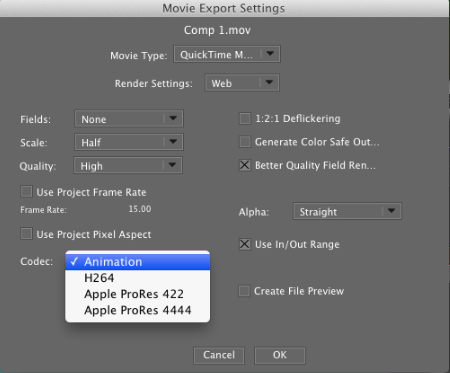
Boris RED - 5.2.0 Release Notes
June 9, 2012
This document updates the changes made since the 4/19/2012 RED release:
New Feature:
- On Macintosh OS 10.7 the user now has the option to select a video codec for QuickTime movie export. The options are Animation, H.264, Apple ProRes 422 and Apple ProRes 4444.

Note: On Macintosh OS 10.6 QuickTime movies are always exported with the Animation codec and the codec selection menu is not displayed.
FX - 10.0.1
May 23, 2012
Fixed Since 10.0.0
"27432","Win only With OpenGL turned on and the library browser open, the composite will render all white when you out and back in Boris FX UI "
Graffiti - 6.0.3
May 18, 2012
Note: Adobe After Effects CS6 support is added in 6.0.2 and higher point releases.
The following bugs have been fixed since the prior release of Graffiti (May 11, 2012).
SPR 27414 - Boris FX 10 - Woody - Mac - Boris FX standalone - Licensing: Watermark shows up on composite window even after activating with a license
Graffiti - 6.0.2
May 15, 2012
Adobe After Effects CS6 support is added in this point release.
The following bugs have been fixed since the prior release of Graffiti (April 20, 2012).
"27257","This method was using two separate resources to put up the tabs"
"26280","woody - red / avid fx - mac only - bitmap images needed for transitions are missing from library"
"27363", "Boris FX - Woody - Mac only - Premiere CS5/5.5- Boris FX plugin - Project settings: When double-clicking to select a library browser preset, the host project settings will get override by the library browser preset"
Boris RED - 5.1.5
May 14, 2012
Adobe CS6 support is added in this release
The following bugs have been fixed since the prior release of Boris RED (April 19th, 2012).
"26280","woody - red / avid fx - mac only - bitmap images needed for transitions are missing from library"
"27363", "Boris FX - Woody - Mac only - Premiere CS5/5.5- Boris FX plugin - Project settings: When double-clicking to select a library browser preset, the host project settings will get override by the library browser preset"
Final Effects Complete AE - 6.0.2 Release Notes
May 10, 2012
Boris Final Effects Complete AE 6.0.2 Release Notes
Boris Final Effects Complete AE 6.0.2 supports the following host applications:
Macintosh:
Adobe CS3, CS4, CS5, CS5.5, CS6.
Boris RED 4.3x (via 32 bit FEC installer)
Windows:
Adobe CS3, CS4, CS5, CS5.5, CS6.
Boris RED 4.3x (via 32 bit FEC installer)
System Requirements:
Macintosh:
Max OSX 10.6 and higher
Windows:
Windows 7 32/64, Windows Vista 32/64, XP 32/64
What's New in FEC AE 6 (Summary of major changes since FEC 5):
BCC AE/Premiere Pro - 8.0.2
May 8, 2012
BCC AE 8 supports the following host applications:
Macintosh OSX 10.6 and higher :
• Adobe After Effects and Premiere Pro CS4, CS5, CS5.5, and CS6
Windows 7 32/64, Windows Vista 32/64, XP 32 :
• Adobe After Effects and Premiere Pro CS4, CS5, CS5.5, and CS6
What's New in BCC AE 8 (Summary of major changes since BCC7):
• 8 New filters: Film Glow, Flicker Fixer, Lens Flare 3D, Organic Strands, Particle Emitter 3D, Stage Light, Videoscope, and Wild Cards.
Avid FX - 6.4
May 5, 2012
Avid FX 6.4 update The following bugs are fixed in the Avid FX 6.4 release:
- Fixed composite mode Multiply renders garbage in 16 bit color [attempted fixes prior to this]
- Fixed spurious sub-captions on progress dialogs (e.g. "Set Color" for Render Queue Progress Dialog)
- Fixed crash when entering text and creating non-text undo/redo actions (e.g. track creation)
- Fixed overlay control refresh issue (would not refresh at all on Windows if the mouse remained in motion)
- BCC/FEC Filters might not show up inside Avid FX on Windows 8
- Fixed crash when trying to use negative time
- Space bar might not function to play when in Avid FX on Windows 8
Graffiti - 6.0.1
April 20, 2012
The following bugs have been fixed since the prior release of Graffiti (April 9, 2012).
"SPR 27142 - Avid FX - Woody - Mac - Avid FX standalone - Duration: Hitting the arrow keys to increase/decrease the duration does not work"
"SPR 27191 - RED 5.1.4 x64 - Woody - Mac - RED standalone - Library Browser: RED crashes when you play the library preset in the previewer and then change the workspace"
Boris RED - 5.1.4
April 18, 2012
The following bugs have been fixed since the prior release of Boris RED (March 12 2012).
"26280","woody - red / avid fx - mac only - bitmap images needed for transitions are missing from library"
"26500","SPR 26500 - Avid FX - Woody - 1/10/12 build - MacIntel - MC 6 - Avid FX plugin - library browser: Avid FX crashes when you close the library browser tab while a keyframe preset is previewed in the text window"
FX - 10.0.0
April 17, 2012
Supported Hosts
MacOS: Premiere CS5, CS5.5, CS6
Windows: Edius, Vegas 32 Bit, Vegas 64 Bit, Adobe CS4, CS5, CS5.5, CS6
Known Issues
"26865","Library Browser: The library browser button located in the timeline window does not work"
"26921","Product name: Some parts of Graffiti UI refers to Boris RED instead of saying Graffiti/Boris FX"
"27330","Create Text Path, Text Backdrop & Reflection Map buttons are erroneously included in the Controls Window.
"27332","The Preview preferences show up under Export tab instead of Preview tab."
Final Effects Complete AVX - 6.0.1 Release Notes
April 11, 2012
Final Effects Complete AVX 6.0.1 Release Notes
Welcome to BorisFX
Final Effects Complete AVX (FEC AVX) runs on the AVX 2.0 architecture.
Final Effects Complete AVX 6.0.1 is an update to the Final Effects Complete AVX 6.0.0 release.
Final Effects Complete AVX 6 supports the following Avid host applications:
Macintosh:
Avid Media Composer 6 running Macintosh OS™ X 10.6.7 and 10.7.
Avid Symphony 6 running on Macintosh OS™ X 10.6.7 and 10.7.
Final Effects Complete AVX – 6.0.0 Release Notes
April 10, 2012
Final Effects Complete AVX 6.0.0 Release Notes
Welcome to BorisFX
Final Effects Complete AVX (FEC AVX) runs on the AVX 2.0 architecture.
Final Effects Complete AVX 6 supports the following Avid host applications:
Macintosh:
Avid Media Composer 6 running Macintosh OS™ X 10.6.7 and 10.7.
Avid Symphony 6 running on Macintosh OS™ X 10.6.7 and 10.7.
Windows:
Avid Media Composer 6 running Windows Professional OS™ 7x64.
Avid Symphony 6 running on Windows Professional OS™ 7x64.
BCC for Avid DS - 8.0.0
April 10, 2012
Boris Continuum Complete AVX 8 for Avid DS supports the following Avid host applications:
Avid DS 10.5 running Windows Professional OS™ 7x64.
What's new in BCC 8 AVX (Summary of major changes since BCC7):
• 8 new filters including support for the 3D Objects family of 3D extrusion filters:
-Extruded EPS
-Extruded Spline
-Extruded Text
-Film Glow
-Layer Deformer
-Lens Flare 3D
-Type On Text
-Videoscope
• Float bit depth rendering added to most filters.
BCC for Avid DS - 7.0.0 Release Notes
April 9, 2012
BCC DS AVX2 700 Release Notes
What's New In This Release?:
Supported DS versions:
- 10.3/10.3.1
Improvements:
- Effects losing Cache problem is Fixed so now the Processed effects do not lose their cache after Saving & Re-opening a sequence
- Color/Luma shift between 8 & 16bit in YCC Projects for both 601 & 709 Color Modes is Fixed
- Wrong alpha value renders with alpha based images is Fixed
Features:
- Filters now have Compare Mode feature
- Filters now have On Screen UI Widgets
Newly Added Filters:
BCC AVX - 8.0.3
April 9, 2012
Boris Continuum Complete AVX 8 supports the following Avid host applications:
Macintosh:
Avid Media Composer 5.5 or 6 running Macintosh OS™ X 10.6.7 and 10.7.
Avid Symphony 6 running on Macintosh OS™ X 10.6.7 and 10.7.
Windows:
Avid Media Composer Media Composer 5.5 or 6 running Windows Professional OS™ 7x64.
Avid Symphony 6 running on Windows Professional OS™ 7x64.
Avid NewsCutter 10 running on Windows Professional OS™ 7x64.
What's new in BCC 8 AVX (Summary of major changes since BCC7):
BCC for Avid DS - 8.0.0
April 4, 2012
Boris Continuum Complete AVX 8 for Avid DS supports the following Avid host applications:
- Avid DS 10.5 running Windows Professional OS™ 7x64.
What's new in BCC 8 AVX (Summary of major changes since BCC7):
- 8 new filters including support for the 3D Objects family of 3D extrusion filters:
- Extruded EPS
- Extruded Spline
- Extruded Text
- Film Glow
- Layer Deformer
- Lens Flare 3D
- Type On Text
- Videoscope
- Float bit depth rendering added to most filters.
- Addition of the Integrated Beat Reactor to many filters.
- New/Revised filter categories.
BCC AVX 8.0.0 for Avid DS - Known Issues and Limitations:
BCC OFX (Sony Vegas Pro) - 8.0.0
March 16, 2012
BCC 8 for Sony Vegas supports the following host environments:
• Windows 7 32/64
• Sony Vegas 10.e - 32 and 64 bit
• Sony Vegas 11 (version 594/595 or higher) - 32 and 64 bit
What's new in BCC 8 for Sony Vegas:
• True 32bit float processing support
• Integrated Beat Reactor added to many filters enabling audio driven animation
• New/Revised filter categories
• 32 new filters:
Boris RED - 5.1.3
March 12, 2012
Below is a list of RED bug fixes for this release.
"SPR 25385","MacIntel 64bit - RED - As soon as the a tablet is used in paint that causes the mouse to not work"
"SPR 25386","MacIntel 64bit - RED - When using a tablet for paint the painting indicator moves up once clicked"
"SPR 25660","Win 7 64 - RED app menu displays MC menu contents when UI is first opened"
BCC AE/Premiere Pro - 8.0.1
February 13, 2012
BCC AE 8 supports the following host applications:
Macintosh OSX 10.6 and higher :
• Adobe After Effects and Premiere Pro CS4, CS5, and CS5.5
Windows 7 32/64, Windows Vista 32/64, XP 32 :
• Adobe After Effects and Premiere Pro CS4, CS5, and CS5.5
BCC AE 8.0.1 – What's New
:
• BCC Videoscope has a new histogram control and support for identifying and logging illegal colors.
• Film Glow rendering quality has been enhanced, particularly when applied to content with and alpha channel.
BCC AVX - 8.0.2
February 11, 2012
Boris Continuum Complete AVX 8 supports the following Avid host applications:
Macintosh:
Avid Media Composer 6 running Macintosh OS™ X 10.6.7 and 10.7.
Avid Symphony 6 running on Macintosh OS™ X 10.6.7 and 10.7.
Windows:
Avid Media Composer 6 running Windows Professional OS™ 7x64.
Avid Symphony 6 running on Windows Professional OS™ 7x64.
Avid NewsCutter 10 running on Windows Professional OS™ 7x64.
BCC AVX 8.0.2 – What's New:
• Two new filters were added in 8.0.2 – BCC Lens Flare 3D and BCC Stage Light.
BCC AE/Premiere Pro - 8.0.0
February 11, 2012
BCC AE 8 supports the following host applications:
Macintosh OSX 10.5 and higher :
• Adobe After Effects and Premiere Pro CS4, CS5, and CS5.5
Windows 7 32/64, Windows Vista 32/64, XP 32/64 :
• Adobe After Effects and Premiere Pro CS4, CS5, and CS5.5
Major Changes from BCC AE 7.0 to BCC AE 8.0:
• 8 New filters: Film Glow, Flicker Fixer, Lens Flare 3D, Organic Strands, Particle Emitter 3D, Stage Light, Videoscope, and Wild Cards.
Boris RED - 5.1.2
February 2, 2012
The Boris RED 5.1.2 for Mac OS release introduces RED on the hosts Adobe Premiere CS5 and Adobe Premiere CS5.5.
Boris RED - 5.1.1
January 31, 2012
Changes between RED 5.1.0 and RED 5.1.1 are:
Fixed Issues:
• Fixed a bug in one filter which was introduced in 5.1.0.
Boris RED - 5.1.0
January 25, 2012
Changes between RED 5.0.9 and RED 5.1.0 are:
New Features:
Grass Valley Edius 6:
• End to end support for native Edius 10 bit YUV
• Support for external monitors connected to the Edius breakout box.
Fixed Host Specific Issues:
Sony Vegas:
• All interlaced footage is now behaving properly.
Avid FX - 6.0.3 Release Notes
January 13, 2012
Avid FX 6.0.3 for Macintosh Release Notes
Major improvements for this release:
Tabs support in the Text Window.
Cocoa-based text tabs are implemented to restore multicolumn text formatting Display of Motion Paths and Lights in the Comp Window.
Drawing of overlay controls for Motion Paths and Lights is restored.
Tablet support. Wacom tablet is compatible with Avid FX on the mac.
Better support for multiple display monitors.
Several bugs related to spreading UI over multiple Avid monitors are now fixed.
BCC AVX - 8.0.0
November 15, 2011
Boris Continuum Complete AVX 8 supports the following Avid host applications:
Macintosh:
Avid Media Composer 6 running Macintosh OS™ X 10.6.7 and 10.7. Avid Symphony 6 running on Macintosh OS™ X 10.6.7 and 10.7.
Windows:
Avid Media Composer 6 running Windows Professional OS™ 7x64. Avid Symphony 6 running on Windows Professional OS™ 7x64. Avid NewsCutter 10 running on Windows Professional OS™ 7x64.
Known Issues:
• Custom spline shape in Pixelchooser region is lost when sub-preset is loaded.
BCC AVX - 8.0.1
November 15, 2011
Boris Continuum Complete AVX 8 supports the following Avid host applications:
Macintosh:
Avid Media Composer 6 running Macintosh OS™ X 10.6.7 and 10.7.
Avid Symphony 6 running on Macintosh OS™ X 10.6.7 and 10.7.
Windows:
Avid Media Composer 6 running Windows Professional OS™ 7x64.
Avid Symphony 6 running on Windows Professional OS™ 7x64.
Avid NewsCutter 10 running on Windows Professional OS™ 7x64.
BCC AVX 8.0.1 - Known Issues and Limitations - Media Composer 6, Symphony 6:
Boris RED - 5.0.9
September 28, 2011
Changes between RED 5.0.8 and RED 5.0.9 are:
Fixed Host Specific Issues:
Grass Valley Edius 6:
• When two clips both have RED filter applied and also a RED transition in between, Edius will freeze during rendering. This is Fixed.
Boris RED - 5.0.8
September 21, 2011
Changes between RED 5.0.7 and RED 5.0.8 are:
Fixed Host Specific Issues:
Grass Valley Edius 6:
• Edius stops responding when dragging media to Edius timeline if RED has been applied to clip already in timeline. This is Fixed.
• Apply both filter and transition to a clip and bring up RED Transition UI, one of the video layers is wrong, rendering pink or green. Fixed.
BCC AE/Premiere Pro - 7.0.7.4
September 20, 2011
Boris Continuum Complete 7.0.7.4 AE supports the following host applications :
Macintosh : Adobe CS3, CS4, CS5, CS5.5.
Windows
: Adobe CS3, CS4, CS5, CS5.5.
System Requirements
:
Macintosh : Max OSX 10.5 and higher
Windows : Windows 7 32/64, Windows Vista 32/64, XP 32/64
What's new with BCC 7.0.7.4
:
• This version of BCC 7 resolves an issue with moving projects forward from BCC 6 into BCC 7. The problem manifested itself in the form of an error message that would appear in a project where a BCC 6 3D Extruded Text filter had been used. The problem was related to the texture map pop-up and the font selection. The error will no longer appear when using this version of the product.
Boris RED - 5.0.7
September 16, 2011
Changes between RED 5.0.6 and RED 5.0.7 are:
(
Added
) Host Support:
- Grass Valley Edius 6
Host Specific Known Issues:
After Effects:
• Extruded text gets cutoff when previewing in AE Comp window.
Grass Valley Edius 6:
• 10bit Edius project is currently not supported. We are working to support this in future releases.
• For about 1 sec. before Boris RED UI launches, you may see video render wrong colors. However, it shows the correct colors there after and does not affect the functionality and the final render is correct.
Boris RED - 5.0.6
August 12, 2011
Changes between RED 5.0.5 and RED 5.0.6 are:
Additional System Support:
MACINTOSH: RED 5.0.6 (32bit only) supports OS 10.7/Lion .
Fixed Issues:
• Macintosh Systems - Export Current Frame does not work with different file extension, like .jpeg. This is Fixed.
• Macintosh Systems - Macintosh Systems - Changing video track applied with Damaged TV to Text makes RED unresponsive. Fixed so now the media can be changed.
• All Macintosh/Windows Systems - Switching paint layer to Spline Primitive with graph view open makes RED unresponsive. Fixed.
Boris RED - 5.0.5
July 28, 2011
Changes between RED 5.0.4 and RED 5.0.5 are:
New Feature (for RED Stand Alone Engine only):
Editable Pixel Aspect Ratio (PAR) field in Project Settings window with many modern format presets added:


You can edit the field by typing in a PAR number of your choice i.e. .91, 1.09, 1.21, 1.33, 1.46, 1.5, 1.78, 2 et al.
Fixed Issues:
• All Macintosh/Windows Systems - Projects from RED 4 don’t adjust duration. This is Fixed. However, you need to set RED 5 project’s frame rate to match that of RED 4’s project before opening it.
Boris RED - 5.0.4
June 27, 2011
Changes between RED 5.0.3 and RED 5.0.4 are:
Fixed Issues:
• Macintosh Systems - Motion Tracker does not work. This is Fixed. Now it works.
Fixed Host Specific Issues:
Adobe Premiere Pro:
• Applying RED 5 New Comp (Synthetic Importer) & then clicking anywhere on the desktop makes Premiere Pro unstable. Fixed.
Sony Vegas Pro:
• Applying RED makes Vegas Pro unstable. Fixed.
Boris RED - 5.0.3
June 22, 2011
Changes between RED 5.0.2 and RED 5.0.3 are:
New BCC Filter:
3 Way Color Grade is now added to the Color and Blurs category of BCC filters.
Fixed Issues:
• Motion Tracker feature is non-functional with Open GL on. Now it works even with Open GL on.
• Windows Systems - keyframe copy/paste does not work. Now the keyframes copy/paste.
• Windows System - mouse wheel zoom doesn't work when image is already zoomed in comp window. This is fixed now.
Boris RED - 5.0.2
May 15, 2011
Changes between RED 5.0.1 and RED 5.0.2 are:
(
Added
) Host Support:
- Sony Vegas: 10d
10d is the required version. So, if you have an earlier version of Sony Vegas Pro 10 then you can download the 10d updater from here: http://www.sonycreativesoftware.com/download/updates/vegaspro
Fixed Issues:
• On Windows systems, in Filter Palette window the default All Filters set was not listed under Sets menu. It is listed now.
• RED did not ask to re-link missing media when projects from Windows system was moved to a Macintosh system. Now it does put up a dialog box for re-linking missing media.
Boris RED - 5.0.1
May 3, 2011
Changes between RED 5.0 and RED 5.0.1 are:
(Added) Host Support:
Adobe After Effects: 5.5 (Windows only)
Adobe Premiere Pro: 5.5 (Windows only)
Fixed Issues/Limitations:
On Windows systems, spacebar does not work as a shortcut to play clip after altering BCC onscreen controls.
Repositioning a point in the graph editor unexpectedly causes all curves to change.
Typing a value for Zoom feature in Composite Window does not work.
Scale Fit option does not work as zoom value stays at 6.25% in Composite Window when resizing it. This is only on Macintosh systems.
Boris RED - 5.0.0
April 25, 2011
New In RED 5.0:
1) support for 64bit hosts: Adobe CS 5, Sony Vegas 10
2) redesigned Single Window User Interface
3) new features:
a) Graph View Editor
b) Tabbed windows so that they can be docked in another window or can be opened in separate windows
4) several new effects with bundled BCC 7 in both Open GL and non - Open GL categories
5) 50 new FEC 6 effects
Graffiti - 5.0.0 Release Notes
April 11, 2011
Boris Graffiti 5 Release Notes
Hardware and Software Requirements
The following section describes the Boris hardware and software requirements.
Supported Operating System
Boris Graffiti supports the following operating systems:
• Windows XP® SP2
• Apple Macintosh OS 10.4.X
System Requirements
• A minimum 1 GB of RAM is required, and 2 GB is recommended when using Boris software with a host application.
• 512 MB of memory is required when using your Boris product standalone.
BCC AVX - 7.0.2
March 30, 2011
Boris Continuum Complete AVX (BCC AVX) runs on the AVX 2.0 architecture.
Boris Continuum Complete AVX 7.0.2 supports the following Avid host applications:
Macintosh: Avid Media Composer 4.x or above Avid Symphony, Avid Newscutter running on Mac OS X 10.5 and above.
Windows: Avid Media Composer 4 or above, Avid Symphony, Avid Newscutter.
New with this Version:
• Fixed an issue with conforming timelines from BCC 3/4/5 AVX 1.5 plugins on Macintosh and Windows systems.
• Fixed an issue where filters could not be rendered under certain circumstances.
Media 100 - 2.1.5 Release Notes
March 7, 2011
This is an upgrade release from all previous versions of Media 100.
Media 100 Suite 2.1.5 can run as a standalone, software-only application and it will also work with supported I/O hardware.
Media 100 Suite integrates with AJA® hardware including the Kona3, 3G, & LHi cards as well as the Matrox MXO2 line of I/O devices and several devices from Blackmagic Design, including the Intensity Pro, DeckLink SDI, DeckLink Studio and DeckLink HD Extreme. This release supports Apple Inc® Computers with Intel processors running a minimum of Mac OS X 10.6.6 “Snow Leopard.” Mac OS X 10.7 “Lion”, Mac OS X 10.8 “Mountain Lion” and ” Mac OS X 10.9 “Mavericks” are supported. Mac OS X 10.5 “Leopard” is not
supported.
BCC OFX (Sony Vegas Pro) - 7.0.4
December 23, 2010
Changes made between version 7.0.3 and version 7.0.4 are:
a)
Several New Filters Added per Following List
:
- Corner Pin
- Match Move
- UpRez
- Pan and Zoom
b) Fixed Bugs :
- DV Fixer Contextual controls are now working
- Sporadic crashes in Spotlight problem has been Fixed
(additional bugs fixed that Require Sony Vegas 10b ):
BCC AE/Premiere Pro - 7.0.6
December 13, 2010
Boris Continuum Complete 7.0.6 AE supports the following host applications :
Macintosh : Adobe CS3, CS4, CS5.
Windows : Adobe CS3, CS4, CS5.
System Requirements
:
Macintosh : Max OSX 10.5 and higher
Windows : Windows 7 32/64, Windows Vista 32/64, XP 32/64
New with this Version
:
• Fixed timing problems in
BCC Motion Key
when field rendering with keyframed Area position, scale, aspect, and/or angle parameters.
• Fixed BCC UpRez workflow in Premiere Pro CS4 . Please refer to the new BCC Uprez documentation for detailed instructions on using the filter in various versions of Premiere Pro . Note that due to host differences between Premiere Pro CS4 and Premiere Pro CS3/CS5 , BCC Uprez projects saved in Premiere Pro CS3 will not open as expected in Premiere Pro CS4 , nor will CS4 projects open as expected in CS5 . (Both scenarios will require manual tweaking of project settings.)
BCC OFX (Sony Vegas Pro) - 7.0.3
November 23, 2010
You must uninstall any previous BCC 7 version through Add/Remove Programs in Control Panel before installing BCC 7.0.3.
Changes made between version 7.0.2 and version 7.0.3 are:
a)
Several New Filters Added per Following List
:
-3D Image Shatter
-Color Palette
-Cylinder
-DVE
-DVE Basic
-Extruded EPS
-Extruded Spline
-Extruded Text
-Layer Deformer
-Optical Stabilizer
-Page Turn
-Sphere Transition
-Type On Text
b)
Fixed Bugs
:
-Improved quality of Motion Tracking in interlaced clips (both a smoother motion path and a more reliable lock)
Graffiti - 4.0.2 Release Notes
November 21, 2010
Welcome to Boris Graffiti 4.0.2. These Release Notes contain information regarding supported hosts, hardware and operating systems, known limitations, and other important information about the product.
For information on installing Boris Graffiti 4.0.2 into your host application, see the Installation Guide pdf file.
Version 4.0.2 is a maintenance release that fixes a number of bugs that appeared in previous versions of Boris Graffiti. These Release Notes contain important information regarding supported system requirements, fixed bugs, and known limitations.
BCC OFX (Sony Vegas Pro) - 7.0.2
October 29, 2010
Changes made between version 7.0.1 and version 7.0.2 are:
- previously Boris Continuum was only available for 64bit Sony Vegas Pro. It is now available for both 64bit and 32bit Sony Vegas Pro 10.
- Map Displacement feature has been removed from Displacement Map, Vector Displacement & Polar Displacement filters as it does not work properly in Sony Vegas.
- the wording of an on-screen message sometimes posted during the motion tracking process was changed to better match Sony Vegas terminology. It now refers to the timeline cursor rather than the current-time marker.
BCC AE/Premiere Pro - 7.0.5
October 29, 2010
Boris Continuum Complete 7.0.5 AE supports the following host applications:
Macintosh: Adobe CS3, CS4, CS5.Windows: Adobe CS3, CS4, CS5.
System Requirements:
Macintosh: Max OSX 10.5 and higherWindows: Windows 7 32/64, Windows Vista 32/64, XP 32/64
New with this Version:
• Fixed problem with orthogonal views for 3D Objects filters in After Effects. In the previous version of this software, 3D Objects were not being displayed as expected when the comp window was set to anything other than front view and instead of the 3D Object being displayed in a 3D scene, the object was being displayed as a flat 2D object in a 3D scene. This version fixes that issue and 3D Objects now appear as expected in all camera angle views.
• Fixed problem with Pixel Aspect Ratio for 3D Objects filters in After Effects. In the previous version of this software, 3D Objects were not correctly maintaining a camera lock in a 3D scene when Pixel Aspect Ratio was enabled. This problem has been fixed and the 3D Objects now remain locked into the scene as expected regardless of the PAR setting.
Known Issues and limitations:
The following is a listing of the known problems in the product at time of shipping:
• CS5 After Effects: Projects that have been saved at less than full resolution can cause BCC 3D Objects filters to incorrectly render only a portion of the screen. Resaving the project at full resolution and re-rendering solves this problem.
BCC OFX (Sony Vegas Pro) - 7.0.1
October 18, 2010
The Boris Continuum Complete 7.0.1 update for Sony Vegas is an update to the following release(s); - Boris Continuum Complete 7.0.0 for Sony Vegas
Changes made between version 7.0.0 and version 7.0.1 are ;
- alpha premultiplication issue is fixed (apparent as a dark line on the edge when stacking effects on Chromakey)
- bug fixes / improvements to stability in specific situations ; Lens Blur effect, some cases of multiple simultaneous effects and/or nested effects
BCC OFX (Sony Vegas Pro) - 7.0.0 Release Notes
October 8, 2010
BORIS CONTINUUM 7 for SONY VEGAS PRO
Release Notes
System Requirements:
- Sony Vegas Pro10, 64-bit (minimum version 10.0e)
- Sony Vegas Pro11, 64-bit
- Microsoft Windows Vista 64-bit (SP2) or Microsoft Windows 7 64-bit
Using Vegas Plug-In Manager to organize BCC Continuum effects for Vegas Pro :
There are
many
effects included in Boris Continuum 7 for Vegas Pro. Unfortunately, it is currently not possible within Vegas Pro for the Continuum effects to appear within separate categories by default. Rather by default all effects appear (in the Video FX Window) in one alpha-numeric list.
It is recommended to use the Vegas Pro Plug-In Manager to create related groups / categories / favorites etc. of the BCC Continuum effects
so they are easier to find and more efficient to work with.
BCC AE/Premiere Pro - 7.0.4
September 17, 2010
Boris Continuum Complete 7.0.4 AE supports the following host applications:
Macintosh:Adobe CS3, CS4, CS5.
Windows:Adobe CS3, CS4, CS5.
System Requirements:
Macintosh:Max OSX 10.5 and higher
Windows:Windows 7 32/64, Windows Vista 32/64, XP 32/64
New with this Version:
- On-Screen parameter control widgets
- Improved AE 3D camera integration
- Optical Stabilizer optimizations, improvement in performance
- Improvements to text generator on Mac platform
- Keyboard shortcuts in the text generator window now function as expected
Notes on On-Screen parameter control widgets:
BCC AE/Premiere Pro - 7.0.3
September 8, 2010
Boris Continuum Complete 7.0.3 AE supports the following host applications:
Macintosh:Adobe CS3, CS4, CS5.
Windows:Adobe CS3, CS4, CS5.
System Requirements:
Macintosh:Mac OSX 10.5 and higher
Windows:Windows 7 32/64, Windows Vista 32/64, XP 32/64
New with this Version:
- Support for 3D Objects filters on Mac 64 bit architecture
- Optical Stabilizer optimizations, improvement in performance
- Open GL performance boost in Mac and Win 64 bit architecture
Notes on 3D Objects Filters:
Several important user interface changes were made in the 64 bit Macintosh version. These changes make the 64 Mac versions different from the 32 bit and from all Windows versions.
BCC FxPlug - 7.0.1
August 19, 2010
Boris Continuum Complete 7 FxPlug supports the following host applications:
Apple FCS2Apple FCS3
System Requirements:
Max OSX 10.5 and higher
Known Issues and limitations:
The following is a listing of the known problems in the product at time of shipping:
- Clicking rapidly on the font selector button in the BCS Title Flare filter can lead to instability in the Final Cut Pro host.
- Clicking on the reset button to reset parameter controls will not reset the controls if a group is collapsed – open the group before pressing the reset to workaround this issue.
- Clicking on the load button for presets in the Title Flare filter defaults to the last opened folder and not the Title Flare presets folder – manually locate the folder to workaround this issue.
- Motion can become unstable when the Optical Stabilizer filter is analyzing a clip in 16 bit – to workaround this host issue, perform Optical Stabilizer image analysis in 8 bit.
Final Effects Complete AE – 6.0.0
August 10, 2010
Boris Final Effects Complete 6 AE supports the following host applications:
Macintosh:
Adobe CS3, CS4, CS5.
Boris RED 4.3x (via 32 bit FEC installer)
Windows:
Adobe CS3, CS4, CS5.
Boris RED 4.3x (via 32 bit FEC installer)
System Requirements:
Macintosh:
Max OSX 10.5 and higher
Windows:
Windows 7 32/64, Windows Vista 32/64, XP 32/64
Known Issues and limitations:
The following is a listing of the known problems in the product at time of shipping:
BCC AE/Premiere Pro - 7.0.0
May 10, 2010
BCC 7 AE brings over 200 filters to Macintosh and Windows versions of Adobe After Effects and Premiere Pro CS5, CS4, and CS3. The new release features 11 new filters including a 3-way color grade filter with built-in keying and masking tools, a new video noise reduction tool, a spline- based warp filter, an audio-driven keyframe generator, a new OpenGL particle engine, and still and video morph technology. Each Boris Continuum Complete filter has been re-engineered for 64-bit operating systems and OpenGL acceleration.
BCC FxPlug - 6.0.7
March 22, 2010
BCC FxPlug 6.0.7
New Features and Improvements
• Improvements in memory handling for BCC Optical Stabilizer, Pan and Zoom, Motion Key, Degrain,
Match Grain. Some filters in previous versions of BCC displayed memory issues when using image files
large dimensions. This issue has been resolved with the BCC 6.0.7 release.
• Long drive names no longer cause a problem when using BCC 6 on the Macintosh platform. In
previous versions of BCC 6, Macintosh systems that used drives with excessively long names caused
problems for the BCC filters. This issue has been resolved with the BCC 6.0.7 release.
• BCC 3D Objects host support extended to include Final Cut Express. In previous versions of BCC 6,
the 3D Objects category of filters were not supported in the Apple Motion host application. This issue
has been resolved with the BCC 6.0.7 release.
• BCC Witness Protection filter now correctly interprets video fields. In previous versions of BCC 6, the
Witness Protection filter did not interpret video fields from the host correctly, resulting in an incorrect
result. This issue has been resolved with the 6.0.7 release.
• In the Apple Motion host, the BCC Optical Stabilizer filter exhibited problems with image analysis when
used in 32 bit color mode. This issue has been resolved with the BCC 6.0.7 release.
• The BCC Matte Choker filter was generating an incorrect result when the Gaussian Blur option was
selected from the Blur Quality pop-up. This issue has been resolved with the BCC 6.0.7 release.
• Overall stability improvements when using BCC filters with multi-layered sequences in the Final Cut
Pro host.
Important Note
We highly recommend that any mounted disc drives contain less than 27 characters in the drive name
and that special characters or symbols should be avoided when using BCC filters on Macintosh
systems. Non-adherence to this recommendation may result in instability in the host environment.
BCC AE/Premiere Pro - 6.0.6
March 17, 2010
Changes from BCC AE 6.0.4 to BCC AE 6.0.6
Improvements to animated presets workflow
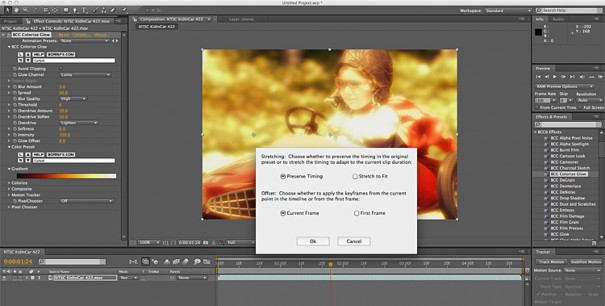
One of the new features in BCC 6 was the ability to load presets that contained keyframed parameters that were generated from within a BCC 6 filter in either Adobe After Effects or Avid Media Composer hosts. With the BCC 6.0.6 release, we modified the behavior of the animated presets feature so that the user can decide whether to load the keyframe animation from the current frame in time or from the start point of the clip to which the filter was applied. This workflow is more in keeping with the After Effects native toolset.
BCC AVX - 6.0.7
February 5, 2010
BCC AVX 6.0.7
New Features and Improvements
Improvements in memory handling for BCC Optical Stabilizer, Pan and Zoom, Motion Key, Degrain, Match Grain. Some filters in previous versions of BCC displayed memory issues when using image files large dimensions. This issue has been resolved with the BCC 6.0.7 release.
Long drive names no longer cause a problem when using BCC 6 on the Macintosh platform. In previous versions of BCC 6, Macintosh systems that used drives with excessively long names caused problems for the BCC filters. This issue has been resolved with the BCC 6.0.7 release.
BCC AE/Premiere Pro - 6.0.4 Release Notes
January 11, 2010
BCC 6.0.4 AE Release Notes
BCC 6.0.4 AE is a major update to the BCC AE 6 package, which includes greater support for Adobe Premiere Pro 4.1, with additional features and filters such as optical flow based time remapping, motion tracking, motion blur, match move compositing, corner pinning and foreground object removal and better compatibility with the Avid and Final Cut Pro versions of the Continuum product.
New features and improvements include:
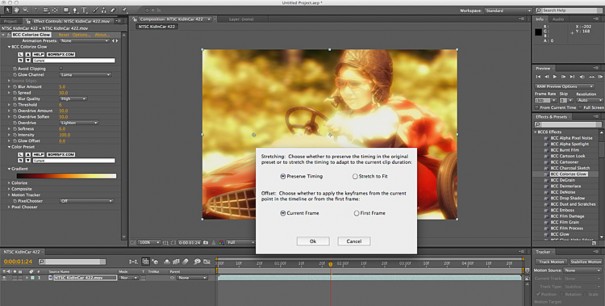
Final Effects Complete FxPlug - 5.0.3
December 18, 2009
FECFxPlug503_new_features
Changes from FEC FxPlug 5.0.1 to FEC FxPlug 5.0.3
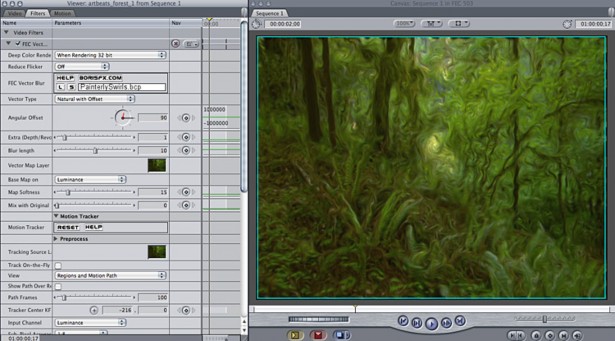
Support for Apple Snow Leopard OS
This update to FEC 5 includes support for Apple's Snow Leopard operating system.
Additional optimizations to the built-in Motion Tracker
Most every filter in the FEC package includes a built-in motion tracker that may be used to control the x/y position of a light source or the center point of any object such as a geometric primitive or a bulge or the x/y position of a PixelChooser mask. This feature has undergone optimizations in FEC 5.0.3 to make working with the Motion Tracker feature faster and easier than ever before.
BCC FxPlug - 6.0.5 Release Notes
December 15, 2009
BCC 6.0.5 FxPlug Release Notes
BCC 6.0.5 FxPlug includes a new Flicker and Shake filter, a freshly re-designed preset browser for the Boris Continuum Shaders group of filters, and important improvements and bug fixes for FCS 3 and Mac OS X 10.6
BCC Flicker and Shake. This new filter is designed to synchronize randomly-animated stylistic treatments such as glows, lights, and shake for video or graphics elements. An auto-animating filter, Flicker and Shake uses bursts of synchronized Exposure, Glow, Blur, X or Y displacement, and RGB Channel offset to emulate a flicker effect that has been made popular by recent commercials and film trailers.
Final Effects Complete AE - 5.0.3
December 14, 2009
Changes from FEC 5.0.1 to FEC 5.0.3

Support for Adobe Premiere Pro CS4
FEC 5.0.3 host support for the Adobe product line has been extended to include Adobe Premiere Pro CS4 on both Macintosh and Windows platforms.
New Motion Tracker features
The Motion Tracker feature in FEC 5.0.3 filters now match their counterpart in BCC filters and include the ability to save and load motion tracker data, which can be used in any FEC or BCC filter.
BCC AVX - 6.0.6
November 18, 2009
Changes from BCC AVX 6.0.4 to BCC AVX 6.0.6

Improvements to animated presets workflow
One of the new features in BCC AVX 6 was the ability to load presets that contained keyframed parameters from either After Effects or Media Composer. In the BCC 6.0.6 release, we modified the behavior of the animated presets feature so that the user can decide whether to load the keyframe animation from the current frame in time or from the start point of the clip.
BCC AVX - 6.0.5 Release Notes
September 23, 2009
BCC 6.0.5 AVX Release Notes
BCC 6.0.5 AVX is a major update to the BCC AVX 6 package, which includes greater support for Avid Media Composer, with additional features and filters such as Animated Presets for the 3D Objects category of filters, a totally revamped Optical Stabilizer filter, a new Swish Pan transition filter and better compatibility with the Adobe and Apple versions of the Continuum product. This version of the Continuum product also includes support for Avid Media Composer 4, Avid Symphony 4 and Avid NewsCutter 8.
BCC FxPlug - 6.0.4 Release Notes
August 24, 2009
BCC 6.04 FxPlug Release Notes
BCC 6.04 is the first major update to BCC 6 FxPlug set aimed at bolstering integration with Final Cut Studio, improving workflow in some key filters and streamlining compatibility with After Effects and Avid versions of the set. This update provides official support for FCS3 release by Apple.
New Features And Improvements:
Support for Motion native camera control. You can now use built-in Motion 3 and Motion 4 camera with all BCC 6 3D Objects such as Extruded Text, Extruded EPS, Type-On Text, Extruded Spline and Layer Deformer. A new checkbox is added to the controls stack to enable the Camera animation from Motion and discard any Built-In Camera information. The control has no effect in Final Cut Pro.
Final Effects Complete AE - 5.0.1 Release Notes
July 2, 2009
Boris Final Effects Complete™ Version 5.0.1 for AE Release Notes
Introduction
Welcome to Boris Final Effects Complete 5.0.1 for AE. FEC AE is an effects package with 115 powerful visual effects filters designed for Adobe After Effects , Adobe Premiere Pro and Boris Red. The heart of Final Effects Complete is its ability to generate full-featured two-dimensional and three-dimensional particle animations including ball action, explosions, distortions, jet trails, hair, liquid mercury distortions, spotlights, and color transitions. FEC AE also delivers a complete range of unique auto-animating transitions. Ranging from graceful blur dissolves to radical warps; FEC AE lets you easily create dramatic effects with minimal adjustment.
BCC for Avid DS - 6.0.0
June 19, 2009
Boris Continuum Complete 6 Plugins for Avid DS [AVX 2 systems]
minimum required Avid DS version ; Avid DS 10.2.1
required Windows OS ;
Windows XP 64bit

What's New in this release of BCC AVX for Avid DS ?
support for AFE conform for Media Composer and Symphony sequences using AVX 2 Continuum plugin effects
built-in filter presets
contextual hiding / displaying of parameter controls allows for options to display only animated parameters and EZ Mode parameter display
improved on-screen controls
32 bit precision processing for OpenGL category effects
Filters new to BCC product for DS in this release ; Colors and Blurs category
Lens Blur
Boris RED - 4.3.2
June 6, 2009
Boris RED 4.3.2 for Windows XP and Windows Vista
What's new in Boris RED version 4.3.2?
Library Browser Workflow Enhancements
Library Browser previews entire effect when applied to clips longer than 5 seconds.
Library Browser now previews in 16x9.

Text entry for title effects has also been addressed. When you select an effect the text is now inserted into the Text Entry window and becomes editable. For effects with Multiple lines (ex. lower thirds) TABS are used to separate the lines.
Boris RED - 4.3.0 Release Notes
June 5, 2009
Boris Red 4.3 Release Notes
Hardware and Software Requirements Supported Host Applications
Notes on Using Boris Red Using OpenGL
Configuring Dual Monitor Systems Displaying Frames on your External Monitor Exporting to Flash
Creating Time Effects Using Motion Filters
Getting Started with the KeyFrame Library Keyboard Shortcuts
New Modifier Keys for Dial controls
Boris RED - 4.2.0
June 1, 2009
Boris Red 4.2 Release Notes
Hardware and Software Requirements Supported Host Applications
Notes on Using Boris Red Using OpenGL
Configuring Dual Monitor Systems Displaying Frames on your External Monitor Exporting to Flash
Creating Time Effects Using Motion Filters
Getting Started with the KeyFrame Library Keyboard Shortcuts
New Modifier Keys for Dial controls
BCC AVX - 4.1.0
May 29, 2009
Introduction
Welcome to Boris Continuum Complete for AVX version 4.1. These Release Notes contain information regarding supported hosts, supported operating systems, installation instructions, known limitations, and other important information about the product.
Boris Continuum Complete AVX (BCC AVX) runs on both the AVX 2.0 and AVX 1.5 architecture. BCC AVX is a suite of native plug-ins that streamline workflow for Avid editors. More than 170 sophisticated filters and transitions are applied and animated directly in the Avid Effect Editor window. A subset of the filters preview in real time on supported systems. BCC AVX is bundled with all Avid Media Composer Adrenaline systems.
Boris RED - 4.1.0
May 16, 2009
Boris Red 4.1 Release Notes
Hardware and Software Requirements Supported Host Applications
Notes on Using Boris Red Using OpenGL
Configuring Dual Monitor Systems Displaying Frames on your External Monitor Exporting to Flash
Creating Time Effects Using Motion Filters
Getting Started with the KeyFrame Library Keyboard Shortcuts
New Modifier Keys for Dial controls
BCC AVX - 4.0.0
May 1, 2009
This guide contains information on features that are new to the Version 4.0 release of Boris Continuum Complete AVX (BCC AVX). This document only provides an overview of the many new features. For more detailed information, see your Boris Continuum Complete AVX User Guide. The Boris Continuum Complete AVX User Guide is available as an online pdf file found on your Boris CD-ROM.
The Boris CD-ROM also includes PDF Release Notes, Tutorials and Understanding OpenGL documentation. Consult these documents for the latest information.
Boris RED - 4.0.0
May 1, 2009
Boris Red 4
This document describes hardware and software requirements and provides any special notes that are important for you to know. This document also lists known problems and limitations.
Hardware and Software Requirements
Supported Operating System
BCC AE/Premiere Pro - 5.0.0
April 17, 2009
Boris Continuum Complete 5 Release Notes
Welcome to Boris Continuum Complete for AE version 5. These Release Notes contain information regarding supported hosts, supported operating systems, installation instructions, known limitations, and other important information about the product.
Boris Continuum Complete is an effects package with over 180 powerful plug-in filters for Adobe After Effects, Adobe Premiere Pro, Autodesk Combustion, Eyeon Fusion, Quantel Q Systems, Liberty Paint and Boris Red.
What’s New in BCC 5
FX - 9.3.2
April 7, 2009
Boris FX 9.3.2 for Windows XP and Windows Vista
What's new in Boris FX version 9.3.2?
Library Browser previews entire effect when applied to clips longer than 5 seconds.
Library Browser now previews in 16x9.

Fixed Bugs:
Edius - Field Rendering problem with HD project/media has now been fixed.
Boris FX 9.3.2 enables installation into Adobe After Effects CS 4 and Adobe Premiere Pro CS 4 on PC systems running Windows XP and Windows Vista.
FX - 9.0.0
January 11, 2009
Boris FX 9
New Features Guide

Composite Window with Integrated Keyframe Track
Key Features
Support for 16-Bit Color
Boris software now supports 16-bit color image processing; it supports trillions of colors, which results in smoother gradients and more precise color correction.
New User Interface
This version of Boris FX incorporates NLE look and feel for smooth user interaction and transition, automatic data updates, mini Timeline in the Composite window, and popular “Sticky” and “Magnetic” windows.
FX - 8.0.2
October 18, 2008
FX 8.02 Release Notes
Supported Hosts and Operating Systems
Macintosh Windows
Adobe® Premiere® 6.5 Adobe® After Effects® 6.0
Apple® Final Cut Pro® 3.0, 4.0 or later
Avid® Media Composer®, Avid Symphony® 4.7, 4.8, Avid XpressMac®, Avid Xpress DV® 3.0, 3.5.4, 4.8, Avid Xpress Pro®4.0 or later
Media 100 i® 8.1 and later, Media 100 HD 10.0
Adobe® Premiere Pro® 1.5
Avid® Media Composer®, Avid Symphony®, Avid Xpress®, Avid Xpress DV® 3.0, 3.5.4, Avid Xpress Pro® 4.0 or later, Avid Xpress Studio, Avid|DS 6.0 and later
Final Effects Complete FxPlug - 5.0.2
August 17, 2008
Boris Final Effects Complete™ Version 5.0.2 for FxPlug Release Notes
Welcome to Boris Final Effects Complete 5.0.2 for FxPlug. FEC FxPlug is a plug-ins package with 109 powerful visual effects filters re-designed for Apple's FxPlug plug-in architecture, providing seamless integration with Final Cut Studio’s Apple Final Cut Pro and Motion.
What’s New in FEC 5.0.2?
The following features and enhancements were added to version 5.0.2 of FEC for FxPlug:
Final Effects Complete FxPlug - 5.0.1
June 3, 2008
Boris Final Effects Complete™ Version 5
Boris Final Effects Complete™ Version 5.0.1 for FxPlug
Release Notes

Introduction
Welcome to Boris Final Effects Complete 5.0.1 for FxPlug. FEC FxPlug is a plug-ins package with 109 powerful visual effects filters re-designed for Apple's FxPlug plug-in architecture, providing seamless integration with Apple Final Cut Pro and Motion.
The heart of Final Effects Complete is its ability to generate full-featured two-dimensional and three-dimensional particle animations including ball action, explosions, distortions, jet trails, hair, liquid mercury distortions, spotlights, and color transitions. FEC FxPlug also delivers a complete range of unique auto-animating transitions. Ranging from graceful blur dissolves to radical warps; FEC FxPlug lets you easily create dramatic effects with minimal adjustment.
Final Effects Complete FxPlug - 5.0.0
May 19, 2008
Boris Final Effects Complete™ Version 5
Boris Final Effects Complete™ Version 5.0 for FxPlug
Release Notes
Minimum System Memory Requirements
Working in 8 Bit Color Space and Beyond
Moving Custom Presets to Another System
Final Effects Complete AVX – 5.0.0
April 15, 2008
Boris Final Effects Complete™ Version 5.0 for AVX Release Notes

Introduction
Welcome to Boris Final Effects Complete 5.0 AVX. Boris Final Effects Complete is a plug-ins package with 100+ powerful visual effects filters re-designed for Avid’s plug-in architecture, providing seamless integration with all Avid systems running the AVX 2.0 architecture. Avid® Visual Extensions (AVX) is a plug-in architecture that dynamically extends the effects supported by Avid systems. FEC 5 AVX also supports Avid AVX 2.0 systems running on the Macintosh Intel platform.
Final Effects Complete AVX – 4.0.3
January 17, 2008
Boris Final Effects Complete™ AVX Version 4.0.3 Release Notes
Minimum System Memory Requirements
Purchasing Final Effects AVX Complete Via a Trial Version
Installing Final Effects Complete from a CD-ROM
Copyright © 2006 Boris FX, Inc. All rights reserved.
Compatibility with Older Versions of ICEfx
Final Effects Complete AVX was formerly known as ICEfx. Version 4.0 provides these ICE hardware-accelerated effects as a software-only solution. FEC AVX is not compatible with the older ICE versions that ran on the AVX architecture.
BCC AE/Premiere Pro - 4.0.0
January 1, 2005
Introduction
Welcome to Boris Continuum Complete (BCC) version 4.0. BCC 4.0 fixes several limitations in BCC 3.0.2 and adds a number of new features.
Boris Continuum Complete is an effects package with over 160 powerful plug-in filters for Adobe After Effects, Adobe Premiere Pro, Apple Final Cut Pro, Apple Motion, Autodesk Combustion, Eyeon Fusion, Quantel Q Systems, Liberty Paint and Boris Red.
What’s New in BCC 4.0
The following features are new in BCC 4.0. For more details on the new features, see the New Features Guide.
